



Building a reliable photo library is not just about buying a NAS.
A NAS gives you shared storage and redundancy, but the real power comes when it is combined with a smart media management workflow. The goal is simple: keep your original files safely stored, make them easy to find, and avoid turning your archive into a maze of folders, duplicates, and disconnected catalogs.
A good setup usually follows a few essential rules:
- NAS + DAM software = centralized, searchable, redundant photo library
- Catalog on local SSD, media on NAS — never store your Lightroom catalog on a network share
- 3-2-1 backup rule: NAS primary with RAID + local clone drive + offsite backup, such as Backblaze B2 or a second NAS
RAID is not a backup — it only protects against drive failure - Peakto as a digital asset management tool, unifies your NAS, external drives, and catalogs into one searchable library without moving files
- Naming convention: YYYY-MM-DD_ClientName_ShootType_0001.CR2
Why Storage Architecture Matters for Photographers
What is digital asset management? It’s the process of organizing, storing, and quickly finding your photos, videos, and documents. For photographers, the challenge is real: a single session generates hundreds of RAW files, multiple edit rounds, client selects, and final deliverables.
Basic storage solutions fall short:
- Nested folders — no content search, no version control
- External drives — no redundancy, no sharing
- Consumer cloud — too expensive at RAW scale
A NAS device combined with the best digital asset management software creates a centralized, searchable, redundant home for your entire library.
Step 1 — Pick the Right NAS Hardware
For most solo photographers or small studios, a 4-bay NAS is the ideal starting point: it enables RAID redundancy while leaving room for drive upgrades.
Synology vs QNAP vs UGREEN: Quick Comparison
All three are solid. The differences come down to ecosystem, price, and connectivity:
| Criteria | Synology | QNAP | UGREEN |
|---|---|---|---|
| Ecosystem | Best-in-class DSM software, huge community | Feature-rich, more complex | Simpler, newer entrant |
| 10GbE | Add-on card (extra cost) | Available on select models | Built-in on DXP4800 Plus |
| Price | Premium | Mid-range | Most competitive |
| Best for | Users who want polished software and long-term support | Power users who want maximum flexibility | Photographers who want 10GbE at a lower price point |
Partnership note: Cyme.io works with UGREEN — the DXP4800 Plus is our recommended starting point for photographers who want built-in 10GbE without paying a Synology premium.
Four Hardware Decisions That Matter
Network speed: 1 GbE minimum. 10GbE recommended for editing 50+ MP RAW files directly from the NAS.
RAM: 4 GB minimum. 8 GB+ if running a local DAM server (the UGREEN DXP4800 Plus ships with 8 GB DDR5).
Drives: Use NAS-rated drives (Seagate IronWolf, WD Red Pro) — consumer drives degrade faster in multi-drive enclosures.
RAID: SHR or RAID 5/6 provides drive redundancy. RAID is not a backup — it is redundancy only.
Step 2 — Folder Structure and File Naming
Good naming and folder structure are the unglamorous foundation of a working DAM system. Skip this step and no software will save you.
1. File Naming Convention
YYYY-MM-DD_ClientName_ShootType_SequenceNumber
Example: `2025-03-15_Johnson_Wedding_0001.CR2`
The date prefix forces automatic chronological sorting in any file browser — no manual reordering ever again.
2. Folder Hierarchy
Photography_Archive/
├── 2025/
│ ├── 01_January/
│ │ ├── 2025-01-15_Smith_Portrait/
│ │ │ ├── 01_RAW_Files/
│ │ │ ├── 02_Edited_Selects/
│ │ │ ├── 03_Client_Finals/
│ │ │ │ └── Web/
│ │ │ └── 04_Backup_Originals/
│ └── 02_February/
└── 2024/
Two rules that save hours:
- Keep RAW and JPG in separate subfolders from day one — mixing them makes culling and delivery painful.
- Always prefix folder names with `YYYY-MM-DD` so every file browser sorts them chronologically without effort.
This structure is the foundation of any solid digital asset management system. Even the best NAS hardware won’t save you time if your files are scattered across inconsistently named folders.
Step 3 — DAM Software and the NAS Catalog Dilemma
The Golden Rule
Catalog on local SSD. Media on NAS.
This is the most common mistake photographers make when setting up a NAS. Lightroom and Capture One catalog files must stay on your local machine — Lightroom places a file lock on the catalog that breaks over a network share.
Practical setup in three steps:
- Keep your catalog on your local SSD
- Enable smart previews at import (“build previews 1:1”)
- Point the media root to your NAS share
With smart previews enabled, you can edit and rate photos even when the NAS is offline or in sleep mode. Full-resolution exports are the only operation that requires the NAS to be awake.
Which DAM Software Works With a NAS?
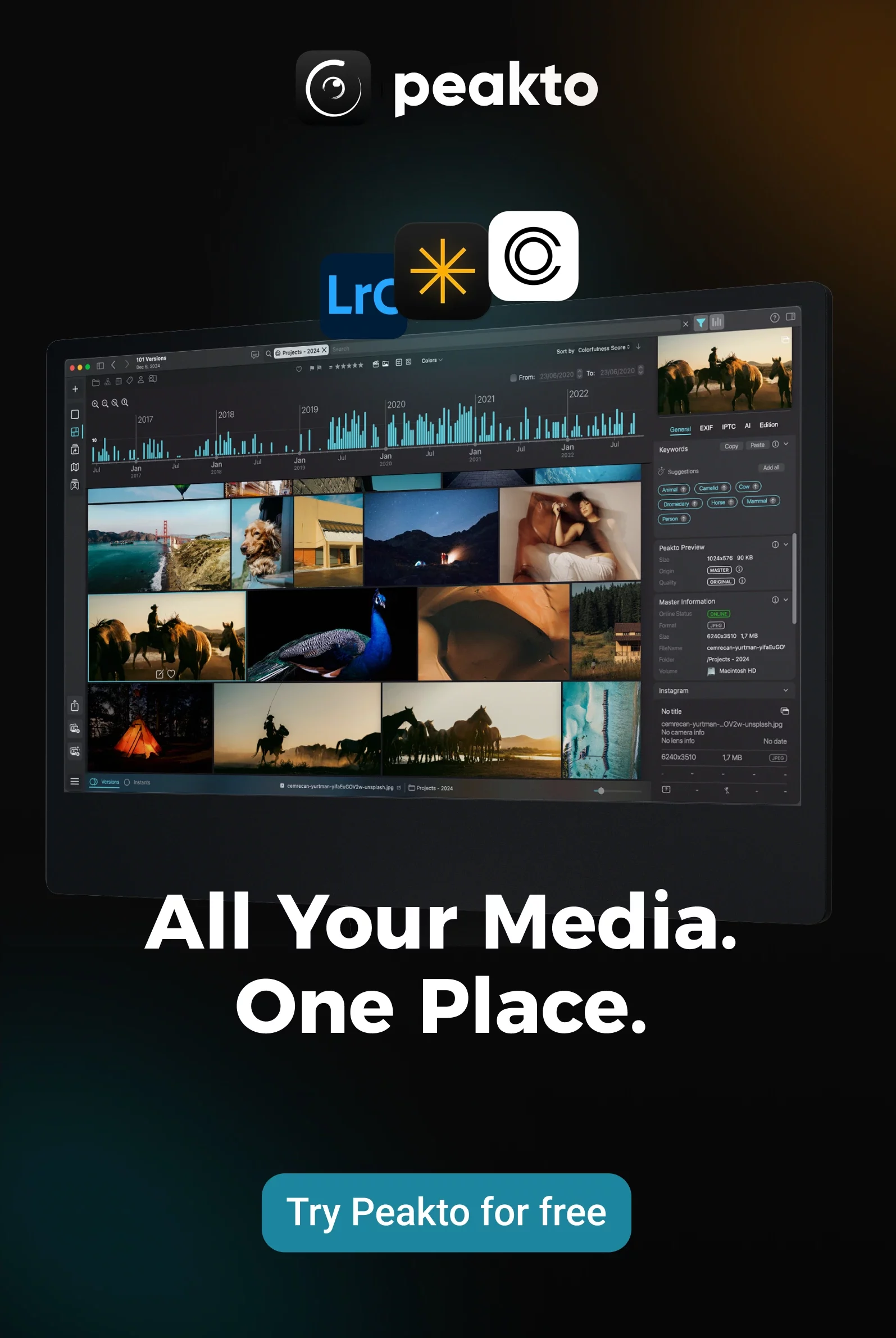
Peakto indexes your NAS, external drives, Lightroom catalogs, Capture One sessions, and Apple Photos libraries — and lets you search and cull across all of them simultaneously, without moving a single file.
Step 4 — The 3-2-1 Backup Rule Across Multiple Drives
The 3-2-1 rule is the industry standard for data protection: three copies of your data, on two different types of media, with one copy stored offsite.
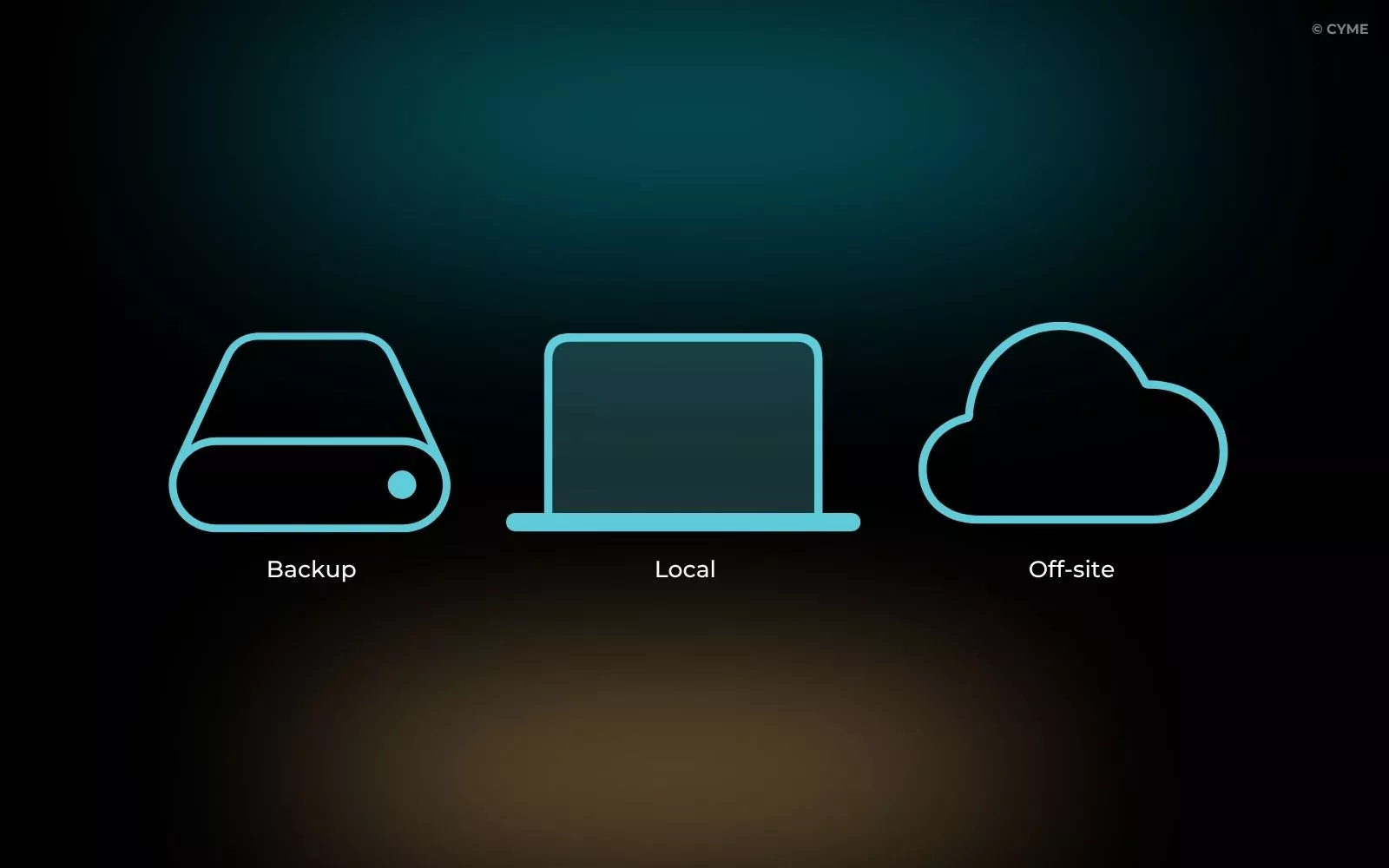
How It Maps to a NAS Setup
[Copy 1] NAS Primary (RAID 5/6)
Your working library — RAID protects against drive failure only
[Copy 2] Local Clone Drive
External HDD — auto-syncs nightly
Tools: HyperBackup (Synology), ChronoSync (Mac), FreeFileSync
[Copy 3] Offsite / Cloud Archive
Backblaze B2 or Wasabi (~$6–7/TB/month)
OR a second NAS at a different physical location
RAID is not a backup. It keeps you running if a drive fails — but it won’t save you from accidental deletion, ransomware, or a fire.
Ransomware: The Threat Most Photographers Ignore
If your backup drive is permanently connected, ransomware will encrypt it along with everything else. Two protections to put in place now:
- Enable snapshot versioning on your NAS (DSM Snapshot Replication on Synology, QuTS hero on QNAP) — snapshots can’t be encrypted by ransomware
- Keep at least one backup destination disconnected at all times (a weekly plug-in drive, or cloud storage with versioning enabled)
For a broader backup strategy, see our guide on managing digital assets for small business success.
Step 5 — Performance Optimization
Network I/O is almost always the bottleneck. These four changes have the highest impact — in order of priority:
- Use a wired connection. Gigabit Ethernet delivers a consistent 100–120 MB/s. Wi-Fi 6 often drops to 40–60 MB/s under real conditions. Always connect your editing workstation via Ethernet.
- Work from smart previews. In Lightroom Classic, edit and rate from 1:1 smart previews — the NAS stays in sleep mode and you never wait for large RAW files to load. Full resolution is only needed at export.
- Copy locally for heavy compositing. Focus stacking, panorama stitching, and Photoshop layer work are I/O-intensive. Copy the files to your local SSD, do the work there, then sync the result back to the NAS.
- Enable SSD caching. Synology and QNAP both support NVMe SSD read/write caching. It dramatically improves responsiveness for your active project without changing your storage layout.
Putting It All Together
The professional setup is a three-layer system that works together:
- NAS — your centralized storage hub, with RAID redundancy and network access from any machine
- Peakto — a unified search layer across your NAS, external drives, Lightroom, Capture One, and Apple Photos, without moving a single file
- 3-2-1 backup — three independent copies that cover every failure scenario
When this is set up correctly, you can find any image from six years of shoots in under ten seconds, deliver assets via a secure link, and sleep knowing three independent copies exist in separate locations.
Ready to unify your NAS, drives, and catalogs? Peakto connects everything without moving files.
FAQ — DAM Workflow on a NAS
Can I store my Lightroom catalog on a NAS?
No. Keep the catalog on your local SSD and store media files on the NAS. Lightroom places a lock on the catalog file that prevents network share access.