Apple Photos is the free photo app built into every Mac, iPhone and iPad. It stores your photos and videos in a single library, syncs it across your devices through iCloud, recognizes faces and scenes so you can search without keywords, and includes surprisingly good editing tools. Since 2015, it has replaced both iPhoto and Aperture.
How did Apple get from an experimental camera in 1994 to today’s iPhones? And how do you tame Apple Photos when thousands of shots pile up on your Mac, or when the app is no longer enough? This article starts with a bit of history, then moves on to a practical guide and my advice for larger libraries.
Obsessed with the Image: A Hardware History
Before the software, a word about the hardware. Apple was interested in photography long before the iPhone.
The forgotten precursor: the QuickTake 100 (1994). Thirteen years before the first iPhone, Apple launched the QuickTake 100. Made by Kodak but sold under the Apple brand, it was one of the first consumer color digital cameras under $1,000. The specs make us smile today: 640 x 480 pixels, 8 photos maximum. But it was a start.
The iPhone Revolution: The Race for Megapixels
- 2007: the first iPhone arrives with a 2-megapixel sensor. Photography is secondary.
- 2010 (iPhone 4): with 5 MP and the arrival of the front camera, the iPhone becomes a real pocket camera.
- 2015 (iPhone 6s): the 12 MP era begins, and it lasts. Apple now bets on software processing more than on pixel count.
- 2022 (iPhone 14 Pro): the main camera jumps to 48 MP and the Photonic Engine arrives. Image quality on a phone gets close to professional.
The Birth of Software: The Apple Photos Era
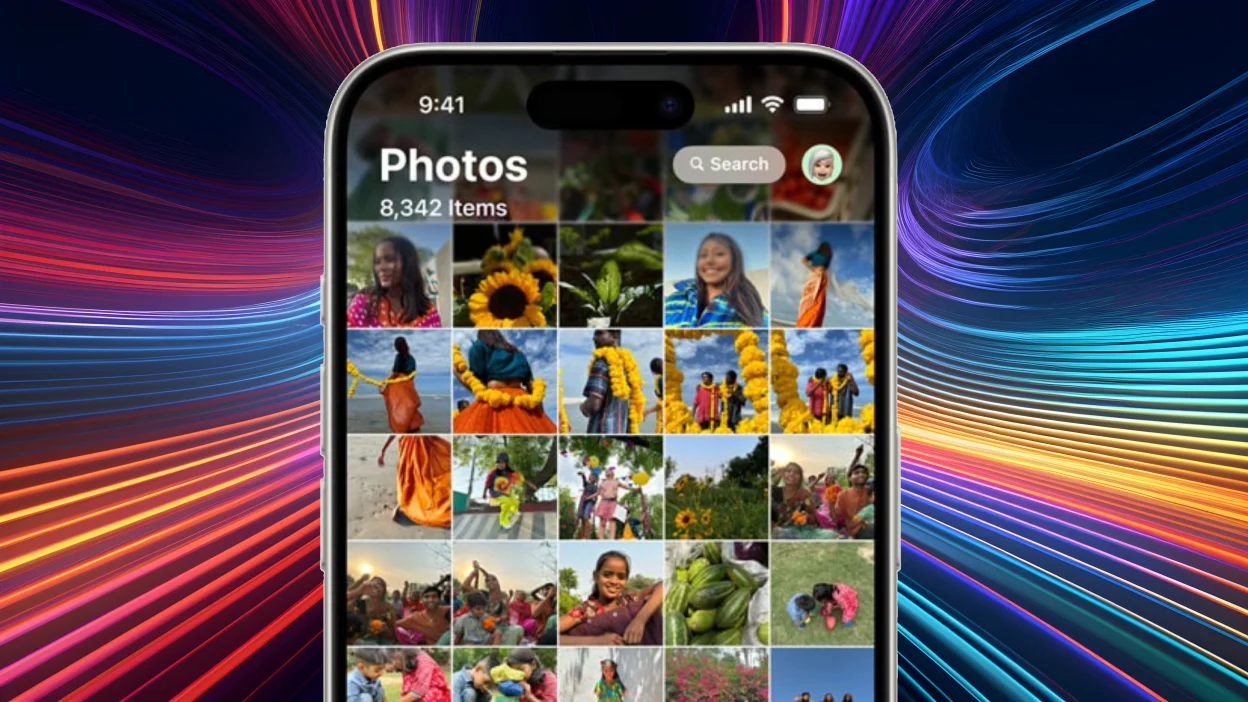
Once a phone could take thousands of high-definition photos, Apple had to rethink its software.
2015: goodbye iPhoto and Aperture. With the OS X Yosemite 10.10.3 update, Apple retired two historic programs: iPhoto (consumer) and Aperture (professional). One free app replaced them both: Photos. The goal was to offer the same experience on Mac, iPhone and iPad through iCloud Photos. Edit a photo on your phone and the change shows up on your computer.
Artificial intelligence at the helm. From macOS Sierra onward, Photos became “intelligent” and started analyzing your images:
- Facial recognition: faces are grouped automatically.
- Scene analysis: type “dog”, “beach” or “cake” in the search bar to find an image you never tagged.
- Memories: the app assembles short themed movies (vacations, birthdays) set to music.
Editing in Apple Photos: Much More Than a Viewer
Many people still see Apple Photos as a simple viewer. It is also a free digital darkroom, and a capable one.
Early versions were limited. Today the app includes advanced tools:
- Light: curves, levels, black point, brilliance.
- Color: white balance, selective color and saturation.
- RAW support: Apple Photos handles raw files well, so you can recover detail in shadows and highlights.
Rediscovering your library. Apple Photos also brings your best shots back to you: featured photos, suggestions to share with the people recognized in them, and chronological retrospectives. The “For You” tab that hosted these has been reorganized in recent versions, but the idea is the same. You rediscover your photo library without doing anything.
How to Organize Apple Photos: Taming the Chaos
Good tools won’t help much if your library is a mess. Here is what I recommend to organize Apple Photos.
1. A Hierarchical Structure
Don’t leave everything in “Recents”. Use folders and albums:
- Create folders by year (2023, 2024, 2025…).
- Create albums by event inside them: “Summer Vacation”, “Peter’s Wedding”, and so on.
2. Automation With Smart Albums
Too few people use this Apple Photos feature on Mac: albums that fill themselves based on your criteria.
Example: an album that automatically gathers every photo taken with an iPhone 14, marked as a favorite (heart), and tagged with the keyword “Family”.
3. Backup: The Golden Rule
iCloud is great for syncing. It does not replace a physical backup.
- Use Time Machine for an automatic local backup of your Mac.
- Regularly export your originals to an external drive so you do not depend only on the cloud.
The Limits of Apple Photos for Large or Multi-Catalog Libraries
For everyday use, Apple Photos is hard to beat. The limits appear when your photos no longer fit in one library:
- One library at a time. You can create several Photos libraries, but the app opens only one at a time, and only the System Photo Library syncs with iCloud Photos.
- Its own library only. Apple Photos does not see your Lightroom Classic or Capture One catalogs, nor the RAW folders you keep on external drives or a NAS.
- Search stays inside that library. The scene and face search is good, but it cannot answer “where is that photo?” when the answer might be in another app.
Beyond Apple Photos: The Peakto Solution
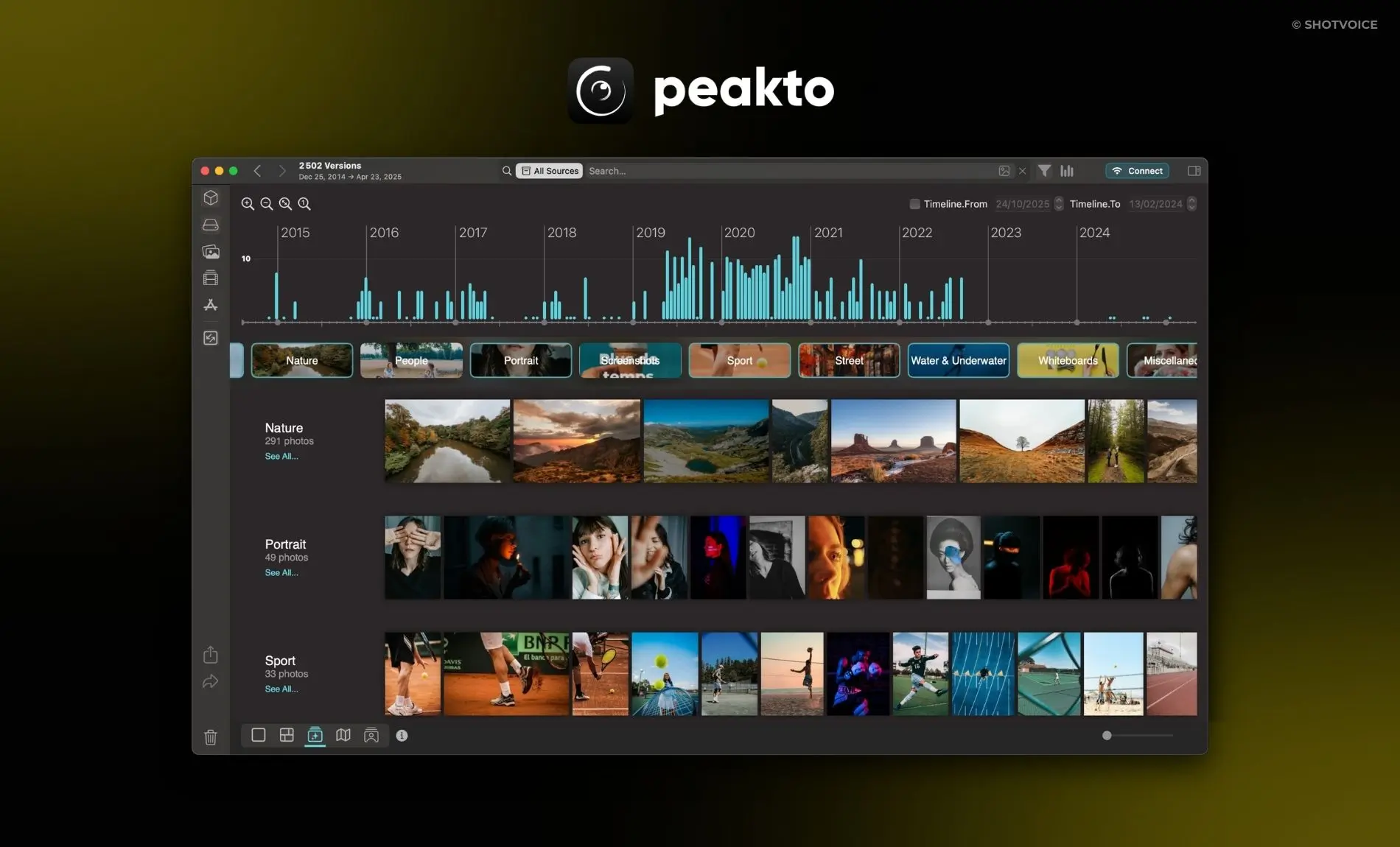
Apple Photos is excellent for centralizing iPhone images. But what if you also use Lightroom, Capture One or DxO? Your catalogs are scattered and do not talk to each other. This is where Peakto, made by CYME, comes in. I work at CYME, the company that makes Peakto, so I am not neutral.
With Peakto, you don’t have to choose between Apple Photos and pro software. It brings everything together:
- It reads your Apple Photos library in place. Nothing is imported, moved or copied: you keep using Photos as before, and Peakto stays in sync with it (including Photos on macOS 27).
- One view for everything. Your iPhone photos in Apple Photos and your RAW files in Lightroom Classic, Capture One, Luminar Neo, DxO PhotoLab or plain folders appear in the same place, without duplicates.
- Universal search. Search by description, similar images or faces across all these sources at once, even on drives that are currently disconnected.
- AI categorization. Peakto sorts your whole production into categories (landscape, architecture, portrait…) and adds AI-suggested keywords. Photos’ native search does not reach across apps.
- Private. The AI runs on your Mac; no photo is uploaded.
One real limit: Peakto is a Mac app (your library can then be opened from any browser). You can try it for 7 days on your own photos: start the free trial.
Two other cases. Do you want to leave Apple Photos for another app while keeping your albums and keywords? That is the job of Avalanche, another CYME app. And if you only want better search inside Apple Photos on your iPhone, look at FindMySnap.
From Everyday Use to a Complete Creative Ecosystem
Apple Photos started as an iPhoto replacement. With AI and iCloud, it has become a solid app, and for everyday use it is the right tool. Are you an enthusiast or a professional juggling several programs? I would keep Apple Photos for your iPhone images and add Peakto on top, to search and organize everything you own from one place.
FAQ: Apple Photos
Is Apple Photos free?
Yes. Photos comes with macOS, iOS and iPadOS. Only iCloud storage beyond the free tier is paid.
Can Apple Photos open several libraries at once?
No. You can switch between libraries, but only one is open at a time.
Can I use Apple Photos and Lightroom together?
Yes, but each keeps its own catalog. To see and search both in one place without moving files, you can index them with Peakto.
About the author: Allison Reber works at CYME, the company behind Peakto and Avalanche, and is a fan of every art form.