



When I started shooting video, a folder for each project was enough. As my library grew, footage became scattered across external drives, NAS storage and several editing applications. I could remember filming a useful scene, but not its filename, project or storage location. That is when I realized that storing videos and managing them are two different things.
A video management system connects storage, organization, metadata and search. It helps me know what footage I have, where it is stored and how to retrieve it without opening every folder or editing project. In this article, “video management system” refers to tools and workflows for creative video assets, not video surveillance.
What Is a Video Management System?
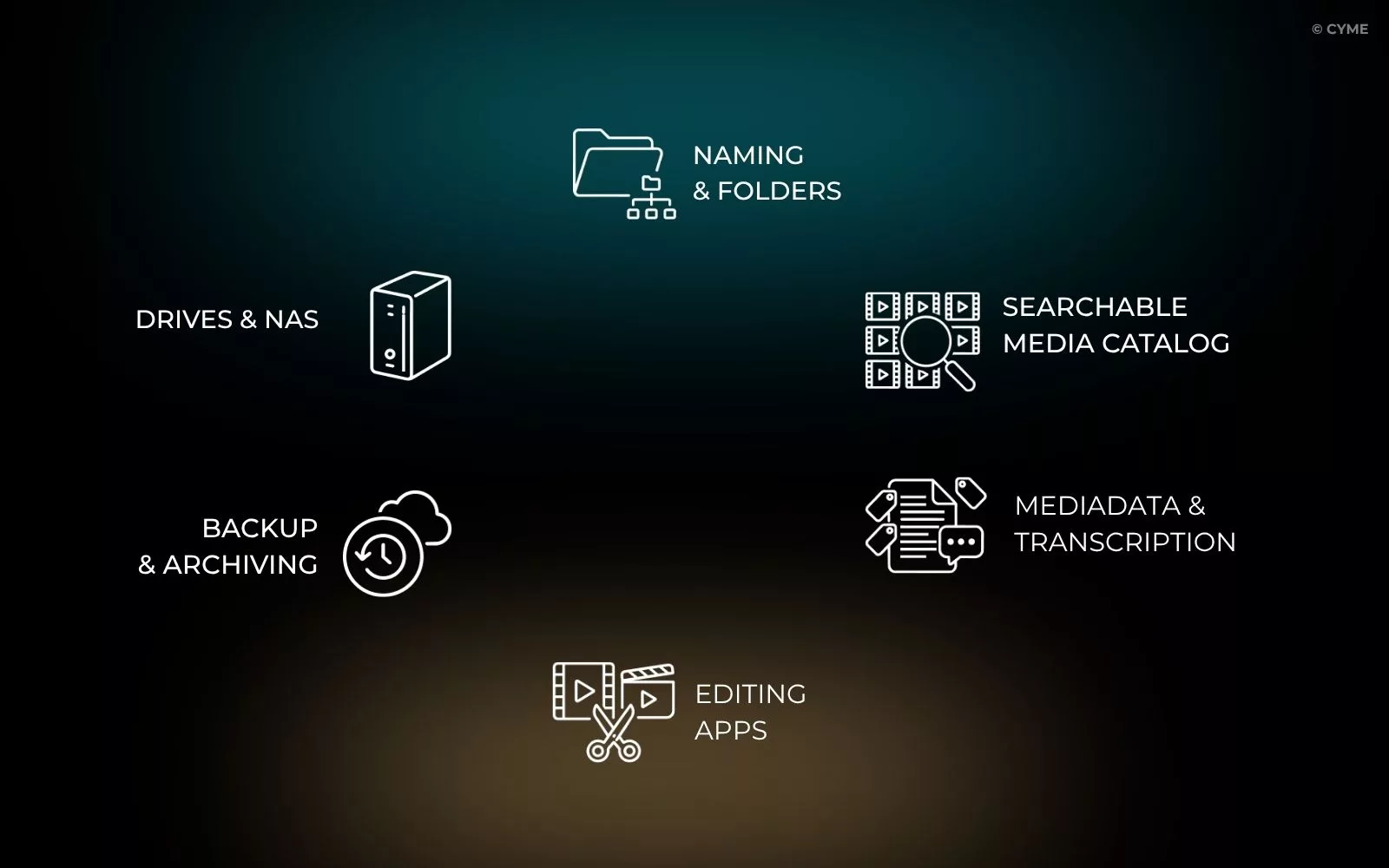
A video management system is the combination of tools and working methods I use to organize, catalog, search, preview and archive footage. It can include:
- storage devices;
- folder and naming conventions;
- a searchable media catalog;
- metadata and transcripts;
- editing applications;
- backup and archive procedures.
I do not consider it a single piece of software. Each part has a specific role. My drives and NAS hold the original files. Premiere Pro, Final Cut Pro or DaVinci Resolve let me edit them. My backups protect them against loss.
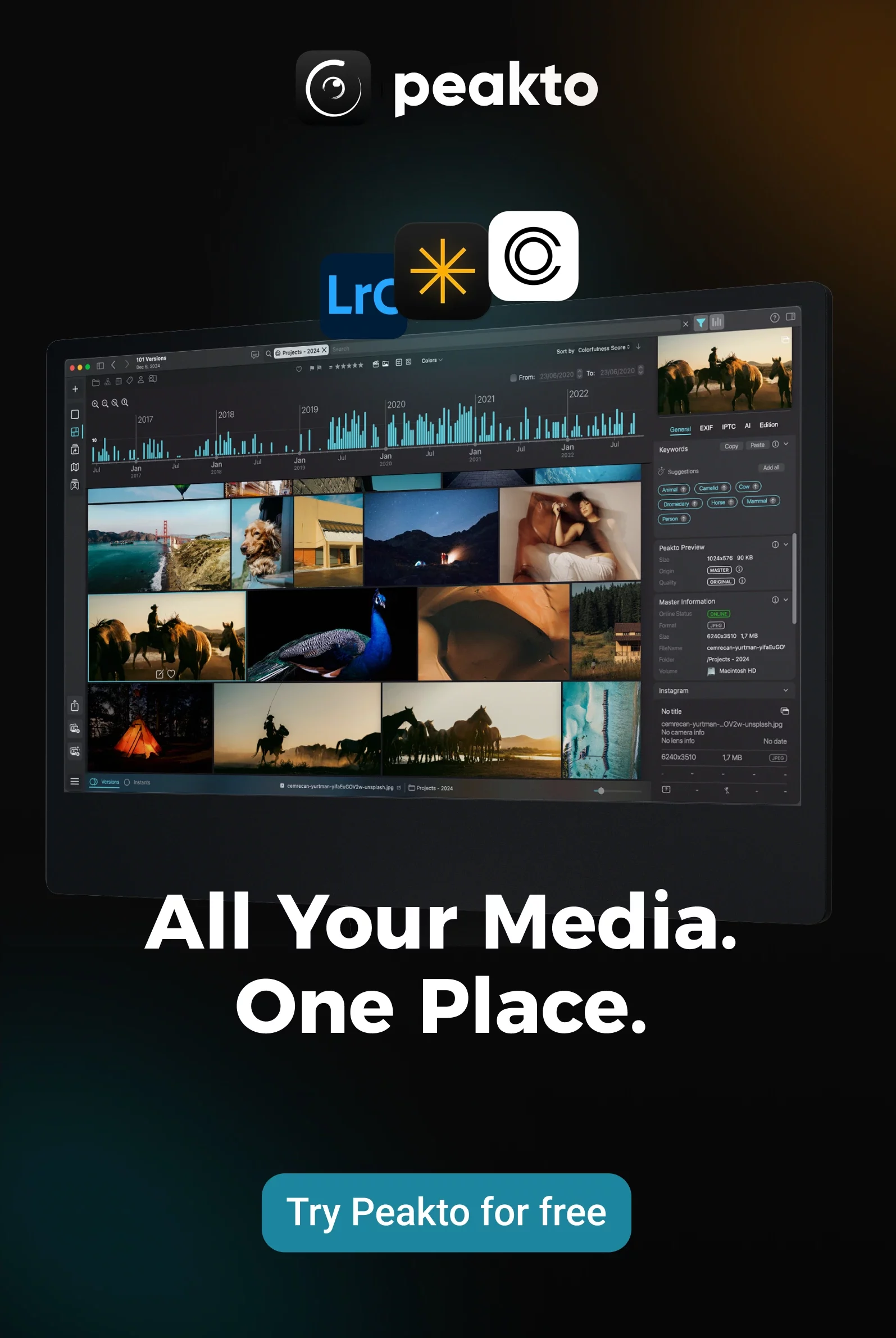
A media manager such as Peakto adds a navigation layer across these locations. It indexes videos where they are already stored and gives me a unified view of folders, drives and compatible editing applications.
This distinction matters. I do not need to move every file into one central library to manage it centrally. The best method for managing videos and staying organized is usually the one that connects these elements without making the daily workflow more complicated.
Why Folders Are Not Enough
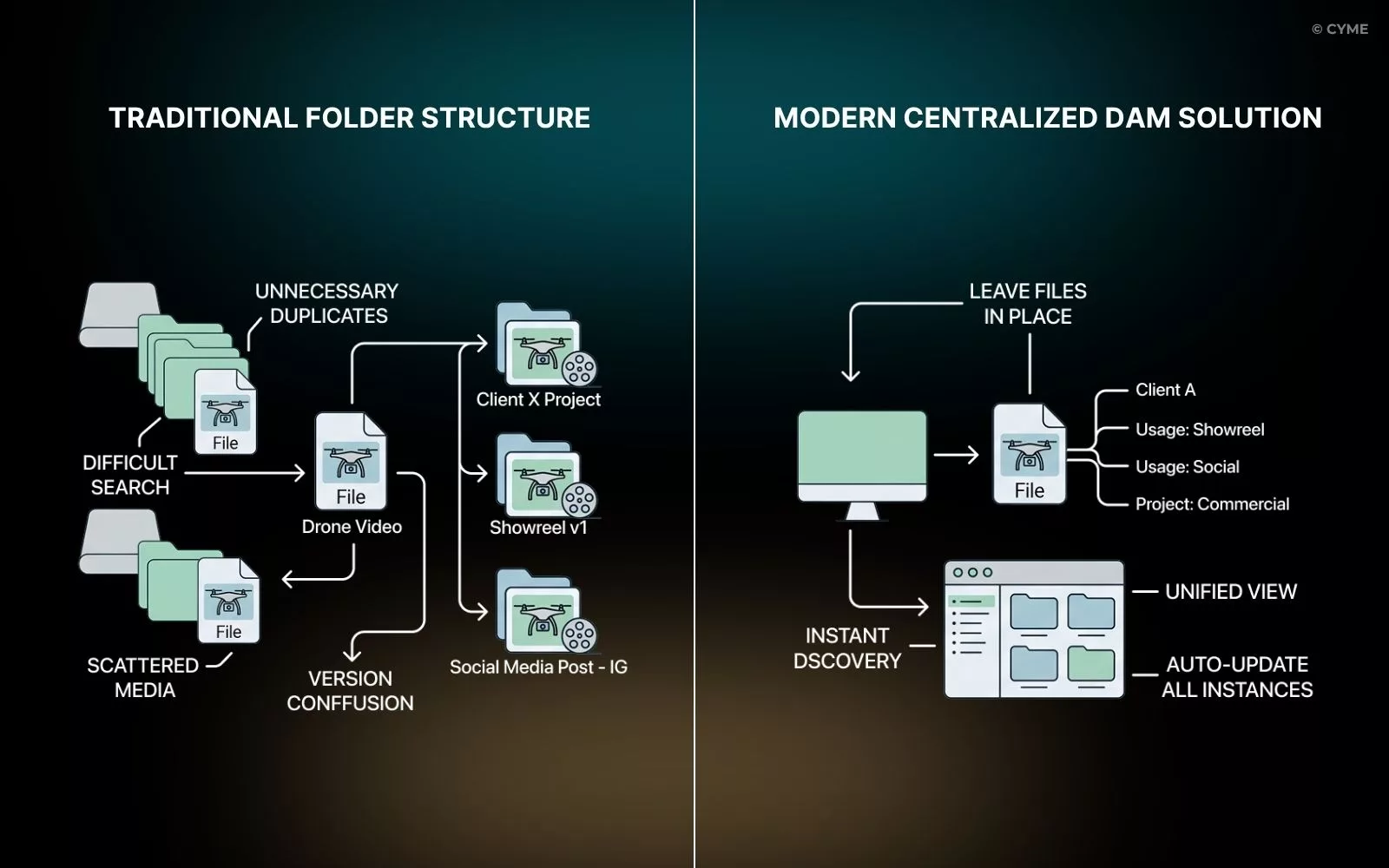
I still use folders for every production. They keep camera originals, audio, project files and exports together. But folders describe where a file is stored, not everything it contains.
A drone shot recorded for one client may also be useful for a showreel, a social media post or another production. Copying it into several folders creates unnecessary duplicates.
Folders also become harder to navigate when footage is spread across multiple drives. Even with a consistent structure, I cannot always remember which project contains a particular interview, location or piece of B-roll.
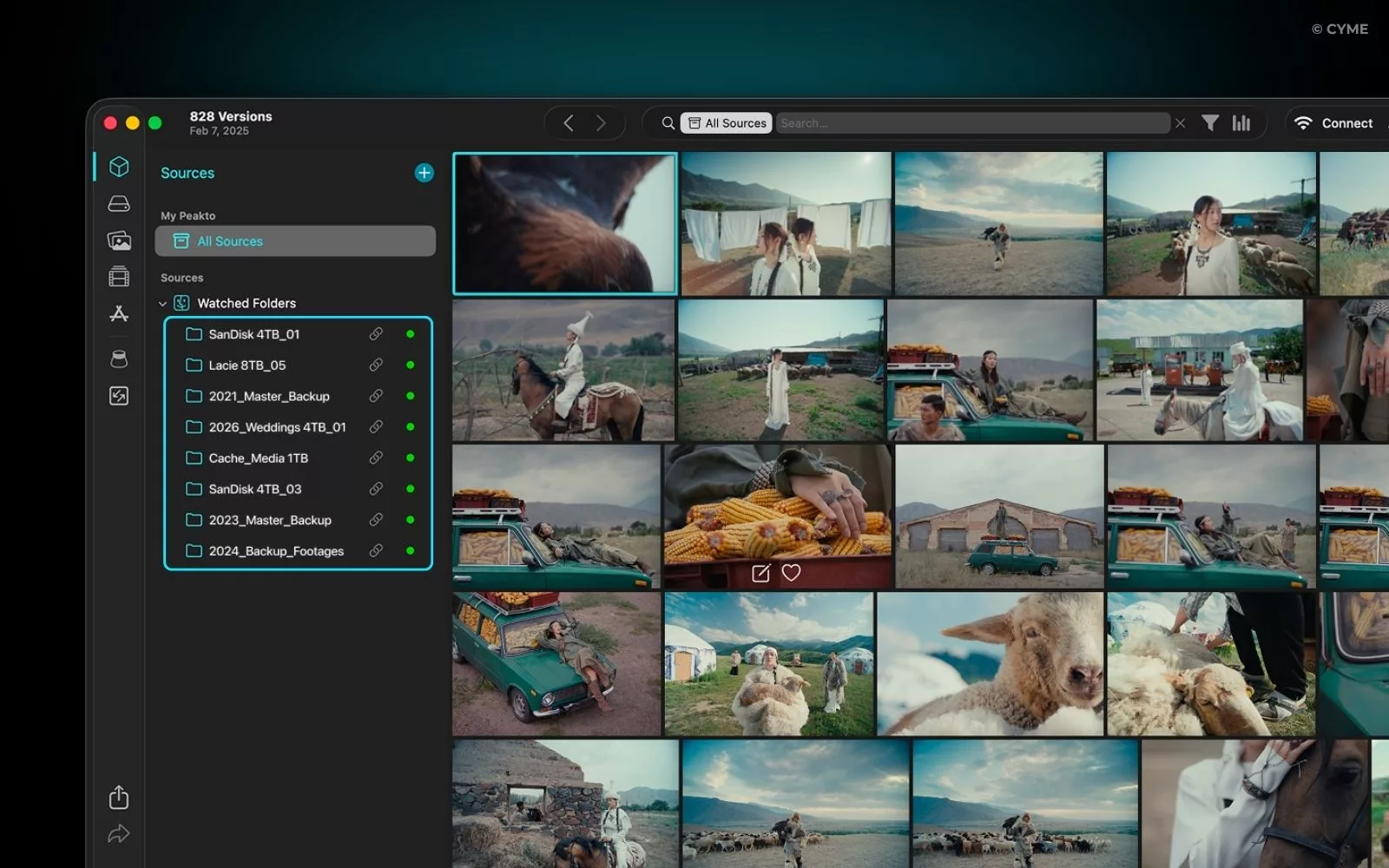
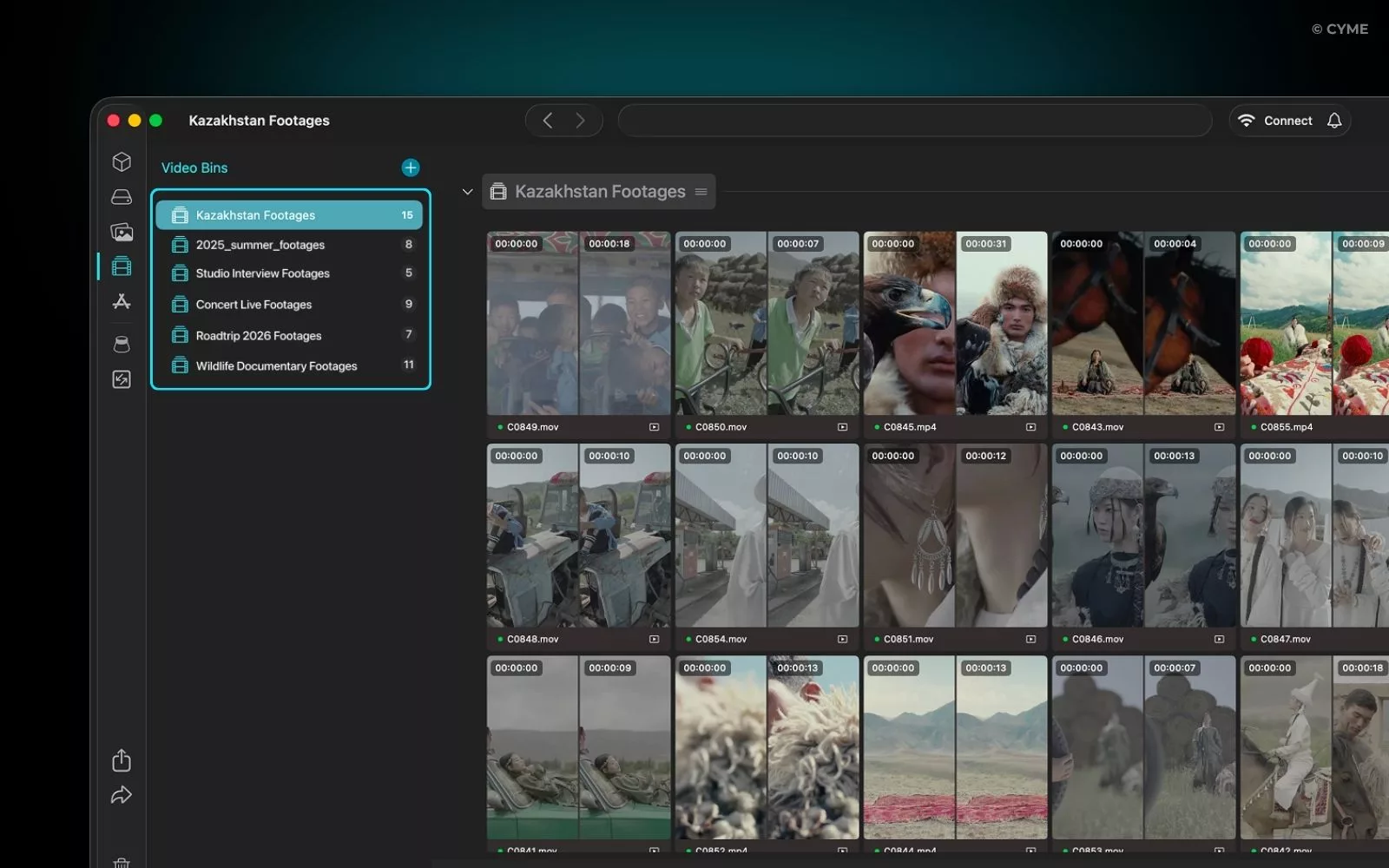
This is where I use Peakto as a central catalog. It indexes media from my different sources while leaving the original files in place. I can browse several folders, drives and application libraries from one interface instead of checking each location separately.
My folders remain the physical structure of the archive. Peakto becomes the layer I use to navigate it.
How I Structure My Video Storage
I separate active productions, completed projects and backups because they have different requirements.
Current projects stay on fast storage. Completed work can move to larger hard drives or a NAS. Important files are copied to another location so that no production depends on a single device.
Within each project, I usually separate:
- camera originals;
- audio;
- graphics and still images;
- proxies;
- editing files;
- review exports;
- approved masters;
- project documentation.
This structure makes it easier to identify what needs to be backed up and what can be regenerated later.
I avoid using the desktop, Downloads folder or editing application as permanent storage. These locations may be convenient during production, but they quickly become difficult to maintain.
Peakto does not replace this storage structure. It makes it easier to work across it. I can index media stored on internal drives, external drives and NAS devices without consolidating everything physically.
A consistent process for cataloging and storing video footage also makes it easier to move a project from active production to long-term archive without losing track of its contents.
How I Name and Sort My Files
Camera filenames such as C0001.MP4 provide little useful information. I do not rename every original clip manually. Instead, I give each project a predictable folder name: 2026-06-22_Client_Project
For exports, I add information that helps me understand the status and format of the file: Client_Project_Master_16x9_EN_v03.mp4
I avoid vague names such as Final_New_v2. Terms like Review, Approved and Master are more useful when everyone applies them consistently. Filenames are only one part of the system. Dates, ratings, keywords and collections give me other ways to sort the same footage.
Peakto lets me use this information across sources. I can filter media by metadata, add items to virtual selections and organize clips without changing their physical folder locations. This is useful when the same clip belongs to several creative contexts. Instead of duplicating it, I can include it in different video bins or collections.
These practical methods for sorting video files become especially important when several people work with the same media library.
Why I Prefer Cataloging to Reorganizing
Moving an established video archive can create more problems than it solves.
Files may already be linked to Premiere Pro, Final Cut Pro or DaVinci Resolve projects. Changing their locations can break those links or create confusion about which copy is the original.
Whenever possible, I index footage where it is already stored.
Peakto follows this approach. It records the location and information associated with each asset without requiring the media to be imported into a new proprietary storage structure.
A catalog can include:
- the filename and storage path;
- the creation date;
- the duration and resolution;
- the codec and frame rate;
- camera information;
- ratings and keywords;
- dialogue transcripts;
- project and collection associations.
This gives me a unified view of footage stored across different drives and applications without forcing me to move or duplicate the originals.
I can improve access to the library first, then reorganize individual folders only when there is a clear reason to do so.
The Metadata I Find Useful
Metadata should help me answer practical questions.
Which project does the clip belong to? Where was it filmed? Who or what appears in it? Has it been reviewed? Can it be reused?
Some information is generated automatically by the camera or editing software. Other details may come from keywords, descriptions, transcripts or workflow statuses.
I avoid building a taxonomy that takes too much time to maintain. For most productions, I focus on:
- project or client;
- date and location;
- subject;
- rights or restrictions;
- rating or approval status;
- type of file.
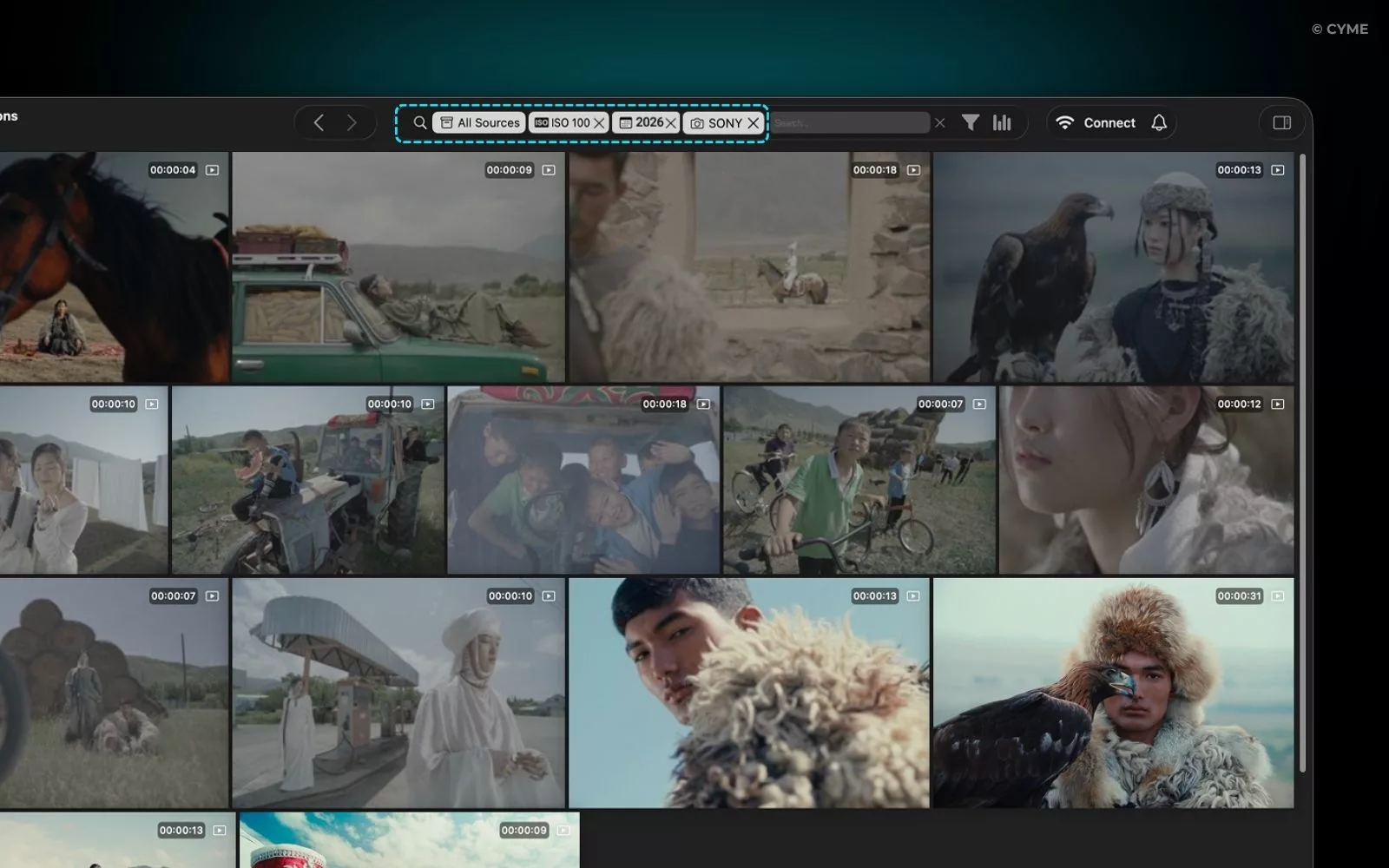
Peakto brings together metadata from different sources in one catalog. This means I can search and filter media across several storage locations instead of opening each editing project separately.
The purpose is not to describe every second of footage. It is to create enough context to find and understand a clip later.
How I Organize Footage Without Duplicating It
Folders show where files are stored. Collections show how I plan to use them.
I create virtual selections for:
- edit selects;
- B-roll;
- client approvals;
- showreel candidates;
- social media footage;
- future project ideas.
The same clip can appear in several selections without being copied.
For example, footage recorded for a tourism campaign might also belong to collections for aerial footage, landscapes and urban scenes.
In Peakto, I can create video bins and collections from media stored in different locations. This lets me prepare material for an edit without rebuilding my folder structure or creating new file copies.
The storage remains stable while the creative organization can evolve from one project to another.
How I Clean Up the Library
I review the library at the end of a project rather than waiting until a drive is full.
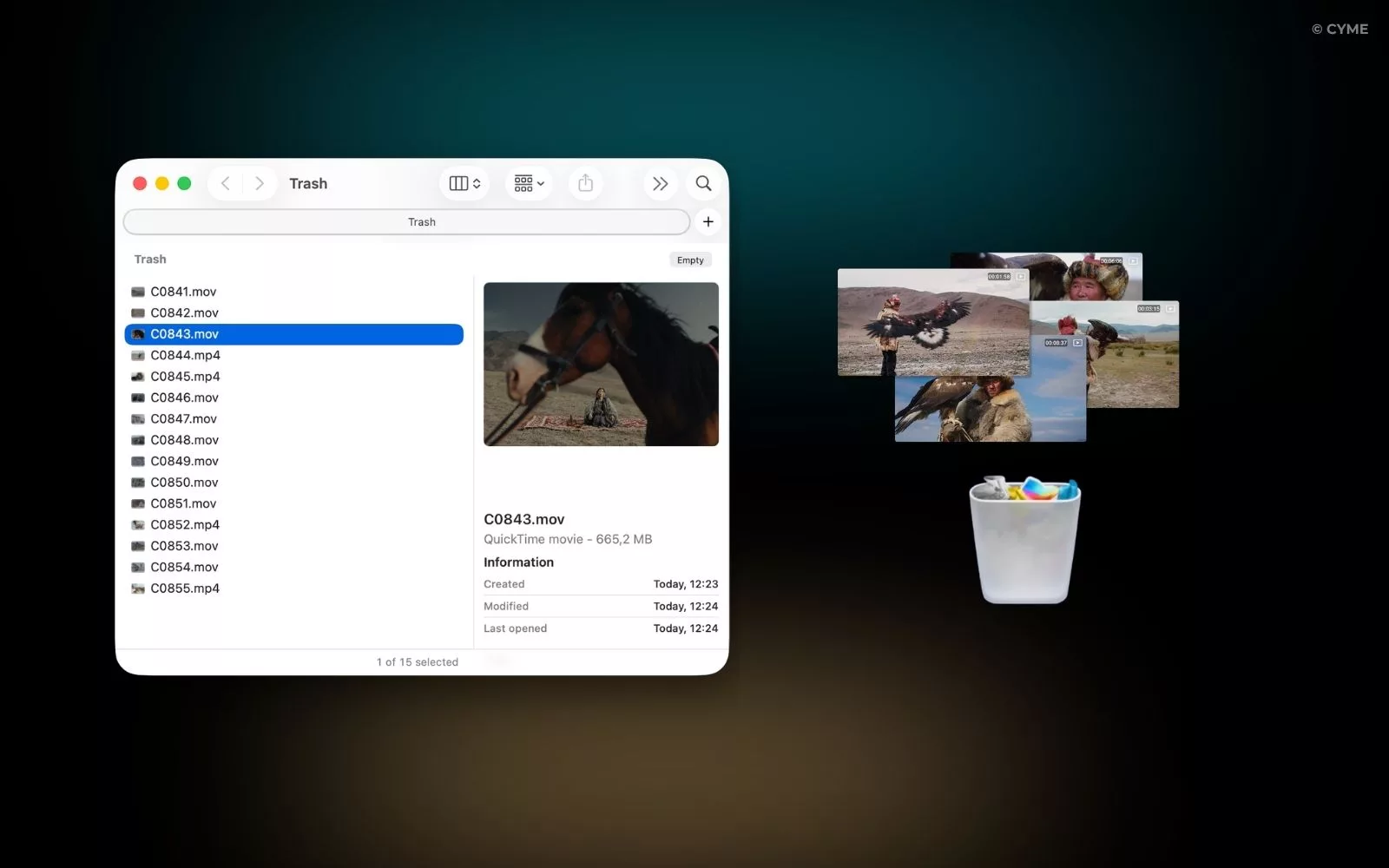
I look for temporary renders, outdated review exports, unused proxies, failed recordings and unclear versions. I also check for duplicates created during transfers or collaboration.
I never delete a file simply because another copy exists. One may be a backup, a proxy or an approved deliverable.
Before removing anything, I confirm:
- which file is the original;
- whether another copy is part of the backup strategy;
- whether the file can be regenerated;
- whether it may still have archival value.
A central catalog makes this process easier because I can inspect media from several locations without navigating each drive independently.
Peakto helps me see where files are stored, compare their metadata and identify which versions belong to the same project. It does not make deletion decisions for me, but it gives me enough context to make them more safely.
Using smart tools to clean up a video library can reduce the risk of deleting useful footage while removing files that no longer serve a clear purpose.
How I Manage Disconnected Drives
Not every archive drive needs to remain connected.
Older projects can stay on offline storage until I need the originals again. The difficulty is remembering what each drive contains.
Peakto keeps previews and catalog information available even when a source is disconnected. I can search the archive, identify the clip I need and see which drive contains it before reconnecting the hardware.
This changes the way I archive footage. I no longer need every drive mounted just to check whether a shot exists.
The catalog preserves visibility. The original drive provides access when I decide to use the file.
Local, Cloud or Hybrid?
I do not believe that every original video needs to be uploaded to the cloud.
Large files take time to transfer, cloud storage creates recurring costs, and some projects require tighter control over confidential media.
Local drives offer fast access for editing. A NAS can centralize storage for a studio or team. Cloud services remain useful for remote review, delivery and selected collaborative workflows.
In practice, I often prefer a hybrid system.
Originals and active projects remain on local storage or a NAS. Peakto indexes them locally and provides search and organization without moving the originals to the cloud.
When remote access or collaboration is needed, selected content can be shared through Peakto’s web interface while the main media library remains stored on the Mac, external drives or NAS.
The right model depends on the volume of footage, internet bandwidth, collaboration needs, privacy requirements and budget. A video management system should connect these storage locations rather than force every asset into one platform.
How I Choose Video Management Software
I choose software according to the workflow it improves.
First, I check whether it can index the storage locations I already use, including external drives and NAS devices.
I then look at the search tools. Filename search is not enough for a large archive. I also value metadata filters, transcript search, visual previews and natural-language queries.
Compatibility with editing applications matters too. A video organizer should complement Premiere Pro, Final Cut Pro or DaVinci Resolve rather than replace them.
This is why Peakto fits my workflow as a media management layer. It works alongside editing software and connects media stored across different sources.
Before choosing any solution, I consider:
- supported video formats;
- external drive and NAS compatibility;
- access to disconnected storage;
- metadata and transcript search;
- AI processing and privacy;
- preview and proxy support;
- integration with editing software;
- collaboration features;
- performance with large libraries;
- pricing as the archive grows.
Comparing the best video management software available in 2026 helps distinguish simple file browsers from video cataloging tools, cloud platforms and broader media asset management systems.
My Workflow from Ingest to Archive
After a shoot, I copy the footage to the project storage and verify the transfer before formatting the memory cards.
I separate the originals, audio and supporting assets, then create proxies when needed.
Once the folders are ready, I add the source to Peakto. The files remain in their existing location, but they become available in the central catalog.
During the review stage, I can browse clips, search transcripts, add ratings and build selections. I then bring the chosen footage into the editing application.
When the production is approved, I separate the masters from temporary review exports. I check the backup, remove files that can safely be regenerated and move the completed project to archive storage.
Peakto continues to reference the archived media. Even if the drive is disconnected, I can still search the catalog and see where the footage is stored.
The project no longer needs to remain on my fastest drive to remain discoverable.
Video Management System, DAM, MAM or Video CMS?
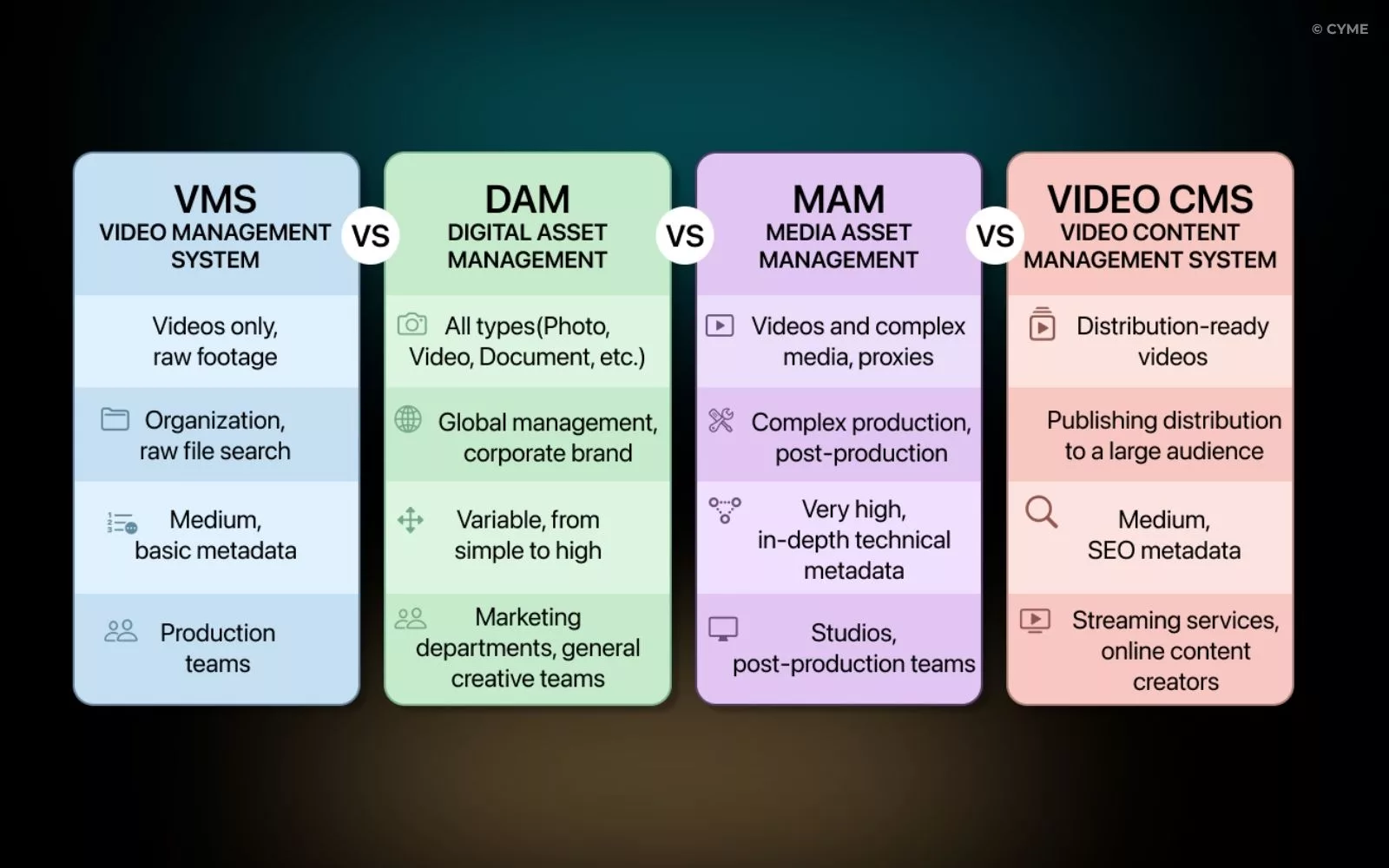
These terms overlap, but they are not identical.
A video management system is a broad term for the tools and workflows used to organize, search, store and control video footage.
A digital asset management system, or DAM, generally manages several types of business or creative assets, including videos, images, graphics and documents.
A media asset management system, or MAM, is often designed for complex audiovisual production environments, with proxies, technical metadata, automation and integrations.
A video content management system usually focuses on publishing, distributing and monitoring videos for an audience.
Peakto sits closer to a creative media manager. It is designed to help photographers, videographers and creative teams browse, search and organize media across existing storage and application libraries.
As a videographer, I focus less on the category name than on whether the system fits my files, storage and editing workflow.
A Searchable Archive Is a Creative Asset
A growing library can become either a burden or a resource.
Without a system, every production adds more folders, drives and forgotten footage.
With consistent storage and a catalog such as Peakto, each production expands the material I can search and reuse.
My goal is not to build a perfect archive. It is to know where my footage is, how it is protected and how to find it when I need it.
When storage, metadata and search work together, the archive stops being a collection of hard drives. It becomes part of the creative process.