
In 2026, photographers are working in a world where roughly five billion photos are captured every day.
That is exactly why choosing the best photo culling software matters: the right tool helps you sort faster, remove weak shots, and focus your editing time on the images that deserve it—an essential step in the best photo culling workflow after a shoot.
In Summary
The best photo culling software depends on your workflow:
- Peakto — best for photographers with growing archives across multiple drives and catalogs (library-level culling)
- PhotoCuller — best lightweight, Mac-native option with a one-time purchase
- Aftershoot — best for fully automated AI culling on high-volume shoots
- Narrative Select — best for AI-assisted culling where you stay in control
- FilterPixel — best for raw speed (cloud-based, under 3 minutes per 1,000 images)
- Photo Mechanic — best for professional ingest, metadata, and deadline-driven workflows
Quick pick: If you manage photos across multiple Lightroom catalogs, drives, or legacy archives, Peakto is the only tool that culls at the library level — not just folder by folder.
Quick Comparison Table
| Software | Platform | Culling type | Pricing | Best for |
|---|---|---|---|---|
| Peakto | Mac only | AI + manual (library-level) | From $10/mo or $270 lifetime | Multi-catalog archives |
| PhotoCuller | Mac only | Manual + smart stacking | One-time purchase | Lightweight, session-based |
| Aftershoot | Mac + Windows | Fully automated AI | From $15/mo | High-volume, full automation |
| Narrative Select | Mac + Windows | AI-assisted (human in control) | From $10/mo | Portrait & wedding |
| FilterPixel | Cloud (browser) | Fully automated AI | Free plan + paid | Speed-first, event |
| Photo Mechanic | Mac + Windows | Manual (ultra-fast ingest) | One-time purchase | Photojournalists, deadlines |
Why Dedicated Culling Software Matters on Mac
Culling inside Lightroom or Capture One works — but it was never designed for speed. You wait for previews to build, switch between modules, and make selection decisions while your editing environment is open in the background.
Dedicated culling software solves this by separating the selection step from the editing step. The result is faster decisions, less mental fatigue, and a cleaner editing queue.
For Mac photographers specifically, the choice matters more in 2026 than it did two years ago. Apple Silicon has made local AI processing genuinely fast, and several tools have been rebuilt or launched specifically to take advantage of it.
If you’d like to learn more, you can read our guide to photo culling and how to do it effectively.
Peakto — Best for Library-Level Culling Across Multiple Sources
Best for: Photographers with archives spread across multiple drives, catalogs, or software tools.
Pricing: From $10/month (Standard) | $270 lifetime license (Standard) | From $25/month/user (Pro, with collaboration)
Trial: 7-day free trial included with subscription plans
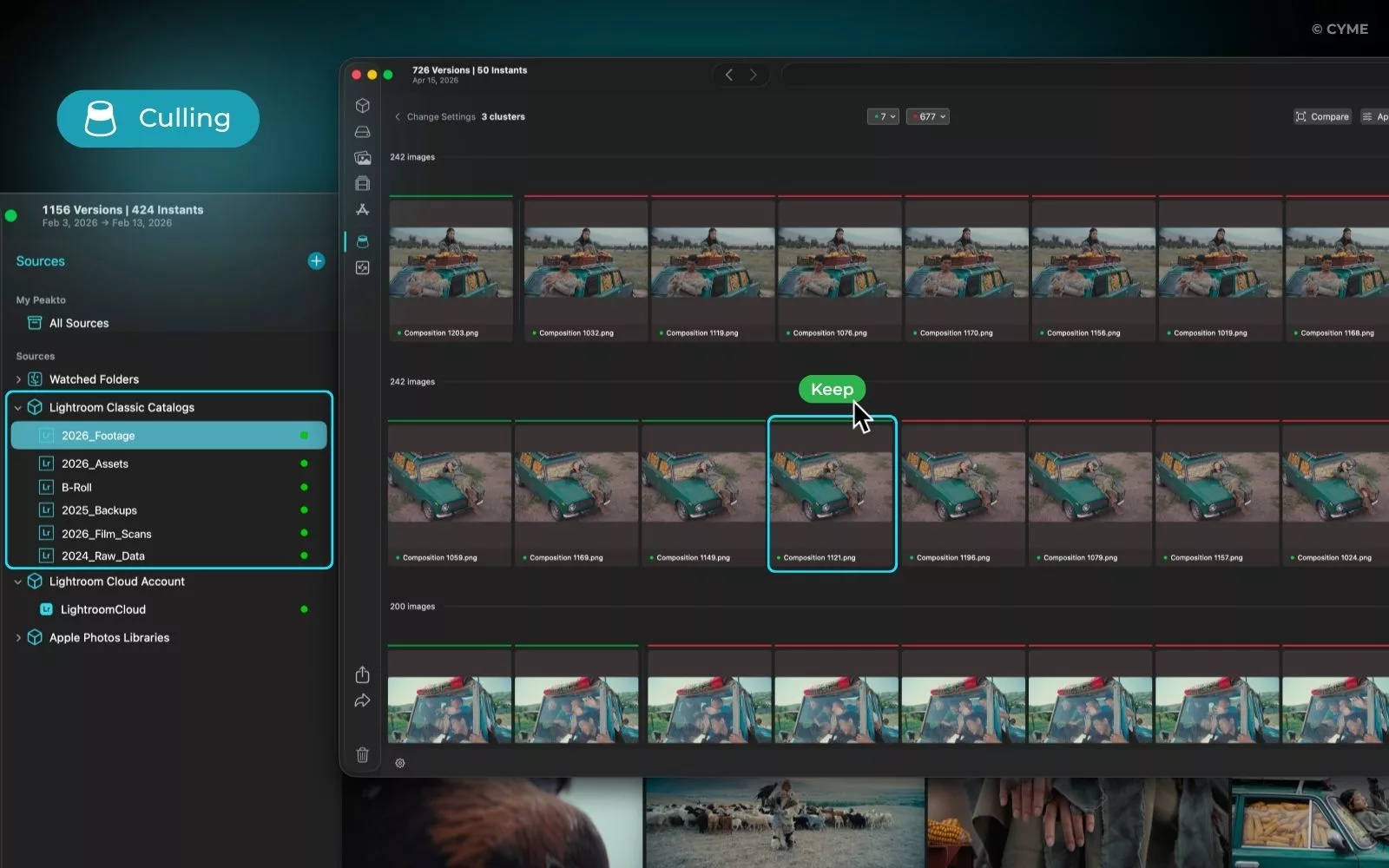
Peakto is the only culling tool on this list that works at the library level. Instead of reviewing images folder by folder or catalog by catalog, Peakto indexes your entire photo ecosystem — folders, external drives, NAS systems, Lightroom catalogs, Capture One sessions, Apple Photos libraries, and more — and lets you cull across all of them at once.
What Sets Peakto Apart
Cross-catalog culling — Peakto introduced AI-based deduplication and culling applied across your entire photo library, regardless of where files live. You can identify near-duplicate or redundant images across everything you own, not just within a single folder or catalog.
AI grouping with human control — Peakto uses AI to group similar images into series, then lets you pick or reject manually within each group. You can adjust the similarity slider to control how tightly images are grouped, and choose which criteria guide Peakto’s suggestions (face quality, ratings, sharpness, etc.).
Broad compatibility — Works with Lightroom Classic, Capture One, Apple Photos, Luminar Neo, DxO PhotoLab, ON1, Aperture (legacy), iView Media, Pixelmator Pro, FotoMagico, Premiere Pro, and Final Cut Pro.
Local-first, privacy-focused — All AI processing runs locally on your Mac. Nothing is uploaded to the cloud.
Apple ecosystem integration — Optimized for Apple Silicon, with native macOS performance and a web interface for remote access without cloud dependency.
Pros
- Only tool that culls across your entire archive (not just one shoot)
- Identifies duplicates and near-duplicates across drives and catalogs
- Supports legacy software (Aperture, iView Media) — no migration needed
- Lifetime license available (no ongoing subscription required)
- Product of the Year at NAB Show 2025
Cons
- Mac only (no Windows version)
- 7-day trial only available with subscription plans
- Steeper learning curve for photographers new to library-level workflows
PhotoCuller — Best Lightweight Mac-Native Option
Best for: Photographers who want a fast, session-based culling tool without a subscription.
Pricing: One-time purchase (free 30-day full-feature trial, no credit card required)
Requirements: macOS 15 (Sequoia) or later, native Apple Silicon support
PhotoCuller launched in January 2026 and has moved quickly since, adding ingest workflows, tabs, synchronized zoom, and IPTC templates in rapid succession. It is built around a single principle: do one thing well. Open a folder or ingest a card, make your decisions, route the output, move on.
What Sets PhotoCuller Apart
Session-based design — PhotoCuller is designed around one review session at a time. There is no catalog, no import database, no library to manage. You load a shoot, cull it, and route the output.
Ingest built in — Plug in an SD card and PhotoCuller detects it automatically. You can apply IPTC presets, set destination folder templates with session variables (client name, date, project), and start reviewing before ingest finishes.
Smart stacking and side-by-side compare — Group burst sequences, compare two images side by side with synchronized zoom, and use focus peaking and exposure overlays to confirm sharpness without leaving the grid.
Routing workflows — Filter by rating, flag, color label, or file type, then route output to multiple destinations in one pass. RAWs to NAS, JPEGs to client folder, five-star selects to Apple Photos — all in one run.
One-time purchase — No subscription. Each license covers up to 2 Macs. Free updates included for all 1.x versions.
Pros
- No subscription, no recurring fees
- 30-day full-feature trial with no credit card
- Fast, focused, and distraction-free
- Native Apple Silicon performance
- Ingest + culling + routing in one tool
Cons
- Mac only (macOS 15 Sequoia required — no older macOS support)
- No AI culling (manual only)
- No library-level or cross-catalog view
- New tool (launched January 2026) — smaller community and fewer integrations
Aftershoot — Best for Fully Automated AI Culling
Best for: High-volume photographers who want AI to handle the entire first pass automatically.
Pricing: From $15/month (culling only) | From $25/month (culling + AI editing) | 30-day free trial, no credit card
Platform: Mac + Windows (local processing)
Aftershoot is built for photographers who want to hand the first pass entirely to AI. You upload a gallery, and Aftershoot flags the strongest images, removes duplicates, detects blinks, camera shake, and burst shots, and delivers a culled set ready for editing.
In independent testing on a MacBook Pro M3, Aftershoot culled 1,000 images in approximately 9 minutes — about 3x slower than cloud-based FilterPixel but significantly faster than manual culling in Lightroom.
What Sets Aftershoot Apart
Full automation — Aftershoot’s AI handles the entire selection process. It ranks images based on 30+ technical factors and, over time, learns from your personal culling choices to adapt to your style.
Unlimited images, flat fee — All plans include unlimited culling. No per-image fees, no usage caps. This is where Aftershoot delivers strong value for photographers with high shoot volumes.
Local processing — Files stay on your Mac. No upload required, no internet connection needed during culling.
Culling + editing in one tool — Higher-tier plans include AI editing that learns your style from past Lightroom or Capture One edits and applies it automatically.
Pros
- Full AI automation — minimal manual review needed
- Unlimited images per subscription
- Local processing (privacy-friendly)
- Integrates with Lightroom Classic and Capture One
- 30-day free trial
Cons
- Subscription required (no lifetime license)
- AI may miss artistic or emotional nuance — some manual review still recommended
- Speed depends on your Mac’s hardware (M-series chips perform significantly better)
- No library-level or cross-catalog culling
Narrative Select — Best for AI-Assisted Culling with Human Control
Best for: Portrait and wedding photographers who want AI to assist — not replace — their selection decisions.
Pricing: From $10/month (Lite, basic culling) | Free version available | 30-day free trial
Platform: Mac + Windows (local processing)
Narrative Select takes a different philosophy from Aftershoot. Instead of automating the final decision, it gives you better information faster so you can make the decision yourself.
What Sets Narrative Apart
AI-assisted, not AI-automated — Narrative’s AI analyzes focus, eye status, and composition, then surfaces that information as you cull. You stay in the driver’s seat. The AI does not make the final call.
Close-ups Panel — A dedicated sidebar that automatically shows a zoomed-in crop of every face detected in the current image. You can check 10 people’s expressions at once without ever hitting the zoom tool. This is the standout feature for wedding and portrait photographers.
Scenes View — Groups images chronologically so you cull in story order (ceremony, cocktail hour, reception) rather than image by image with no context.
RAW preview speed — Narrative renders actual RAW data locally, almost instantly, even on modest machines. Independent reviewers consistently describe it as the fastest RAW preview experience of any AI culling tool in 2026.
Pros
- Human stays in control of final selections
- Best-in-class face and expression detection
- Fastest RAW preview performance of any AI culling tool
- Integrates with Lightroom Classic, Lightroom CC, Capture One, and Photoshop
- Free version available
Cons
- Subscription only (no lifetime license)
- Slower processing than fully automated tools
- Less useful for non-portrait genres (landscapes, architecture, products)
- Mac-only for some integrations (Capture One export is Mac-only)
FilterPixel — Best for Raw Culling Speed
Best for: Event and wedding photographers who prioritize speed above all else.
Pricing: Free plan available | Paid plans with monthly or annual billing | Free trial, no credit card
Platform: Cloud-based (works in any browser, any OS)
FilterPixel is the fastest culling tool tested in 2026. Because it uses cloud processing, speed is independent of your Mac’s hardware. In independent testing, FilterPixel culled 1,000 images in under 3 minutes — significantly faster than any local tool.
What Sets FilterPixel Apart
Cloud processing — Files are uploaded and processed on FilterPixel’s servers. This means consistent speed regardless of whether you are on an M4 MacBook Pro or an older Intel machine.
Deep Culling AI — FilterPixel’s third-generation AI analyzes images across 20+ parameters including composition, lighting, and expressions. It automatically marks out-of-focus, blurry, and blink photos as rejects and selects the best from similar images.
No local installation — Works in any browser. No app to install, no system requirements beyond an internet connection.
Pros
- Fastest culling speed of any tool tested (under 3 minutes per 1,000 images)
- Hardware-independent (cloud processing)
- No installation required
- Free plan available
Cons
- Requires internet connection and file upload (privacy consideration)
- Less suitable for photographers with slow upload speeds
- AI may not always match artistic judgment on expression nuance
- No library-level or cross-catalog culling
Photo Mechanic — Best for Professional Ingest and Metadata
Best for: Photojournalists, sports photographers, and deadline-driven professionals who need the fastest possible ingest and metadata workflow.
Pricing: One-time purchase (Photo Mechanic) | One-time purchase (Photo Mechanic Plus, adds image database) | No subscription required
Platform: Mac + Windows
Photo Mechanic is the industry standard for fast image ingest and metadata management. It has been the go-to tool for photojournalists and sports photographers for over two decades, and it remains unmatched for that specific use case.
What Sets FilterPixel Apart
Fastest ingest available — Photo Mechanic displays thumbnails while images are still being copied from your memory card. You can start culling, rating, and tagging before ingest is even finished.
Metadata depth — Code Replacements, IPTC presets, batch captioning, GPS tagging, watermarking, and direct upload to Zenfolio, SmugMug, PhotoShelter, and more. No other tool on this list matches Photo Mechanic’s metadata capabilities.
Speed without AI — Photo Mechanic shows embedded JPEGs (not rendered RAW files), which is why it loads so fast. This is a deliberate trade-off: speed over RAW accuracy.
Photo Mechanic Plus — Adds an image database to catalog photos across multiple storage locations, making it closer to a DAM tool for larger archives.
Pros
- Fastest ingest of any tool on this list
- Industry-standard metadata and captioning tools
- One-time purchase (no subscription)
- Integrates with Lightroom, Photoshop, and major publishing platforms
- Proven reliability over 20+ years
Cons
- No AI culling features
- Interface feels dated compared to newer tools
- Shows embedded JPEGs, not actual RAW data
- No library-level or cross-catalog culling
- Photo Mechanic Plus required for database/catalog features (separate purchase)
Which Software Should You Choose?
The right tool depends on your workflow, not on which software has the most features. What matters most is finding a solution that fits the way you store, search, edit, and organize your images over time. If you want to compare real options, take a look at our guide to the best photo organizer software for Mac.
If you manage photos across multiple drives, catalogs, or archives:
Choose Peakto. It is the only tool that culls at the library level — across all your sources at once. If you have Lightroom catalogs, Capture One sessions, Apple Photos libraries, and folders on external drives, Peakto is the only tool that gives you a unified view for culling and deduplication.
If you want a lightweight, subscription-free Mac tool:
Choose PhotoCuller. One-time purchase, no catalog required, fast session-based workflow. Best for photographers who shoot one project at a time and want a clean, focused tool.
If you shoot high-volume events and want full AI automation:
Choose Aftershoot (for local processing and AI editing) or FilterPixel (for maximum speed via cloud). Both handle the first pass automatically. Aftershoot is better if you also want AI editing in the same tool. FilterPixel is better if speed is the only priority.
If you shoot portraits or weddings and want AI assistance:
Choose Narrative Select. The Close-ups Panel and Scenes View are purpose-built for photographers who need to check expressions across large galleries without reviewing every image manually.
If you work under deadline pressure and need the fastest ingest:
Choose Photo Mechanic. Nothing else matches it for speed from card to delivery, especially when paired with complex metadata and captioning workflows.
A Note on Culling Workflow
Whichever tool you choose, the workflow principle stays the same: cull before you edit.
Selecting your keepers first — before opening Lightroom or Capture One — protects your editing time and improves the quality of your final gallery. For a detailed breakdown of why this order matters, see our guide on photo culling vs editing: why cull first.
FAQ — Photo Culling Software
Is there a free photo culling software for Mac?
Yes. Several tools offer free plans or trials:
- Narrative Select has a free version with basic culling features
- FilterPixel has a free plan for limited use
- PhotoCuller offers a 30-day full-feature trial with no credit card
- Aftershoot offers a 30-day free trial with no credit card
- Peakto offers a 7-day free trial with subscription plans
For a permanent free option, Narrative Select’s free tier is the most capable for ongoing use.
Does photo culling software work with RAW files on Mac?
Yes. All tools on this list support major RAW formats (CR2, CR3, NEF, ARW, RAF, DNG, and more). The key difference is how they display RAW files:
- Narrative Select renders actual RAW data locally — the most accurate preview
- Photo Mechanic shows embedded JPEGs — fastest to load, but not the actual RAW
- Peakto, Aftershoot, PhotoCuller generate previews locally from RAW data
- FilterPixel processes RAW files in the cloud
Can I use photo culling software with Lightroom Classic?
Yes. Most tools on this list integrate with Lightroom Classic:
- Peakto reads Lightroom catalogs and lets you cull across them
- Narrative Select exports selects directly to Lightroom Classic
- Aftershoot exports culled selections to Lightroom Classic or Capture One
- PhotoCuller routes output to folders that Lightroom can then import
- Photo Mechanic is the classic companion to Lightroom for ingest