To organize photos by date taken, sort them by their capture date (the “Date taken” stored in each file’s EXIF data). Don’t rely on the file’s creation or modification date: it changes every time you copy or export. Every major tool can do it: File Explorer on Windows, Apple Photos and Lightroom on Mac. The hard part starts when your photos are scattered across a phone, drives, and several apps. That is often when a wedding slideshow or a family album gets abandoned.
Below I explain the built-in methods first, then how Peakto puts all your sources on a single timeline. I work at CYME, the company that makes Peakto, so I am not neutral.
How to Sort Photos by Date Taken: The Quick Answer
- Windows (File Explorer): switch the folder to the Details view, right-click a column header, choose More…, tick “Date taken”, then click that column to sort.
- Mac (Finder): Finder sorts by file dates (created, modified, added). They can differ from the capture date, for example after an export or a transfer, so for a true chronological order use Photos, Preview, or your photo software.
- Apple Photos: the Library view is already in capture order. In an album, use View > Sort and pick oldest or newest first.
- Lightroom Classic: in the Library Grid, set the Sort menu in the toolbar to “Capture Time”.
- Several sources at once: this is where built-in tools stop, because each one only sorts what it holds. I come back to it in the Peakto section.
Why Is Sorting by Date Taken So Important?
Photos in chronological order are simply easier to use. You build a slideshow, an album or a social media post faster, and you stop digging through files for hours. You also see how your photography has changed over the years. And if your folders are named well, it is the fastest way to find a specific photoshoot or the images made for a particular client.
Take a vacation album. When each day follows the one before, the trip is easier to follow and nicer to share.
What Are the Current Challenges of Sorting by Date Taken?
Ordering images by year and month isn’t always simple. The first problem is volume. Professionals accumulate thousands of images over the years, and just gathering them all takes time.
Then there is missing data. A scan, a screenshot, or a file that went through a messaging app may have no capture date, or a wrong one, and without it the photo lands in the wrong place.
And photos are scattered across devices (smartphones, tablets, computers) and across apps: Apple Photos, Google Photos, or professional software like Lightroom or Capture One. No single app shows them all in one chronological view.
So how do you stay organized?

Traditional Methods for Cataloging Images by Date
Classifying Pictures by Date: Built-In Tools
Smartphones and cameras automatically record the capture date with each shot. It is stored in the photo’s EXIF data, alongside shutter speed, aperture, ISO, and white balance.
EXIF stands for Exchangeable Image File Format. This is the information your file explorer uses to show images in chronological order. Built-in tools like Preview and Apple Photos on Mac use it too.
How to View EXIF Data?
On PC: right-click the image file, choose Properties, and open the Details tab.
On Mac: open the image in Preview, go to the Tools menu, select Show Inspector, and click the EXIF tab. In the Photos app, select the picture and choose Get Info to see the key EXIF information and add a caption, keywords, or a location.
Manual Sorting into Folders
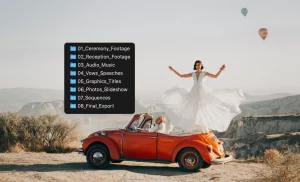
Many photographers then organize their images into folders. The simplest approach is by date, then by theme. I recommend naming folders year-month-day (for example 2026-07-14) so they sort chronologically on their own, and adding a theme for context: “2026-07-14 Family picnic”.
#### Essential Software for Managing Your Images
- Google Photos: backs up, organizes, and shares your photos, sorted by date.
- Microsoft Photos: organizes photo and video collections on Windows.
- Apple Photos: organizes photos and videos across Apple devices, in capture order.
#### Explore More Advanced Options
- Peakto: Mac app that brings photos and videos from all your catalogs and folders into one interface, with on-device AI and a Timeline view.
- Adobe Lightroom: professional software for organizing, editing, and sharing images.
- ACDSee Photo Studio: picture management with editing tools and tagging.
- Photo Mechanic: fast culling and metadata entry for large batches of images.
Organize Photos by Date Taken Across All Your Sources With Peakto
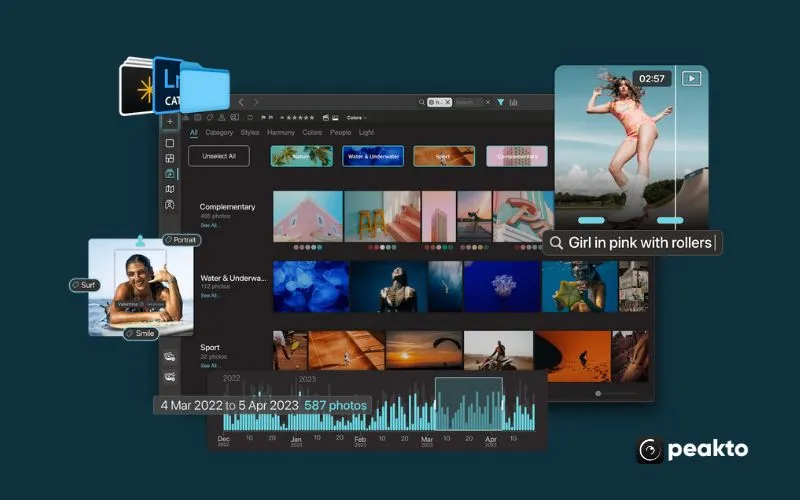
Peakto is a Mac app that organizes your image collection, and it is especially useful for sorting by date when your photos live in several places. Its AI runs on your Mac, so it handles very large libraries of images and videos without uploading anything. Here is what you get:
- Universal cataloging: brings all your media into one interface, where you can annotate, tag, delete, and create albums.
- Private AI: image and video analysis happens locally on your Mac.
- No duplicates: Peakto works from previews and never moves or copies your files, and you can keep browsing when a drive is offline.
- Several views: Panorama (AI categories), Timeline for chronological browsing, grid, detail, and map.
- Advanced search: search by description, similar images, faces, transcripts of video dialogue, and classic metadata.
- Filters: capture date, ratings, flags, colour labels, keywords, faces, media type.
- Organization tools: face recognition, opening a file in its editor, duplicate detection, smart albums mixing sources, and export in low or high resolution.
Peakto’s one real limit: it runs on macOS only (Peakto 3 needs macOS 14.6 or later).
How Peakto Makes Managing Your Photos Easier
Peakto indexes your images where they already are, without cluttering your storage, and stays in sync with your sources. It reads Lightroom Classic, Lightroom, Capture One, Luminar Neo, Apple Photos, DxO PhotoLab and PureRAW, ON1 Photo RAW, plain folders, external drives, and NAS devices. You get one place to view and explore your whole collection of photos and videos.

Peakto's Best Feature for Sorting by Date: Timeline
Discovering Peakto’s Timeline
The Timeline places your images on a chronological scale. If you have 5,000 images, you see bars showing how many were taken in each period; one bar might group 344 pictures shot between November 8 and November 17, 2015.
Looking for your Christmas pictures? Jump to December. You also see at a glance the periods when you shot the most.
Visualizing Your Timeline
The Timeline uses a logarithmic scale, where each line represents 10, 100, 1,000 images and so on, so both busy periods and quiet ones stay readable. To focus on a timeframe, click and drag to select a zone, or enter the dates manually.
The Timeline also shows how you have evolved as a photographer.

Practical Uses of the Timeline
When were your most creative periods? When did you photograph certain friends? On your last trip, which days produced the most images? Here is how the Timeline helps answer these questions.
#### Exploring Specific Sources
Choose one source, such as the album of a trip to China, and adjust the timeline window to see what happened on specific days.
#### Filtering Your Images
Filter the images rated higher than three stars. The highlighted bars show how this selection is distributed compared with the rest, so you see where your best shots are concentrated in time.
#### Analyzing People
Open the People tab and select someone, say Bob. The Timeline shows when Bob appears in your photos, compared with your whole collection.
#### Daily Video Insights
Filter the videos taken on a given day to see how they are spread out, for instance whether most were shot at a particular time of day.
#### Understanding Your Photography Habits
Combined with metadata filters (camera, lens, ISO, aperture), the Timeline shows which gear you really use and how your style changes over time.

How to Try Peakto for Free
Starting the 7-Day Trial
You can try Peakto free for 7 days on your own library:
- Go to the Peakto page and start the free trial. The trial comes with the subscription plans, not with the lifetime licence.
- Check your email for the download link (you will need to confirm your address).
- Install Peakto on your Mac, add your first folders and catalogs, and open the Timeline.
Adding Your First Photos and Videos to Peakto
Peakto detects the photo apps installed on your Mac and offers to connect them. You can skip this step and set it up later. To add content yourself:
- Folders: drag any folder from the Finder into Peakto.
- Catalogs: drag the catalog of Apple Photos, Lightroom, Capture One, or another supported app into Peakto.
FAQ
Why are my photos not in the right date order?
Most likely they are sorted by file date (created or modified) instead of capture date, or the file has no EXIF date. Sort by “Date taken” or “Capture Time” instead.
How do I fix a wrong capture date?
In Apple Photos, select the photos and use Image > Adjust Date and Time. In Lightroom Classic, use Metadata > Edit Capture Time. Correct the camera’s clock too, so the next shoot is right.
Can I sort photos from several apps by date in one view?
Not with the apps’ own tools, since each one only sees its own library. Peakto indexes all of them together, so its Timeline and its capture-date filter cover every source at once.
Benefits of Organizing Your Photos by Date With Peakto
A central tool like Peakto saves time when you manage photos and videos spread across Mac folders, external drives, and photo applications. You annotate, tag, delete, and build albums in one interface instead of hopping between apps. Sorting your photos by date taken, even across sources, gives you a clearer view of your history and makes memories easier to share.
If your photos are scattered and you want them on one timeline, I recommend trying Peakto free for 7 days. You will spend less time hunting for photos and more time enjoying them.
About the author: Allison Reber works at CYME, the company behind Peakto and Avalanche, and is a fan of every art form.