

Peakto Pro introduces a new validation workflow designed for teams that need to review, approve, and move visual content forward quickly and securely without relying on cloud storage or file transfers.
With this review and approval workflow, the entire team can collaborate remotely on media stored locally—whether on a Mac, an external drive, or a NAS.
Discover how to make a locally stored media library accessible remotely through a web interface, without uploading files to the cloud, while keeping every change synchronized in real time across the team.
Why Use the Media Validation Workflow?
Managing media in the cloud is simple, but it comes with storage costs, can be challenging for large files, and raises data privacy concerns. But can media stored locally across different drives, computers, or NAS devices be managed just as easily and remotely? It is often difficult for several people to access the same content easily, search across all available assets, and stay aligned during the review process.
- Files are duplicated or shared across multiple platforms
- Feedback is scattered across emails or messages
- It is difficult to track what has been approved and what still needs attention
- Teams do not always have a simple way to view and search all the relevant content in one place
Peakto simplifies this process by centralizing access, review, and validation in one place—while keeping your media local and under your control.
Peakto Lets Teams Work on Local Media from Anywhere
Peakto revolutionizes the way teams manage locally stored media, even remotely. It creates lightweight previews that are easier to browse, review, and share. Access can be granted peer-to-peer, while the original files remain securely stored on local drives or NAS systems. And with AI-powered search, teams can find the right content simply by describing what they need.
Let’s take a closer look at how this new Peakto Pro feature works in practice.
How It Works
1. Create a Team and Assign Collaborator Licenses
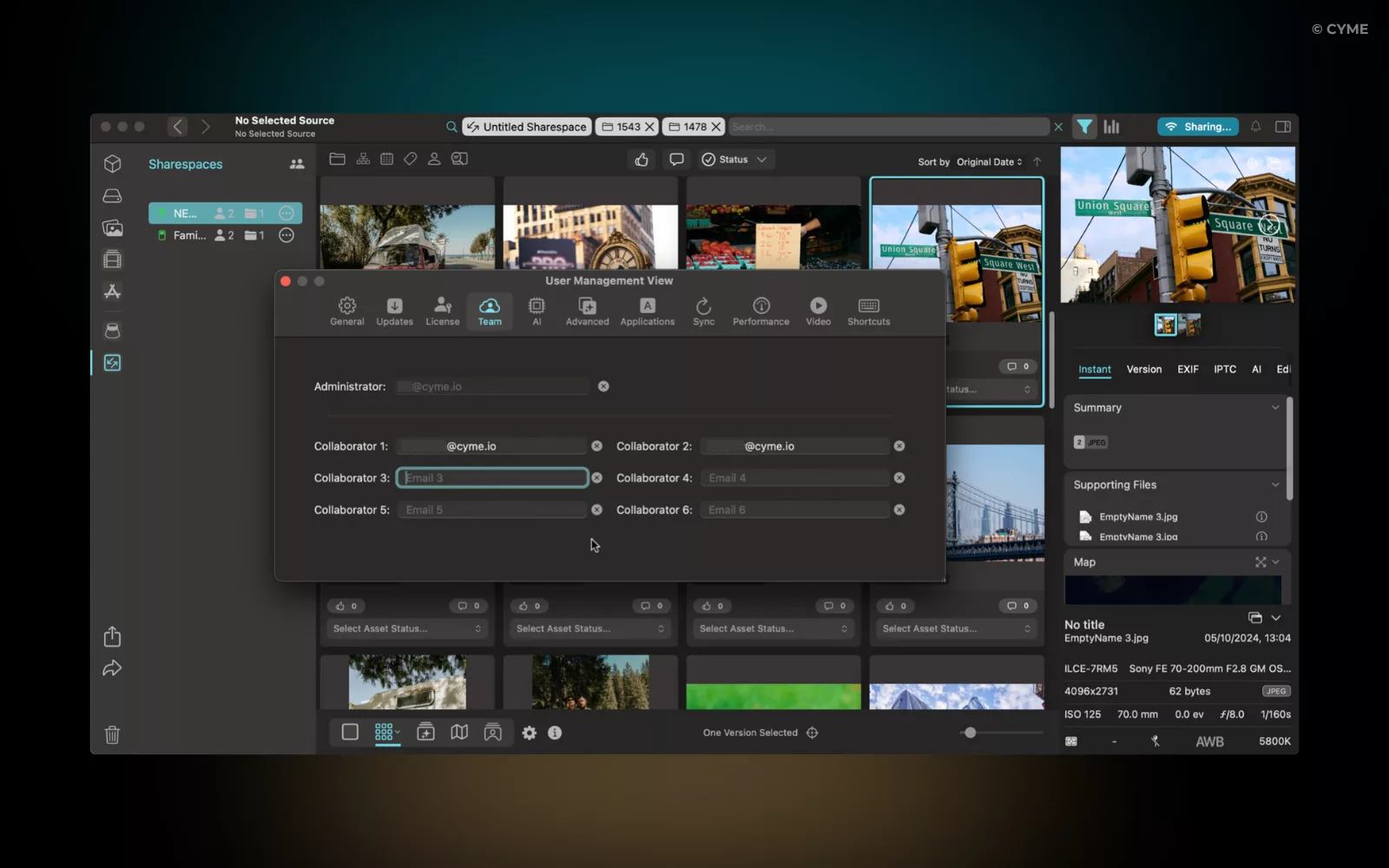
The first step is to create your team in Peakto. The administrator is the person who owns the Peakto Pro license, runs Peakto on a Mac, and manages access to the content indexed in the Peakto catalog.
To invite collaborators, open Peakto Settings > Teams and enter the email addresses of the people who will review or validate content through Peakto Web. Each invited user must be assigned a collaborator license before they can access shared content.
2. Create a Sharespace
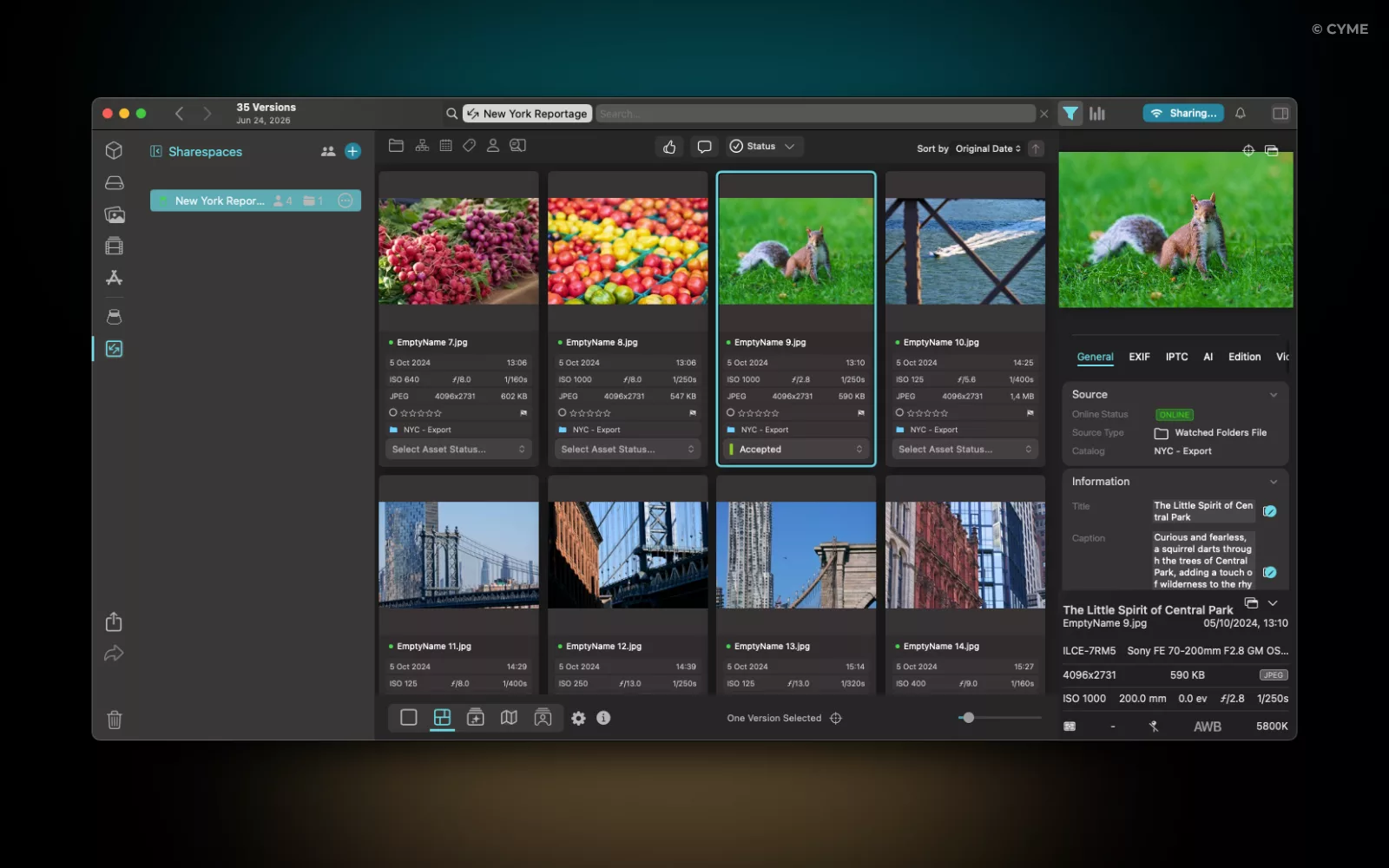
Once your team is set up, create a Sharespace containing the media you want to share.
Start by selecting photos or videos and gathering them into an album. Then right-click the album and choose Create Sharespace. Your original files remain exactly where they are—on a NAS, external drive, or your Mac. Peakto simply makes the selected content available through a secure web connection.
No file duplication. No cloud uploads.
3. Invite Collaborators
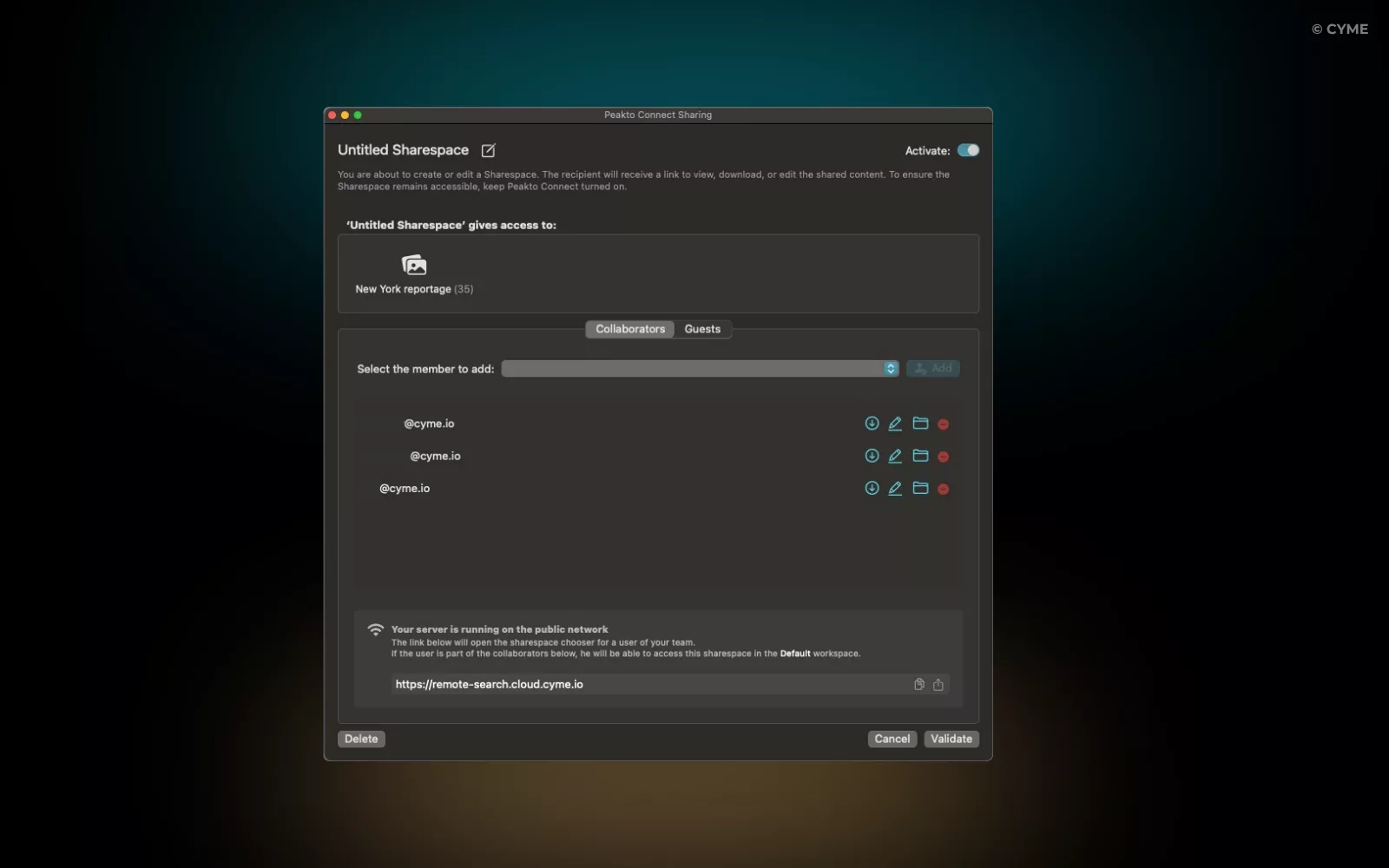
Sharespaces appear in the left sidebar under the ShareSpaces section. To invite collaborators, click the three-dot menu next to a Sharespace and select Edit.
From there, you can choose who has access and define their permissions, including whether they can annotate content, download files, or create subfolders. You can also temporarily disable or permanently delete a Sharespace at any time.
Make sure you have enabled access to your content on the local network or the public network using Peakto Connect. Invited collaborators automatically receive an email invitation. They simply need to accept it before accessing the ShareSpace.
4. Collaborators access Sharespaces from their browser
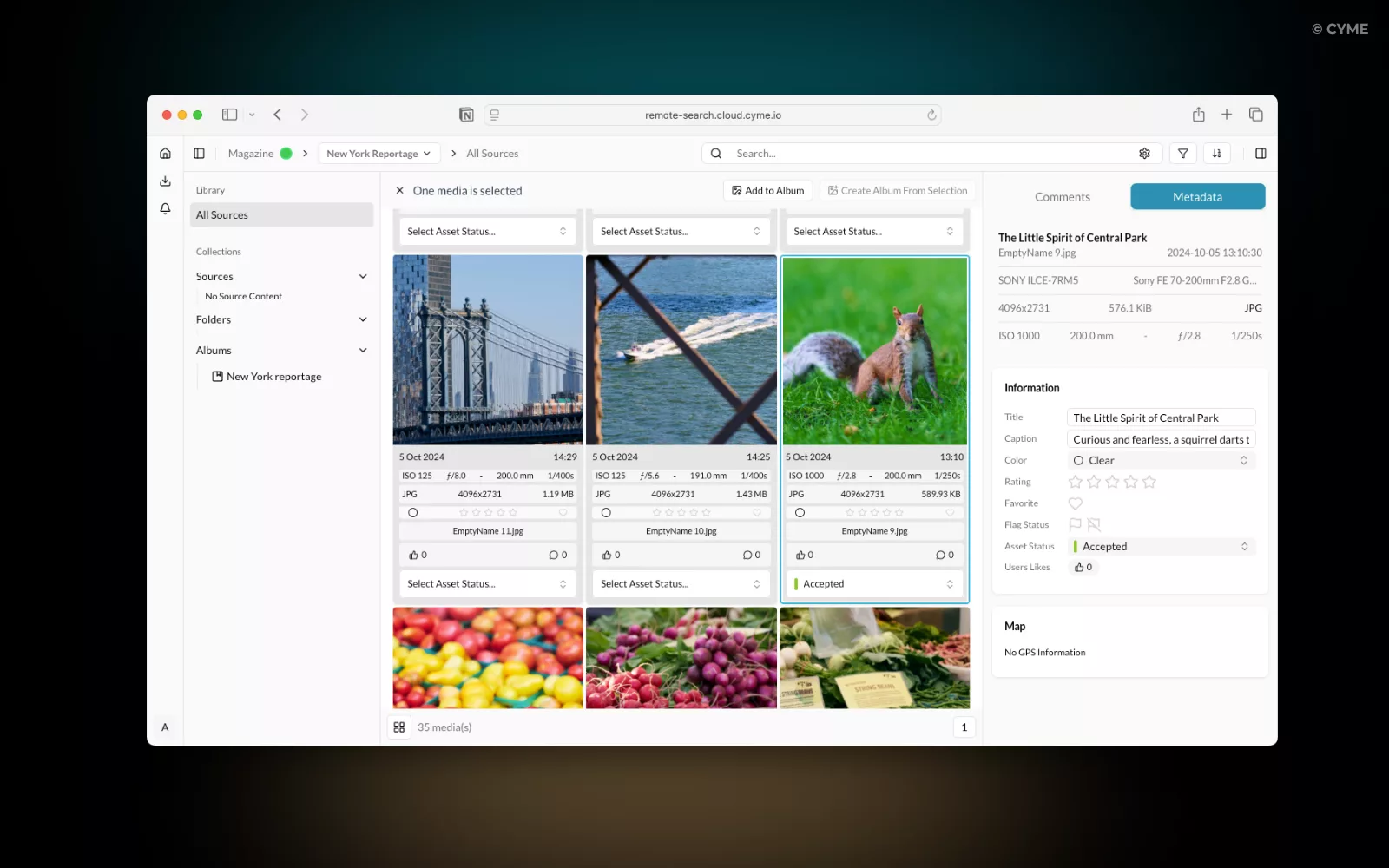
Using the link received by email, collaborators create a free CYME account and sign in through their web browser. Once the account has been created, they can go to the Shared with me section and see the different Sharespaces they have access to. They can immediately start reviewing content, wherever they are. No software installation is required.
5. Review and Validate Content
From the web interface, reviewers can:
- View images in high resolution
- Play video files
- Navigate easily through the selection
They can then assign a clear review status to each asset:
- Awaiting Feedback
- Accepted
- Rejected
- Needs Revision
To display review tools, collaborators can either open the metadata panel or enable them from the grid display settings. Filtering options make it easy to focus on specific assets—for example, only items awaiting feedback or content requiring revisions.
This helps standardize reviews and keeps everyone aligned throughout the approval process.
6. Sync Decisions in Real Time
Every action performed in a Sharespace is automatically synchronized with the administrator’s Peakto catalog. Ratings, comments, reactions, review statuses, and metadata updates appear instantly in Peakto without requiring manual refreshes or exports.
As an administrator, you can immediately:
- See which assets have been approved
- Identify content that needs revisions
- Track project progress
- Move production forward faster
No spreadsheets. No exported contact sheets. No endless email threads.
Just one workspace, always up to date.
Key Benefits of the Peakto Validation Workflow
No cloud dependency: Your files remain stored locally—no uploads required.
Secure collaboration: You control access while keeping your media private.
Clear communication: Comments, statuses, and reactions are all tied to the assets themselves.
Typical Use Cases
- Marketing teams validating campaign visuals
- Production teams reviewing photo and video selections
- Agencies collaborating with clients on deliverables
- Creative teams managing large volumes of media across multiple stakeholders
Local Media, Remote Teams, Instant Search
The validation workflow in Peakto Pro transforms how teams review content:
From scattered feedback and slow approvals
to a streamlined, real-time validation process—without the cloud
By combining local storage, AI-powered media management, and collaborative tools, Peakto helps teams move from selection to production with clarity and speed.