AI image search lets you find a picture by what it shows, not by its file name. Ask for “happy photos in the mountains” or “an image that looks like this one” and the tool finds it, whether it lives on your own drives or somewhere on the web. Below are the 10 AI image search tools I recommend in 2026, split between the two needs people actually have: searching your own photo library, and searching the internet.
Professional photographers, content creators and hobbyists all hit the same wall. Hard drives overflow with thousands of files, and the web is bigger still.
How do you find that specific photo taken three years ago? Naming files “vacation_final_v2.jpg” or spending hours adding keywords worked for a while. With today’s volumes, it no longer scales.
How AI Image Search Works: The "Computer Vision" Revolution
AI image search “looks” at the image the way a person would. The file name plays no part.
This is computer vision: algorithms analyze pixels to identify shapes, objects, colors, faces and scenes. They turn each image into mathematical data, and that is what lets you search in everyday language: “Show me happy photos in the mountains” or “Find an image that looks like this one.”
Not all tools work the same way, though. There are two main families:
- Web search (cloud): this is what Google or Pinterest do. You send a query (or an image) to large servers that index the internet. It is ideal for identifying an unknown object, finding a product to buy or looking for inspiration.
- Local search (on-device): this is the specialty of software like Peakto. The AI runs on your own computer and searches your own drives and catalogs. Your photos never leave your machine, and search keeps working without an internet connection. For personal and professional archives, this is the one to choose.
In this comparison, I have selected 10 tools that cover these two needs: exploring the world, and finding your way in your own images. I work at CYME, the company that makes Peakto, so I am not neutral. That is why Peakto is ranked for one specific job, searching your own library on a Mac, and the web tools are judged on theirs.
Top 10 AI Image Search Tools
Here is my selection of AI image search tools. Some search local libraries, others cloud platforms or large multimedia archives. All of them make visual search faster.
1. Peakto: The Best AI Image Search for Your Own Photo Library on Mac
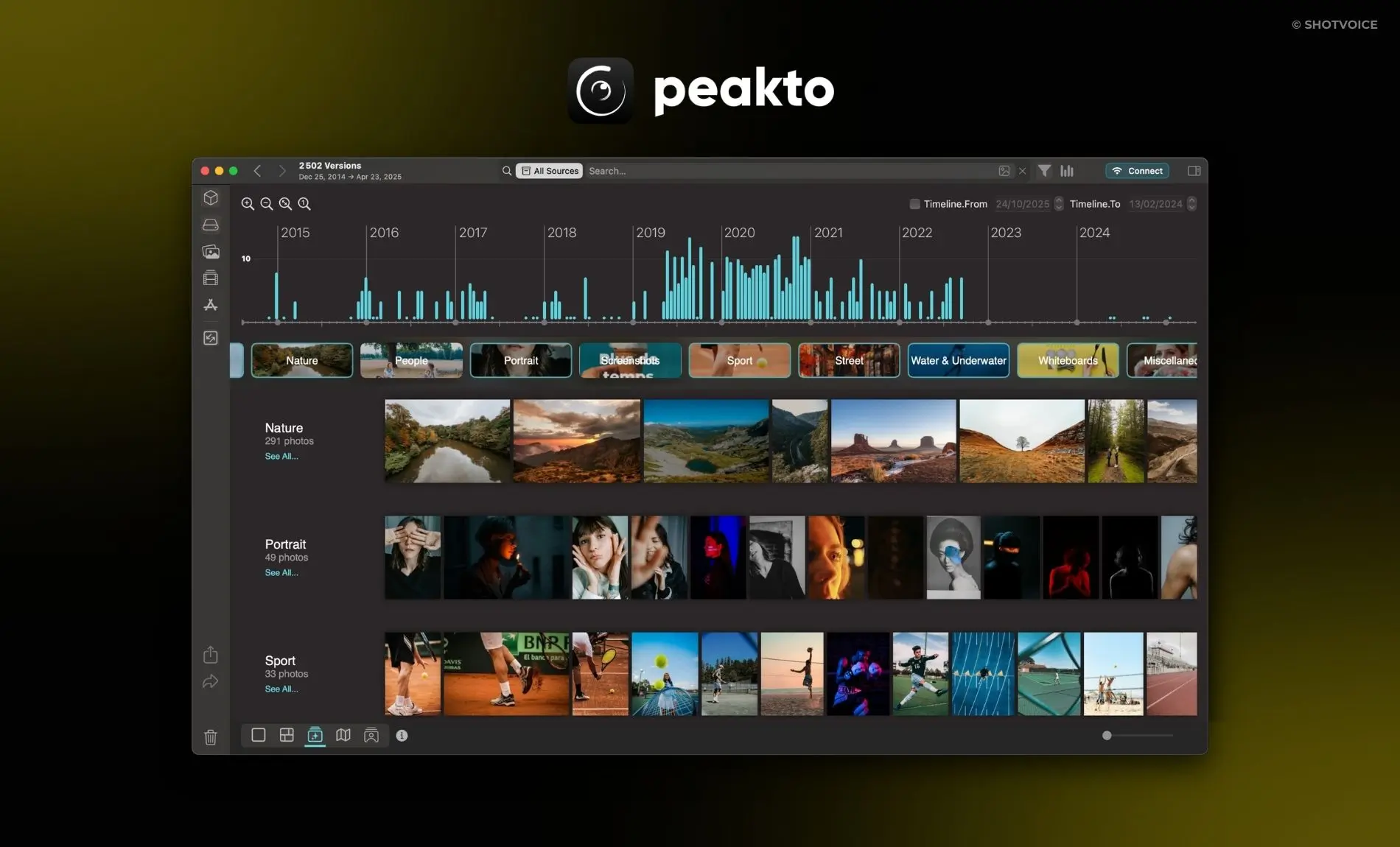
Peakto is different from the other tools in this list: it does not search the web. Think of it as a control tower for your own images and videos, built for photographers and creatives whose archives are scattered across several apps and drives.
Its strength? It is a meta-cataloger. It reads the libraries you already have (Lightroom Classic, Capture One, Apple Photos, Luminar Neo, DxO PhotoLab and more) as well as plain folders, external drives and NAS devices, without ever moving or copying the original files. You get one view of your whole visual archive, with no duplicates created.
- Key advantage: Peakto’s AI runs on your Mac. No media is uploaded, and search works offline. Drives that are disconnected stay searchable through their previews.
What I would use it for:
- Search by description: type “woman in red dress at sunset” and get results without having added a single keyword.
- Search by similarity: find the variants of a shot, or images close to a reference.
- Faces: find a person across every catalog at once.
- Video: search inside your videos, including the transcripts of what is said.
- Classic metadata: ratings, labels, keywords from your catalogs, capture date, all in the same search.
Its one real limit: Peakto runs on macOS only (your library can then be opened from any browser). If you want to see it on your own photos, there is a 7-day free trial.
2. Google Lens: The All-Seeing Eye of the Web
Google Lens has turned smartphones into visual analysis tools. It is made for the general public, for anyone curious about what is in front of them. Need to identify an object or a plant, or compare prices? This is the reference.
It analyzes an image to find its source or visually similar images through reverse image search. Lens can also extract text (OCR) or translate signs in real time, all connected to Google’s index.
3. Eagle: The Designer’s Second Brain
Eagle is a local digital asset management (DAM) tool popular with UI/UX designers and illustrators. If you collect thousands of inspiration images and need to sort moodboards quickly, it was designed for you.
Its specialty is visual sorting. You can search by color with a precise color wheel, to find assets that match a given brand palette. Smart filters use technical metadata such as format or source URL.
4. Tonfotos: Family Archiving Simplified
Tonfotos targets family archives. It leaves professionals to other tools and wants to simplify life for people with thousands of vacation and kid photos spread over several hard drives.
Its AI focuses on facial recognition and chronological organization. It scans your local folders to group photos by person, which makes it easier to build albums. It also runs on Linux and bets on ease of use.
5. Pinterest Lens: The Engine of Aesthetic Discovery
More than a social network, Pinterest is a large visual search engine trained to understand style, and a favorite of decorators and stylists. Where Google looks for factual matches, Pinterest looks for visual harmony.
Its scene-based search lets you zoom in on one detail of a photo (a lamp in a living room, for instance) and launch a similarity search on it. It then surfaces objects with a comparable design, which helps with trend discovery.
6. TinEye: The Copyright Detective
A veteran of reverse image search, TinEye is the tool photographers turn to when they worry about their copyright. TinEye makes no attempt to interpret what the image shows. It looks for where that exact image appears elsewhere on the web.
TinEye says it finds exact matches even when an image has been cropped, resized or recolored. That makes it useful for tracking image theft or finding a higher-resolution version of a file.
7. Same Energy: Search by “Vibe”
Still presented as a beta, Same Energy is a visual search engine focused on mood. It suits art directors in the brainstorming phase who want a consistent moodboard.
Click on an image and you get a grid of other visuals that share the same atmosphere and composition. The interface is minimalist and stays out of the way.
8. Bing Visual Search: The Detail Analyzer
Often overshadowed by Google, Microsoft’s tool is strong on desktop. What sets it apart: you can work on a detail instead of the whole image.
Its flagship feature is “Crop to Search”: select only part of an image (someone’s shoes, a piece of furniture in the background) and search on that detail. It is handy for finding a specific object lost in a busy scene.
9. Everypixel: The Quality Aggregator
Everypixel uses AI to search across many stock photo libraries at once. It is aimed at designers and marketers who want more authentic visuals without visiting ten different sites.
Its main asset is an “Aesthetic” filter which, according to Everypixel, sets aside low-quality or overly generic photos. You can search by text description or upload a reference image to find similar royalty-free pictures.
10. Apple Photos / Google Photos: AI in Your Pocket
You cannot ignore the photo apps built into our phones. Designed for everyone, they already do a lot of AI work in the background.
They handle semantic searches such as “me in Paris in 2018” and organize memories automatically by combining facial recognition, location (GPS) and object recognition. Their limit is scope: each one searches its own library, not the Lightroom or Capture One catalogs and folders a photographer also keeps.
Which AI Image Search Tool Truly Fits Your Needs?
The choice depends on where your images are. Exploring the web for inspiration, a source or a product? Google Lens, Pinterest, Bing or TinEye are the tools to use.
Trying to find your way in your own collection, spread across catalogs and hard drives? On Mac, Peakto is the one I recommend. It adds AI image search on top of your existing organization without changing it, and without sending your photos anywhere. You can try it for 7 days on your own library from the Peakto page.
FAQ: AI Image Search
What is AI image search?
It is a search that understands the content of images (objects, scenes, faces, colors) instead of relying only on file names or keywords. You describe what you are looking for in plain words, or show a similar image.
Can I use AI image search on my own photos without uploading them?
Yes, with a local tool. Peakto, for example, runs its AI on your Mac and indexes your photos where they are, so nothing is uploaded and search works offline.
Which tool is best for reverse image search on the web?
For finding where an exact image is published, TinEye is built for that job. For identifying what an image shows or finding similar products, Google Lens and Bing Visual Search are the usual choices.
About the author: Allison Reber works at CYME, the company behind Peakto and Avalanche, and is a fan of every art form.