

New

Peakto 2.6 introduces AI-Assisted Culling and Deduplication

Culling Tool

Photo Culling Built for Faster Decisions

Designed to handle high-volume shoots without slowing you down.

7-day free trial included

Photo Culling Built for Faster Decisions - 00

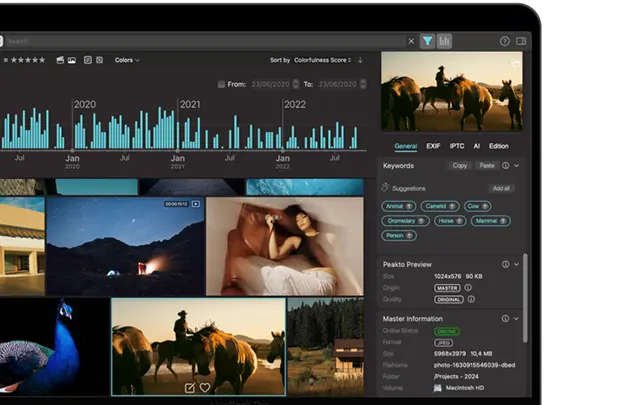
Peakto is a media management software for creators that streamlines their workflow, allowing them to spend more time creating thanks to powerful AI-powered features.

Photo Culling Built for Faster Decisions - 01

AI-Powered Selection Based on Your Rules

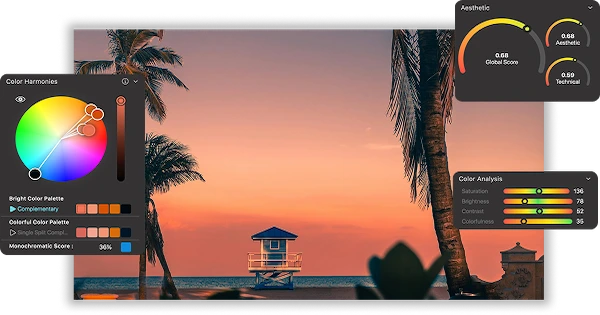
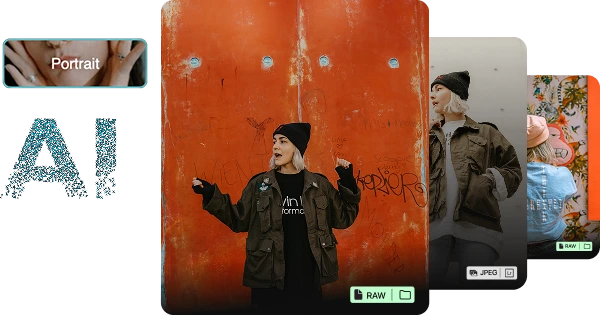
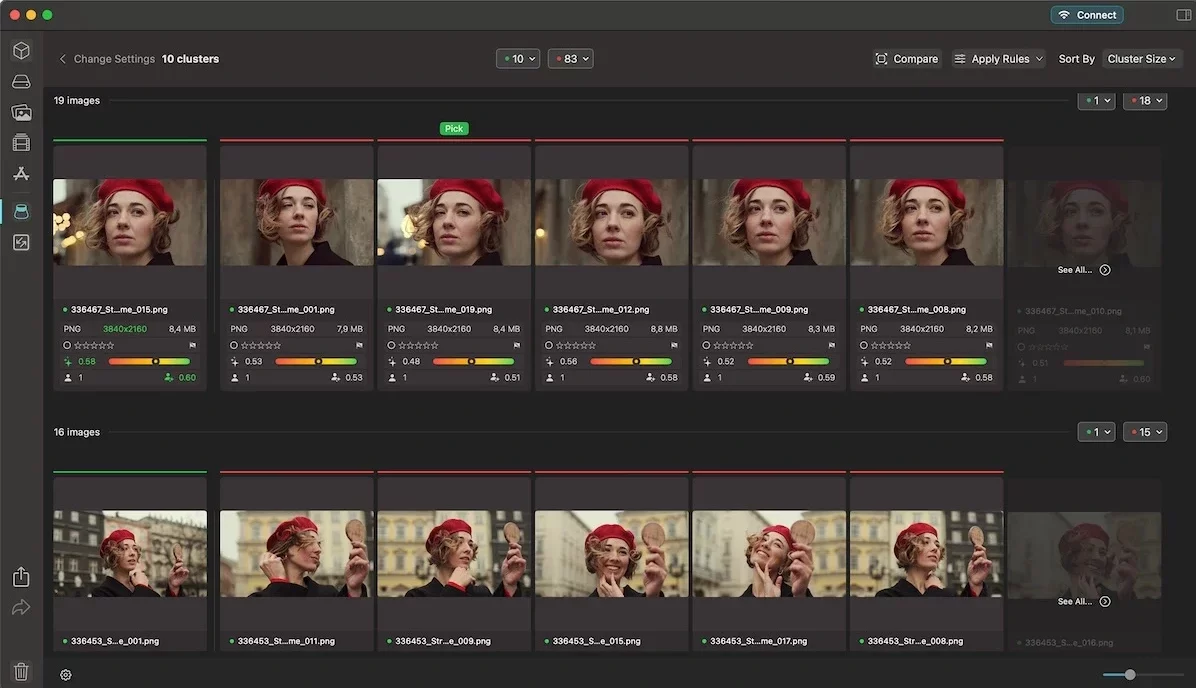
Peakto analyzes photo series and highlights the strongest images according to what matters to you: facial expressions, eyes open or closed, or visual consistency—no guesswork involved. 

Photo Culling Built for Faster Decisions - 02

Compare with Clarity and Confidence

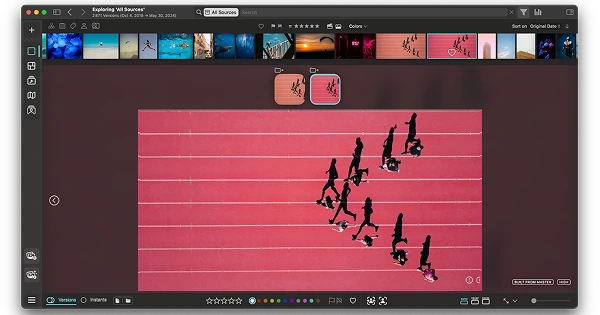
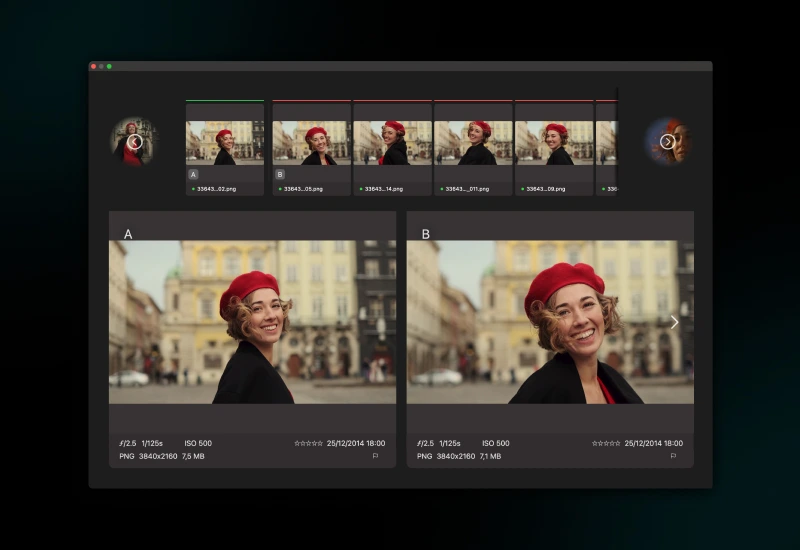
Use Peakto’s dedicated comparison interface to review similar shots side by side. Subtle differences become obvious, making selection faster and more objective.

Photo Culling Built for Faster Decisions - 03

Culling Across Your Entire Library

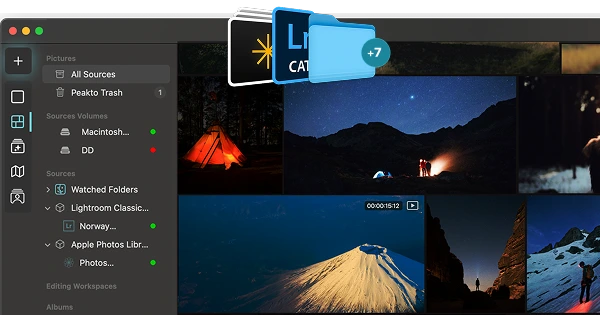
Unlike traditional tools limited to folders or catalogs, Peakto applies photo culling across your full photo library—folders, drives, and multiple catalogs included.

See what customers say about Peakto

Visual banner for Peakto features - 01
Peakto Software Logo and Name - Media Management for Creatives

Enhance Your Workflow

Master your content and focus on what truly matters.

3 benefits of using Peakto’s culling tool

Discover a new level of clarity in your photo workflow.

Save Time Without Compromising Quality

Manually reviewing hundreds of similar photos is slow and exhausting. Peakto accelerates the process while keeping you fully in control of the final selection.

Make Better Creative Decisions

By surfacing the strongest images in a series, Peakto helps you focus on composition, expression, and impact—rather than technical distractions.

Stay Focused on What Matters

Culling is no longer a tedious step. With Peakto, it becomes a fast, confident decision-making process that lets you spend more time creating—and less time sorting.

Discover this feature in a short video

Review, compare, and choose your best images with ease.

1

Choose Your Scope

Start from anywhere: a single collection, a folder, a catalog, or even your entire library.

2

Pick a Template

Choose a template and adjust the similarity level to control how closely images are grouped.

3

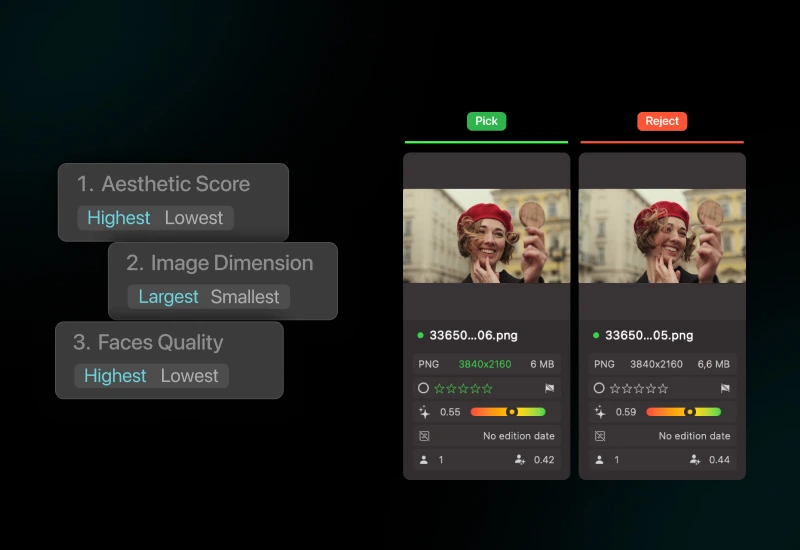
Define Your Own Rules

Choose the criteria that guide Peakto’s picks, then reorder them to match your priorities.

6 reasons why Peakto is the
best media manager

Apple Native

Apple Native - Peakto

Peakto ensures smooth performance and seamless integration with the Apple ecosystem, delivering a fast, reliable, and intuitive experience.

AI-Powered

AI-Powered - Peakto
Peakto harnesses the best of AI to intelligently organize and search your files, allowing you to save valuable time and streamline your workflow effortlessly.

Centralized Organization

Centralised Organization - Peakto
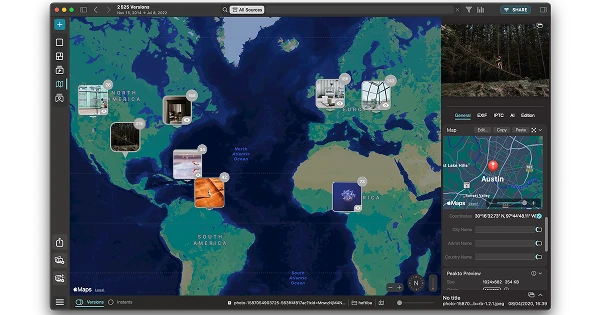
Peakto centralizes all your media and actions into a single interface, giving you a global view of your entire library for greater efficiency and control.

Continuous Improvement

Continous Improvements - Peakto
Peakto is constantly evolving with regular updates and enhancements, driven by a passionate team dedicated to ensuring you always have the best experience.

Large Compatibility

Large Compatibility - Peakto
Peakto offers wide compatibility with leading editing software, giving you the freedom to use the tools you love and take advantage of the very best technology available.

Workflow Integration

Workflows Integration - Peakto
Peakto seamlessly integrates into your workflow, allowing you to keep your habits and favorite tools while enhancing your media management without disruption.

Find even more features inside Peakto

Frequently Asked Questions

What is Peakto?

Peakto is an intelligent media manager designed for videographers and photographers. It centralizes your photos and videos from multiple sources — editing software, catalogs, hard drives, servers, or NAS — into one unified space.


Thanks to its artificial intelligence, Peakto automatically identifies the content of videos and images, allowing you to quickly find the files you’re looking for. It streamlines the organization, search, and sharing of your media, even within collaborative projects.

To obtain Peakto software, follow these steps:


  1. Purchase Peakto: Visit the Peakto store and choose between a subscription plan or an unlimited license.
  2. Download Peakto: After completing your purchase, you will receive an email with a link to download the software.
  3. Trial Period: Note that the 7-day trial period is only available with subscription plans.


How does it work?

Provide your payment information via credit card or PayPal. You will not be billed for the subscription until the end of the 7-day trial period. The free trial automatically converts to a monthly subscription (1, 12, or 24 months) unless canceled before the end of the trial period. After the trial period ends, all license purchases are final and non-refundable.

Photo culling in Peakto helps you compare similar photos and select the best ones from a series. Using AI, Peakto groups related images and assists you in making fast, confident selection decisions.


Peakto can apply photo culling to your entire photo library, including folders, external drives, NAS systems, and multiple software catalogs—all at once or within a selected scope.

1. Choose your culling scope

Start from anywhere: a single collection, a source (drive/folder/catalog), a group of sources—or even your entire library. Peakto lets you define exactly where you want culling to run.


2. Open the culling tool and pick a template

Click the Culling/Deduplication tool in the left panel, then select a Culling template. Use the similarity slider to control how strictly Peakto groups photos into series (tighter groups for near-identical shots, wider groups for broader variations).


3. Set your selection rules

Choose the criteria that will guide Peakto’s picks—then reorder them to match your priorities. For example, portrait culling can prioritize face quality, while other scenarios may rely on ratings or other attributes.


4. Generate groups and review easily

Peakto builds clusters of similar images. Inside each group, you can Pick or Reject manually, with a live summary per group and for the whole culling session.


Use Compare to inspect two images (A/B), zoom in, and confirm subtle differences before choosing your best shot(s).


Run your rules across all groups in one click, then automatically flag, color-tag, move to Trash, or create an album from your selected images—so your best photos are ready for the next step of your workflow.


Yes. Peakto includes a comparison view that lets you examine images side by side, zoom in, and evaluate fine details before confirming your picks.

No. Photo culling in Peakto is non-destructive. You decide what actions to apply, and nothing is deleted unless you explicitly choose to do so.


Once your selections are made, you can automatically apply actions to your picks and rejects: add flags, color tags, move images to Trash, or create albums from your selected photos.

We are here to answer your questions. To get support, take a look at the Knowledge Base, submit a Ticket, or join the Community. You can find all this information on the Contact page of our website.

Peakto Software Logo - Media Management for Creatives

Media Management Made Smarter
With Peakto for macOS

7-day free trial included

How to Organize Your Photos Using Keywords 01
Hey, wait...
Inspiration, Tips, and Secret Deals — No Spam, Just the Good Stuff