Event

Meet us at NAB Show 2026 in Las Vegas

Table of Content
Share:

User-Friendly Design for Video Search: Find the Right Moment

Teams and leaders can lose 25% of their time just searching for answers, which makes “findability” a product feature, not a nice-to-have ( Atlassian State of Teams 2025 ).

Video workflows amplify that tax because “the answer” is often a specific moment hidden inside a long timeline. This is why Peakto’s approach to video discovery matters: it treats search as a guided decision path, not a guessing game. If you want the concrete capabilities behind that promise, start with video frame search details .

This article breaks down what user-friendly design means when you search across real footage, interviews, and b-roll—so you can evaluate an interface in minutes and adopt it with confidence.

Key points in 30 seconds
A user-friendly video search UI reduces cognitive load before you type, then keeps refinement visible and reversible.
Fast proof comes from previews, context playback, and timeline cues that confirm relevance without opening 10 files.
“Smart” assistance must stay explainable: show why results match, and let users steer tags, faces, and filters.
Measure success with time-to-find and zero-result rates, then fix the top frictions with small, frequent releases.

To ground the discussion in market reality, digital libraries are exploding: the global Digital Asset Management market is projected to grow at a 16.2% CAGR through 2030 ( Grand View Research ).

What users expect when they need to find video fast

The faster your interface earns trust, the less people “panic-click” through files.

Key moments get lost inside long timelines

Video is not a document; it is time-based evidence. A user-friendly design acknowledges that people rarely remember file names. They remember scenes, emotions, props, or who said what. That is why search must support visual recall and spoken recall, not only filenames in a catalog.

Creative stress and lost time during logging

When search fails, teams compensate with manual logging. A survey-based study reported that 22.34% of respondents spend about half a working day per week on information searches ( University of Illinois IDEALS repository ). In video, that “information search” becomes scrubbing, re-watching, and rebuilding context.

Perceived promise vs. real user effort

Users will forgive imperfect AI if the effort feels bounded. They will reject powerful systems that demand perfect metadata. The UI must make “good enough to try” the default, then reward refinement.

Trust signals during the search journey

Trust comes from visible progress: query understood, filters applied, and a clear explanation of why results appear. Atlassian’s 25% “time tax” is a reminder that trust is economic ( Atlassian State of Teams 2025 ).

UX criteria that are unique to video workflows

Design for videographers managing media means prioritizing: frame-accurate previews, audio/dialog cues, shot similarity, and fast “decision shots” (thumbnail, time range, and a short reason). This is different from what photographers need in lightroom or luminar, even when both start from capture and metadata.

Key takeaways
Design for “scene memory,” not file memory.
Make progress visible and reversible to reduce stress.
Optimize for frame-level proof, not file-level browsing.

User-friendly design principles for video search that reduce hesitation

Once expectations are clear, the interface must remove friction before it appears.

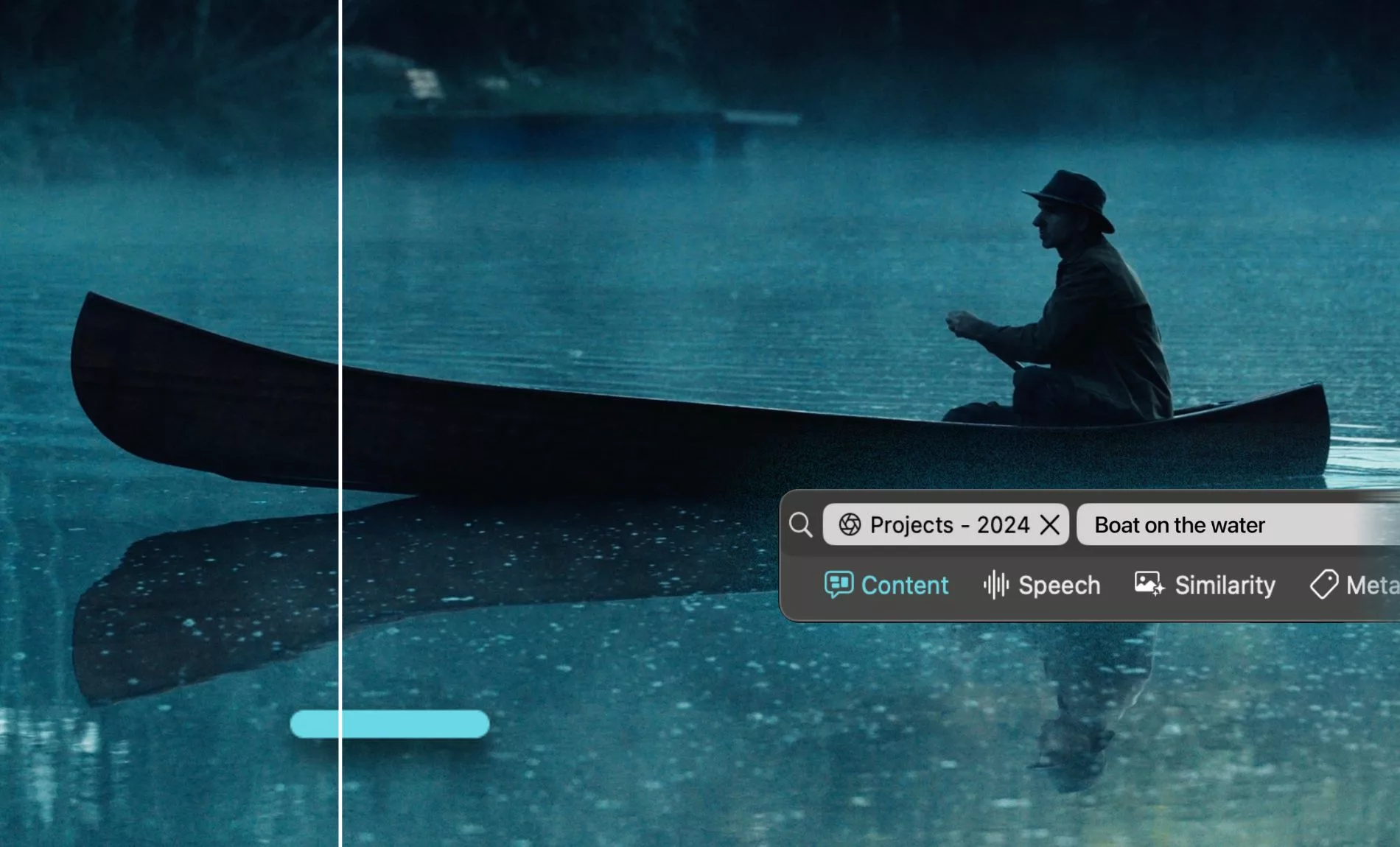
Minimal cognitive load from the search bar

Start with a single, forgiving entry point that supports one search across sources. If you require users to choose “clip vs. project vs. transcript” upfront, you force them to think in your database model. Instead, let the UI infer intent and keep scope explicit.

Remember the market direction: DAM adoption is rising with the volume of digital assets, with the category projected to reach $11.94B by 2030 ( Grand View Research ). Search bars are becoming the home screen.

Clear affordances for filters and facets

Filters must look clickable, show counts, and explain scope. Users should instantly see whether they are filtering by project, date, camera, face, or dialogue. If your UI relies on hidden side panels, users will not build a reliable mental model.

Tolerance for imperfect queries

People do not remember exact wording from interviews. They remember approximations. A user-friendly UI must accept incomplete queries and offer guided refinement: “Did you mean…”, “Try narrower…”, “Try similar…”. This reduces the odds of “zero results,” a common abandonment trigger.

Visible progression toward the right excerpt

Show a ladder of narrowing: what you typed, what the system matched, and what changed after each refinement. This is how you turn “search” into a learnable skill.

Flow: Query \uc0\u8594 cues (frames, transcript hits, faces) \u8594 ranked results \u8594 refine (filters, time ranges, similarity) \u8594 confirm excerpt
Key takeaways
One entry point first, structure second.
Make filters self-evident with scope and counts.
Turn refinement into a visible, learnable path.

A guided, reassuring search experience users can trust

After the principles, the next step is matching how people actually remember video.

Natural-language search and reformulations

Users should be able to type “wide shot of the ceremony entrance” and then refine without resetting. The UI must support reformulation as normal behavior, not as failure. That mindset aligns with reducing the 25% time lost to searching for answers ( Atlassian State of Teams 2025 ).

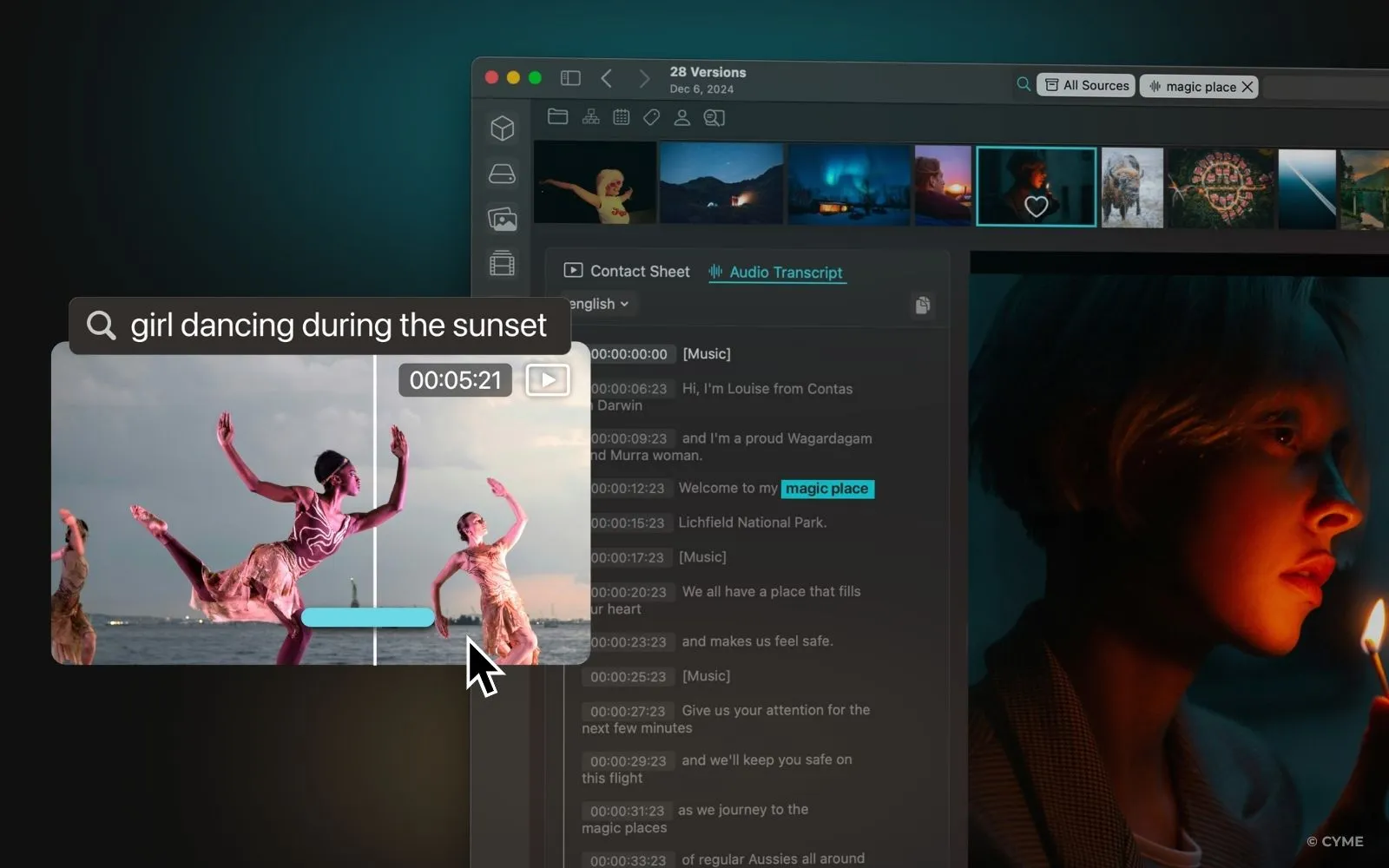
Search by spoken words and dialogue

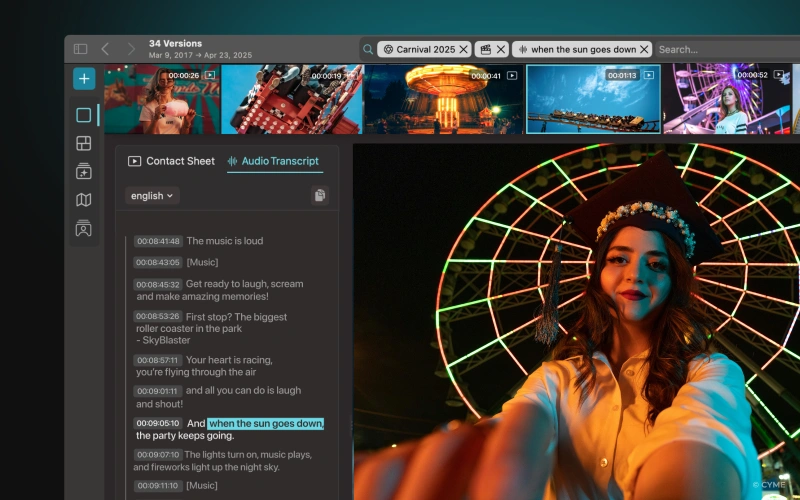
Dialogue search needs two things to feel user-friendly: confidence indicators (where the match is) and language handling (accent tolerance, multi-language projects). Results should show the matched segment and the surrounding context, not only a timestamp.

Search by metadata with explicit fields

Power users want structured control. Give them fielded search that is still readable: camera model, lens, location, project, rating, and custom tags. This is where cross-app expectations show up, especially for photographers, apple photos users, and people coming from lightroom plugins.

Search by image or visual excerpt

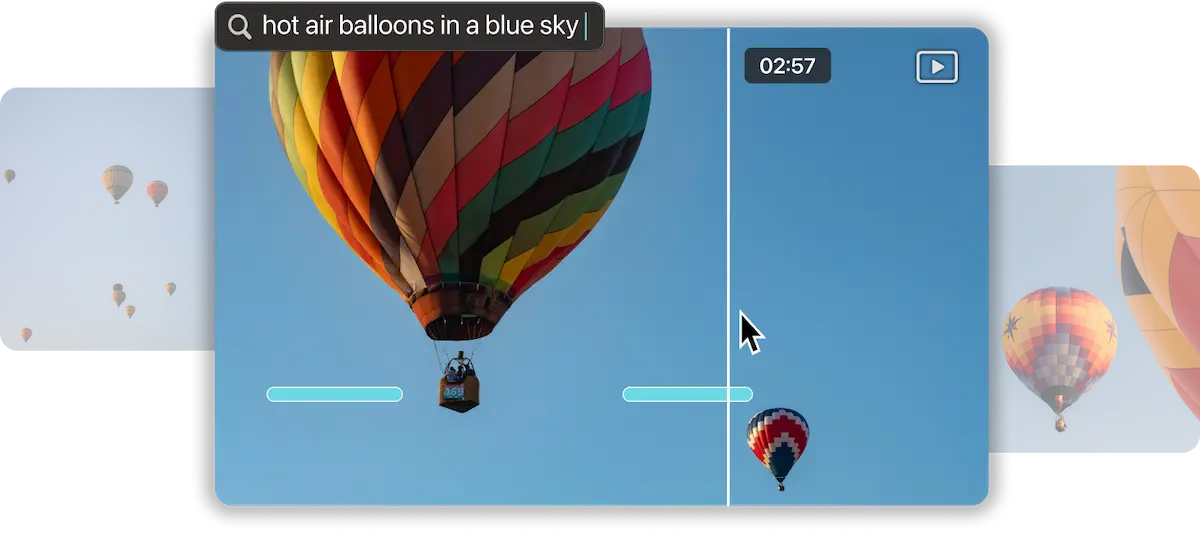
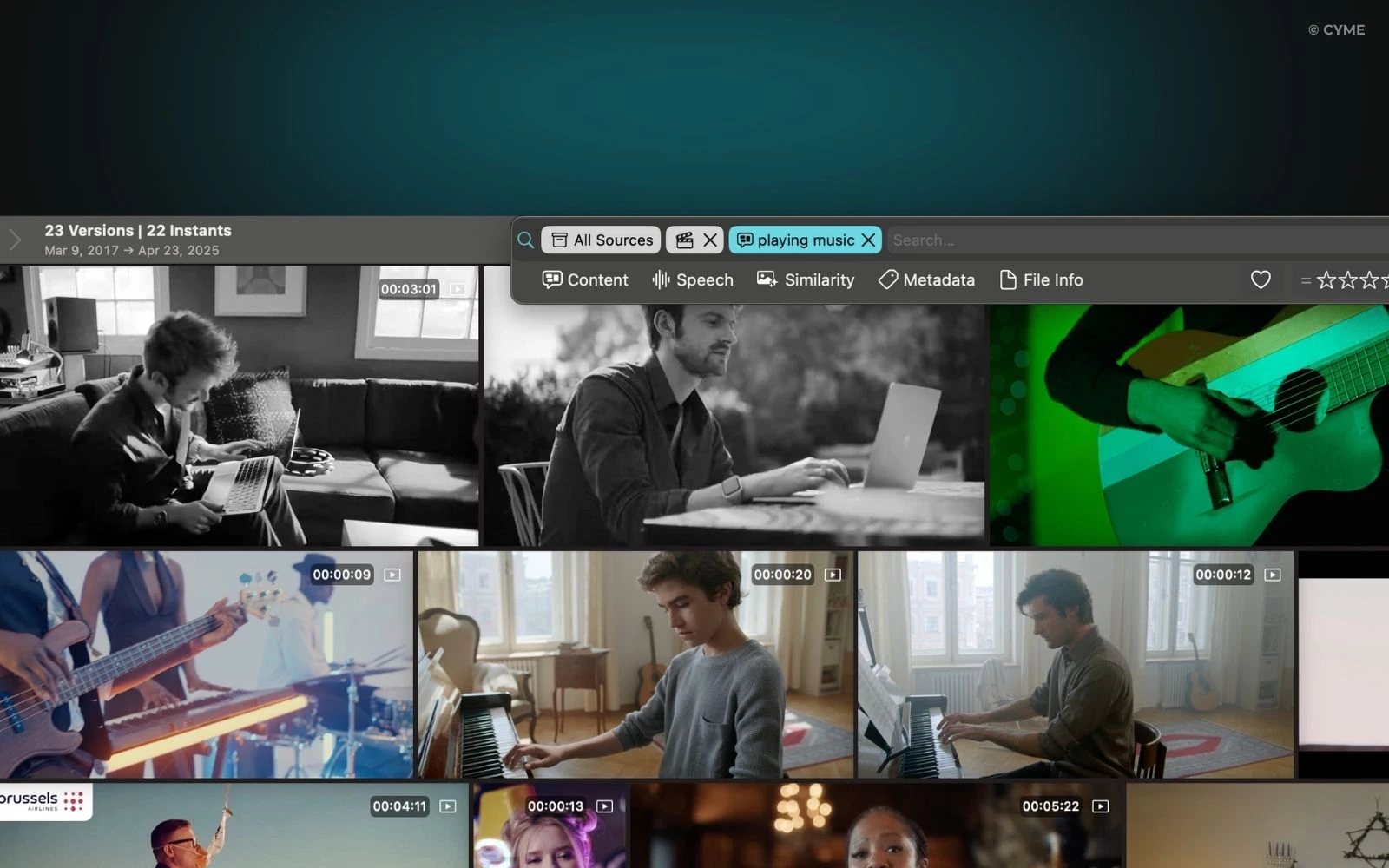
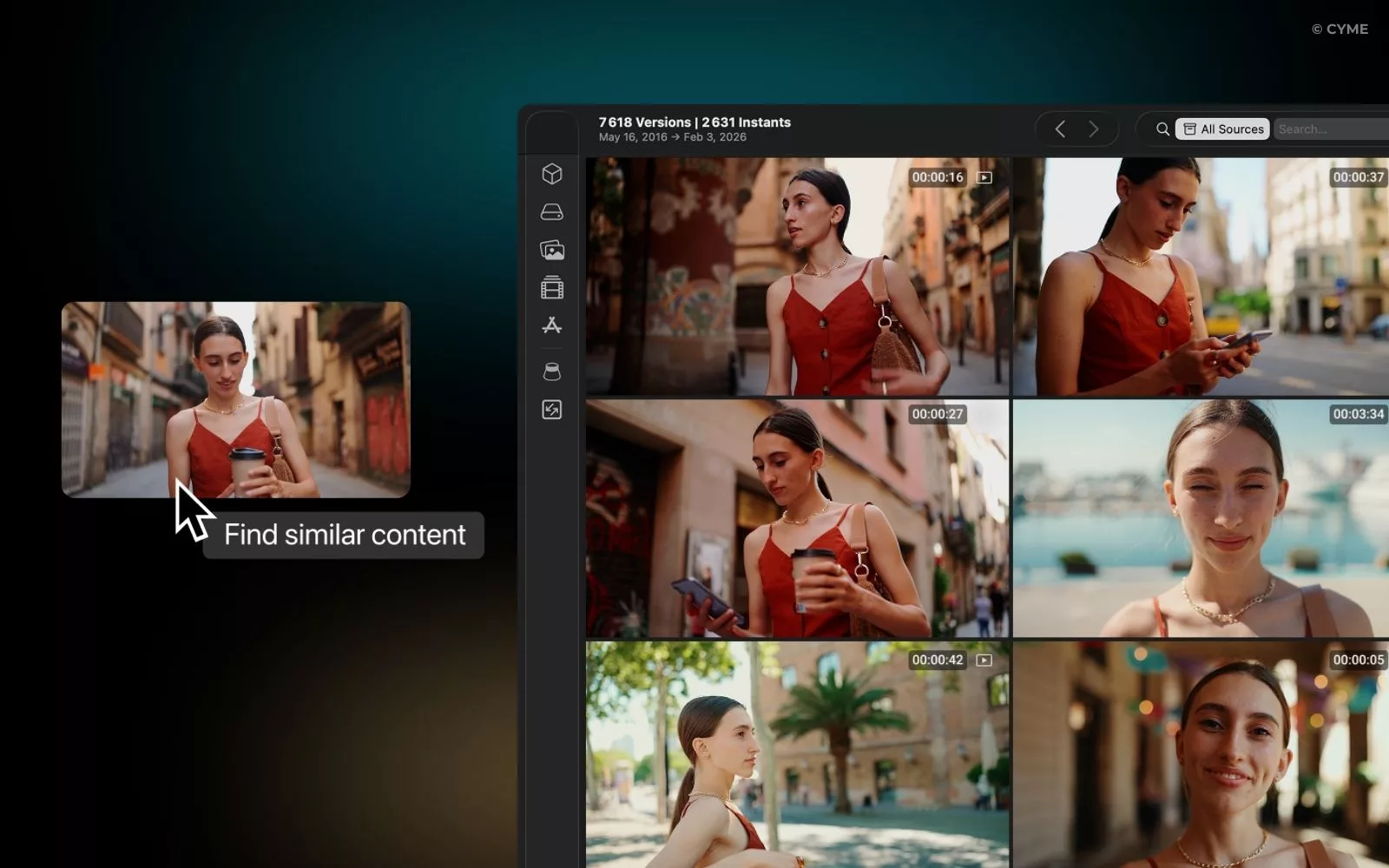
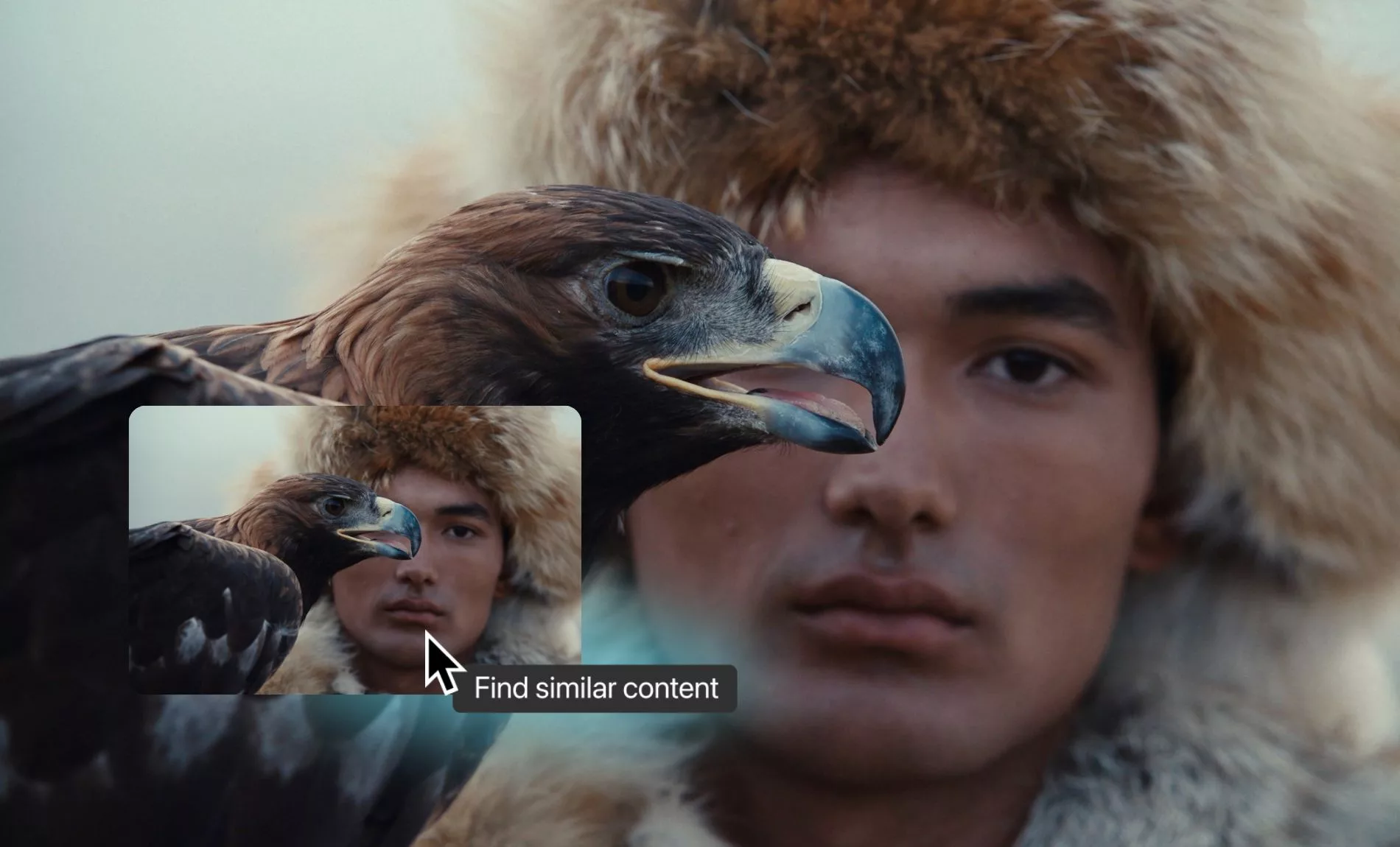
Visual similarity is essential for b-roll and brand content. A user-friendly UI should let users start from a frame and expand outward to similar shots, instead of forcing keyword perfection.

Results organized for fast decisions

Design results for decision speed: thumbnail, short reason, time range, and a single action to preview in context. A study found 10.47% of respondents spend one and a half workdays per week on information searches ( University of Illinois IDEALS repository ), which makes “faster decisions” a measurable outcome.

Search mode Best for User-friendly UI cue What “good” looks like
Natural language Scene intent, emotion, action Suggestions and reformulations Users refine without clearing history
Dialogue Interviews, documentaries Highlighted transcript hits Match shown with surrounding context
Metadata fields Teams, standards, compliance Explicit field chips Filters are readable and reversible
Visual similarity B-roll, brand reuse “More like this frame” action Users expand options without new keywords
Key takeaways
Support how users remember: words, faces, and visuals.
Make results decision-ready, not list-ready.
Keep refinements and history visible.

Interface interactions that prove relevance quickly

Once results appear, the interface must reduce verification time to seconds.

Rapid previews and contextual playback

Preview must be instant and informative: a hover scrub, quick audio, and a jump to the matched region. This is how you prevent opening ten files just to reject nine. If teams lose 25% of time searching, previews are one of the few UI changes that directly return time ( Atlassian State of Teams 2025 ).

A timeline widget to spot key moments

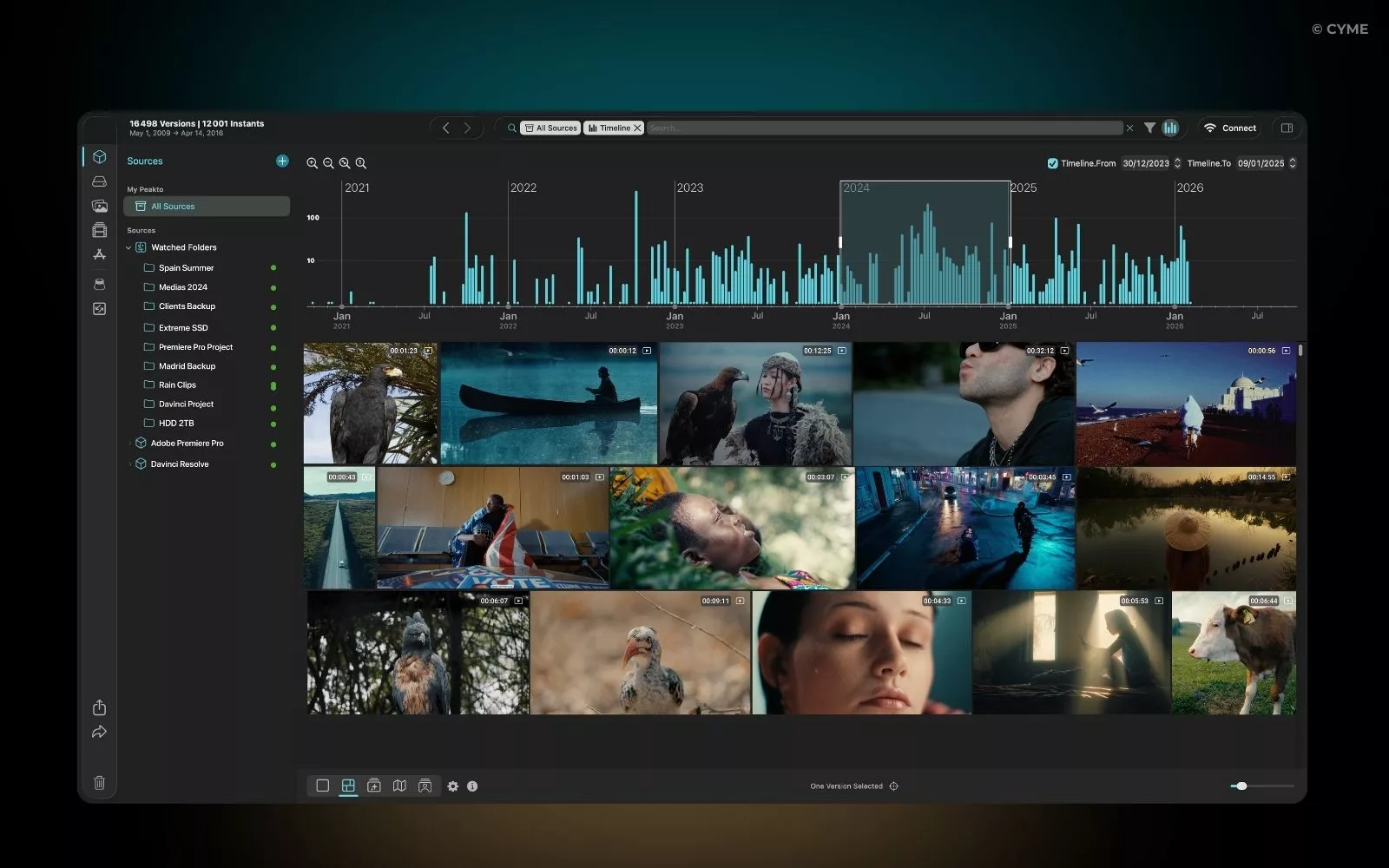
When a match occurs inside a long clip, users need a compact timeline visualization: hit markers, face appearance blocks, or transcript density. This turns “scrubbing” into “jumping.”

Iterative refinement without losing history

Refinement must be safe. Users should be able to step back one filter, compare two queries, and keep their place. That includes preserving the current preview position when toggling facets.

Sorting controls that are understandable and stable

Sort labels must match user intent: “Most confident match,” “Newest,” “Most reused,” “Closest visually.” Avoid ambiguous labels. Stable sorting prevents users from feeling like the interface is moving the target.

UI labels that reduce hesitation

  • Search scope: “All projects” vs. “Current project”
  • Match reason: “Matched dialogue” vs. “Matched visual detail”
  • Refine action: “Add filter” vs. “Reset filters”
  • Privacy clarity: “Stored locally” vs. “Shared to team”

Action prompt: Put three labels under usability review: search scope, match reason, and “reset” wording. Those labels prevent costly misclicks.

Smart assistance that stays under user control

Assistance should feel like a co-pilot, not an autopilot.

Suggested keywords users can actually trust

Suggested tags should be readable and editable. If the system suggests “outdoor, crowd, ceremony,” users must be able to accept, reject, or rename. That keeps the catalog clean and improves future results without training users to ignore the UI.

Face detection with usable annotations

Face detection only helps when it becomes a stable field: person name, confidence, and where the face appears in time. Otherwise it becomes visual noise. Adoption depends on explainability as much as accuracy.

Search for similar assets to expand options

Similarity search reduces re-shoots because it reveals near-duplicates and alternates. This is where creators peakto-style workflows can shine: one good frame becomes a doorway into a whole set.

Short explanations for why results match

Explain matches in plain language: “Matched phrase in transcript,” “Similar composition,” or “Same location metadata.” A study reporting weekly search time shows how expensive opacity becomes ( University of Illinois IDEALS repository ).

Privacy settings that feel simple

A clear policy privacy experience is part of user-friendly design. Users should immediately understand what stays on-device, what syncs, and what is shared. “Simple” here means fewer options with clearer outcomes, plus a visible contact path when teams need answers.

Key takeaways
Assistance must be editable to stay trusted.
Explanations reduce anxiety and improve learning.
Privacy should be outcome-based, not jargon-based.

Designing for real jobs, not demo scenarios

Workflows define what “user-friendly” means more than aesthetics ever will.

Documentary editors handling long, complex scenes

They need dialogue search, speaker identification, and quick jumps between narrative beats. Anything that forces full re-watches will fail at scale. If information search time can consume half a day weekly for many people, long-form editors feel it first ( University of Illinois IDEALS repository ).

Wedding videographers searching for emotion fast

They remember “the reaction,” not the filename. User-friendly design here means visual similarity, face cues, and fast previews. It also means calm defaults: hide complexity until they ask for it.

Agencies with shared libraries

Agencies need consistent naming, permission clarity, and predictable results across projects. “Who can edit tags?” must be as obvious as “who can export.” Growth in DAM adoption reflects this operational pressure ( Grand View Research ).

Creators reusing archives across platforms

Speed matters. They want “find the shot, reuse it, move on.” Interfaces should support plugins ecosystems without fragmenting the experience, including expectations shaped by plugins open plugins search patterns in other creative products.

Routines that prevent re-shoots and duplicates

Build routines into the UI: “mark as reusable,” “note licensing,” “flag best takes,” and “find similar.” The best user-friendly designs reduce repeat work by making the next search easier than the last.

Accessibility, team adoption, and cross-screen consistency

When the UX is consistent, training drops and adoption rises.

Progressive onboarding and early wins

Onboarding should aim for a first win in under five minutes: import, run a search, preview, refine, export a link or an excerpt. That matters because time wasted searching is already a quarter of the week for many teams ( Atlassian State of Teams 2025 ).

Naming, icons, and consistency across screens

Do not rename the same concept across panels. “Project,” “Library,” and “Collection” cannot mean three different things. If you support apple photos, lightroom, and other imports, keep terms stable even when sources differ.

Shortcuts, keyboard focus, and heavy use

Video people work at speed. Keyboard focus must be visible. Shortcuts must be discoverable and consistent. This is not a bonus; it is how professionals stay in flow.

Readability, contrast, and visual fatigue

Long sessions require readable typography, clear contrast, and restrained animation. Make the preview and the “why this matched” area easy on the eyes.

Simple access governance for teams

Governance should feel like a checklist, not a security product. Roles must map to real actions: view, tag, rename, export, share. This is where service reliability meets UX clarity.

Key takeaways
Optimize onboarding for one fast win.
Consistency beats cleverness across screens.
Accessibility is a productivity feature for power users.

How to measure and optimize an interface that feels easy

If you cannot measure “easy,” you cannot defend it during roadmap tradeoffs.

UX indicators: time-to-find and task success

Track time-to-find a target clip, success rate, and the number of refinements. Use Atlassian’s finding as a baseline pressure signal: 25% time lost to searching means small improvements compound ( Atlassian State of Teams 2025 ).

User tests with realistic video queries

Test with messy queries: partial quotes, wrong spellings, “blue jacket in rain,” and “close-up reaction.” Ask users to think aloud while they decide. Success is not only finding a file; it is choosing the right moment confidently.

Search logs: zero results and abandonment

Instrument: queries returning zero results, long dwell time without preview, and repeated toggling of filters. Those are signals of confusion. Remember that a meaningful share of workers report large weekly search time ( University of Illinois IDEALS repository ), so abandoned searches are not trivial.

Friction-to-fix table for fast wins

Common friction What users do Immediate design fix Metric to watch
Zero results after a broad query They retry from scratch Offer reformulations and “remove one filter” hint Zero-result rate
Results look similar They open many files Add match reasons and stronger preview actions Previews per successful find
Users lose their place while refining They avoid filters Keep history, allow back/compare states Refinement depth without abandonment
Unclear scope (project vs library) They distrust outcomes Persistent scope chip near the query Repeated scope toggles

Continuous improvement and UX debt control

Ship small fixes weekly: label clarity, default sorting, filter grouping, and preview speed. Treat UX debt like performance debt: you can postpone it, but you will pay with adoption later—especially as libraries grow with the market ( Grand View Research ).

Action prompt: Pick one metric this week: time-to-find for a single scenario. Improve it by reducing clicks, not by adding features.

FAQ: intuitive video search design

How do I find a specific moment inside a long video?

Start with the strongest memory cue (spoken phrase, person, visual detail), then confirm with fast previews and a timeline hit marker. The goal is to validate in-context before opening the full clip. A user-friendly UI keeps your refinements visible so you can narrow without losing the thread.

Why do “smart” search features sometimes feel harder to use?

Because they hide the reasoning. Users trust what they can understand and correct. Show why a result matched (dialogue, visual similarity, metadata), and let users edit suggested tags. Explainable assistance reduces repeated searching, which Atlassian estimates consumes 25% of work time ( Atlassian State of Teams 2025 ).

How many filters should a video search interface expose?

Expose a small set by default (project, date, people, dialogue, similarity), then progressively reveal advanced fields. Too many choices increase hesitation. Your target is fewer restarts and fewer zero-result queries, not maximum filter count. Keep fielded metadata search available for experts.

What is the main risk of relying on auto-tagging and face detection?

The risk is silent error: wrong tags that pollute future searches, or privacy confusion. Mitigate with editable suggestions, confidence cues, and clear policy privacy controls. If users can correct annotations quickly, the system improves over time without breaking trust.

Is video search UX the same as photo search in Lightroom-style workflows?

No. Photo search often ends at the right image, while video search must land on the right time range. Videographers need timeline cues, context playback, and dialogue hits. Photo-oriented expectations (like those from lightroom, photos picture browsing, or lightroom plugins) can inform consistency, but video requires excerpt-level proof.

Synthesis: what makes video search feel effortless

User-friendly design in video search is not about adding more features. It is about making the path from intent to excerpt obvious: low-friction querying, clear refinement, and instant proof through previews and timeline cues. Keep smart assistance explainable, keep governance simple, and measure time-to-find relentlessly. As libraries expand and DAM adoption grows ( Grand View Research ), the teams that win will be the ones that can locate and reuse footage without breaking creative flow across products and plugins.

Peakto users evaluating peakto open experiences should focus on one question: can you move from a vague memory to a confident excerpt in under a minute, consistently, across your catalog?

You may also like...

Explore Peakto in video

Watch our demo video, then sign up for a live FAQ session to connect with our team.
How to Organize Your Photos Using Keywords 01
Hey, wait...
Inspiration, Tips, and Secret Deals — No Spam, Just the Good Stuff