Event

Meet us at NAB Show 2026 in Las Vegas

Table of Content
Share:

RED RAW support in Peakto: optimize R3D playback, search, and exports

R3D becomes painful when storage and decoding are fighting you: RED lists 8K uncompressed 16-bit at 5,096 MB/s versus 8K R3D (8:1) at 162 MB/s at 24 fps, which changes what your disks and cache must sustain. RED (Benefits of REDCODE RAW PDF)

This guide gives you a repeatable setup to make RED RAW support in Peakto predictable: fast thumbnails, smooth scrubbing, stable color previews, and exports that match your editor. You will also see how to reduce duplicate media bloat without breaking links. For a quick way to locate exact moments inside long clips, use Peakto’s video frame search .

The essentials in half a minute
Set GPU, cache location, and debayer quality before you index, so R3D previews are consistent.
Index progressively by shoot-day folders to avoid long first runs and to keep disks responsive.
Tune debayer quality for the task: fast for review, higher for selects and export checks.
Validate timecode, audio, and relinks after any drive move, then document the working configuration.

Now that the goal is clear, start by removing the usual bottlenecks: permissions, cache sizing, and storage behavior.

Prepare your environment so R3D behaves like editorial media

Tools, access, and realistic time expectations for REDCODE RAW

Peakto can only feel “instant” if your system can sustain the kind of reads that R3D browsing triggers. RED’s own comparison shows why: 4K ProRes 4444 is listed at 212 MB/s while 4K R3D (6:1) is listed at 54 MB/s at 24 fps, so the format is efficient, but you still need low-latency storage for random access while scrubbing. RED (Benefits of REDCODE RAW PDF)

Plan time based on what you actually want: quick review, deep indexing for search, or export-friendly previews. Indexing is I/O-heavy and metadata-heavy, even if the codec is “smaller” than uncompressed. A fast SSD cache and clean permissions often matter more than raw CPU cores for the first hour of setup.

Preflight checklist (GPU, cache, rights, storage) before you touch Peakto

  • Update GPU drivers and macOS point updates in a controlled window, then restart before indexing.
  • Confirm the cache volume is fast, local, and not synced to a cloud folder.
  • Grant Peakto full access to removable volumes and network shares you will browse.
  • Keep R3D on stable mount paths; avoid renaming top-level volumes mid-project.
  • Reserve free disk space so caches and thumbnails can grow without fragmentation.

Why the cache matters: RED lists 8K ProRes 4444 at 849 MB/s but 8K R3D (8:1) at 162 MB/s at 24 fps, so you are not fighting huge sustained bitrate as much as you are fighting seek patterns and debayer cost during interactive playback. RED (Benefits of REDCODE RAW PDF)

Key takeaways
Pick a dedicated fast cache disk first, then index.
Stability comes from permissions and mount consistency, not from “more compression.”
Decide your target outcome (review, search, export checks) before you choose quality settings.

With the machine ready, the next step is to confirm Peakto is actually decoding the files you think it is, with settings that match your hardware.

Enable RED RAW support in Peakto with the right decoding choices

Confirm detection and pick a decoding mode that fits your GPU

Start by verifying Peakto identifies your camera originals as R3D and generates usable thumbnails. If you see black thumbnails or stalled previews, treat it as a decoding chain issue first: OS permissions, conflicting codec components, or a cache location that cannot be written.

Use RED’s compression definition to set expectations: RED explains that a 5:1 ratio means the file is effectively one-fifth the size of an uncompressed file, which helps storage, but does not remove debayer computation during playback. RED (Benefits of REDCODE RAW PDF)

Recommended baseline settings (GPU, cache, debayer, quality)

The goal is consistent responsiveness: fast thumbnail creation, stable scrubbing, and repeatable preview color. Use the table as a starting point, then adjust one variable at a time.

Setting area For review and culling For selects and export checks
GPU acceleration On, prioritize stability over “max performance” toggles On, validate with a long clip scrub test before team rollout
Cache location Local SSD, dedicated folder, not a network share Local SSD with extra free space for larger preview sets
Debayer quality Lower quality for interactive browsing Higher quality when judging fine detail and noise
Storage expectation R3D can be relatively light on bandwidth, but random reads matter Benchmark with an “8K R3D (8:1) 162 MB/s at 24 fps” reference point from RED
Key takeaways
Solve black thumbnails with permissions and cache writability before you blame “bad media.”
Tune debayer for the job, not for pride.
Change one decoding variable at a time, then retest scrubbing on the same clip.

Once decoding is stable, indexing strategy becomes the difference between a tool you trust and a tool you avoid after big shoot days.

Import and index REDCODE RAW without moving your originals

Add source folders in place and index progressively for large shoot days

Add folders as sources without relocating files. The best practice is to index by day and camera, so you can start working while the rest processes. Progressive indexing also makes troubleshooting easier: if one folder causes failures, you isolate it quickly.

Use naming conventions that survive handoffs: reel identifiers, camera letter, and a consistent “scene-take” pattern. A clean structure helps later when you export selections or rebuild a library after a drive swap.

R3D is efficient, but indexing still benefits from predictable storage: RED lists 2K ProRes 4444 at 57 MB/s and 4K R3D (6:1) at 54 MB/s at 24 fps, which shows similar bandwidth can still behave differently when the system is seeking across many files. RED (Benefits of REDCODE RAW PDF)

Flow: R3D folder → Peakto index → thumbnails → preview cache → smooth browsing

Prevent broken links when drives move

Broken links are usually self-inflicted: renamed volumes, changed mount points, or a folder that was “tidied” after indexing. When you must move media, move the whole top-level folder, preserve the path depth, and keep a record of old-to-new volume names. Then trigger a relink check immediately, not weeks later.

Key takeaways
Index by day and camera so you can work before the full library finishes.
Standardize reels and naming early to avoid matching problems later.
Treat drive renames as a breaking change; document them.

After indexing, performance problems usually come down to interactive decoding cost, cache hit rate, and the speed of the disk that holds previews.

Optimize playback and decoding so R3D scrubs smoothly

Pick the active GPU, debayer quality, and cache size for the task

For browsing, you want responsive UI and stable playback. For judging detail, you want higher quality debayer and consistent scaling. Keep those two modes distinct. If everything is set to maximum quality all the time, you will misdiagnose the bottleneck.

Storage math helps set expectations. The Library of Congress provides a file-size guide where a one-minute 4K UHD 60p clip is estimated at about 17.91 GB in ProRes RAW HQ, which illustrates how quickly preview caches can grow when you browse aggressively. Library of Congress (ProRes RAW)

Quick fixes when you see stutters, crashes, or black video

Symptom Likely cause Fastest safe fix
Scrub lags after a few minutes Cache on a slow or shared volume Move cache to a local SSD and rebuild previews
App becomes unstable on long clips Aggressive debayer plus GPU contention Lower debayer for browsing, close other GPU-heavy apps
Black thumbnails or black preview Permissions, codec conflict, or blocked cache writes Fix rights, clear cache folder, then re-index a small subset
Key takeaways
Separate “browsing mode” from “quality check mode.”
Cache placement is a performance feature, not housekeeping.
Use a single long clip as your benchmark, so changes are measurable.

Once playback is stable, color is the next place where teams lose time, because inconsistent previews create false problems downstream.

Stabilize color and image handling for R3D previews and exports

Align color spaces between Peakto and your NLE

Decide the target viewing space for review. Most teams standardize on a Rec.709 monitoring path for editorial review, then switch to HDR workflows only when finishing requires it. When Peakto previews do not match your editor, isolate the difference: input color science, viewer gamma, and LUT application order.

R3D’s advantage is that settings are not baked in the same way as many mezzanine formats. RED’s documentation frames compression as a size comparison, for example 5:1 yields a file effectively one-fifth the uncompressed size, so you can keep originals accessible without exploding storage budgets. RED (Benefits of REDCODE RAW PDF)

Control RAW parameters and avoid LUT mismatches

When you change ISO or white balance for evaluation, treat those changes as viewing decisions, not editorial truth, unless you have a documented on-set reference. If you rely on LUTs, ensure the same LUT file and the same color-management mode are used for both preview and export checks. Otherwise, “why does it look different?” will haunt every handoff.

For monitoring, verify your display chain on a calibrated monitor and keep your viewing environment stable. If you are mixing SDR and HDR material, decide which gets priority in Peakto previews, so assistants are not tagging based on a misleading look.

Key takeaways
Pick a review color space and keep it consistent across the team.
Treat LUT differences as a configuration issue, not a media issue.
Validate the monitor path before you debate grading choices.

With performance and color under control, Peakto becomes more than a browser: it becomes a discovery layer that speeds up selection before you open your editor.

Exploit search and AI on R3D clips to find selects faster

Build metadata fields and smart albums that mirror production

Create dedicated fields for camera-side context: camera body, lens, filtration, and shoot-day. Then build smart albums by scene, location, and intent, so “find the clean wide” becomes a repeatable query instead of a memory test.

Peakto is designed as a bridge across libraries, not a replacement for everything. This is where you can unify mixed sources from capture one search, lightroom, apple photos, and luminar while keeping your editorial bins focused; that matters for photographers and videographers who need a single review space that still respects real-world handoffs.

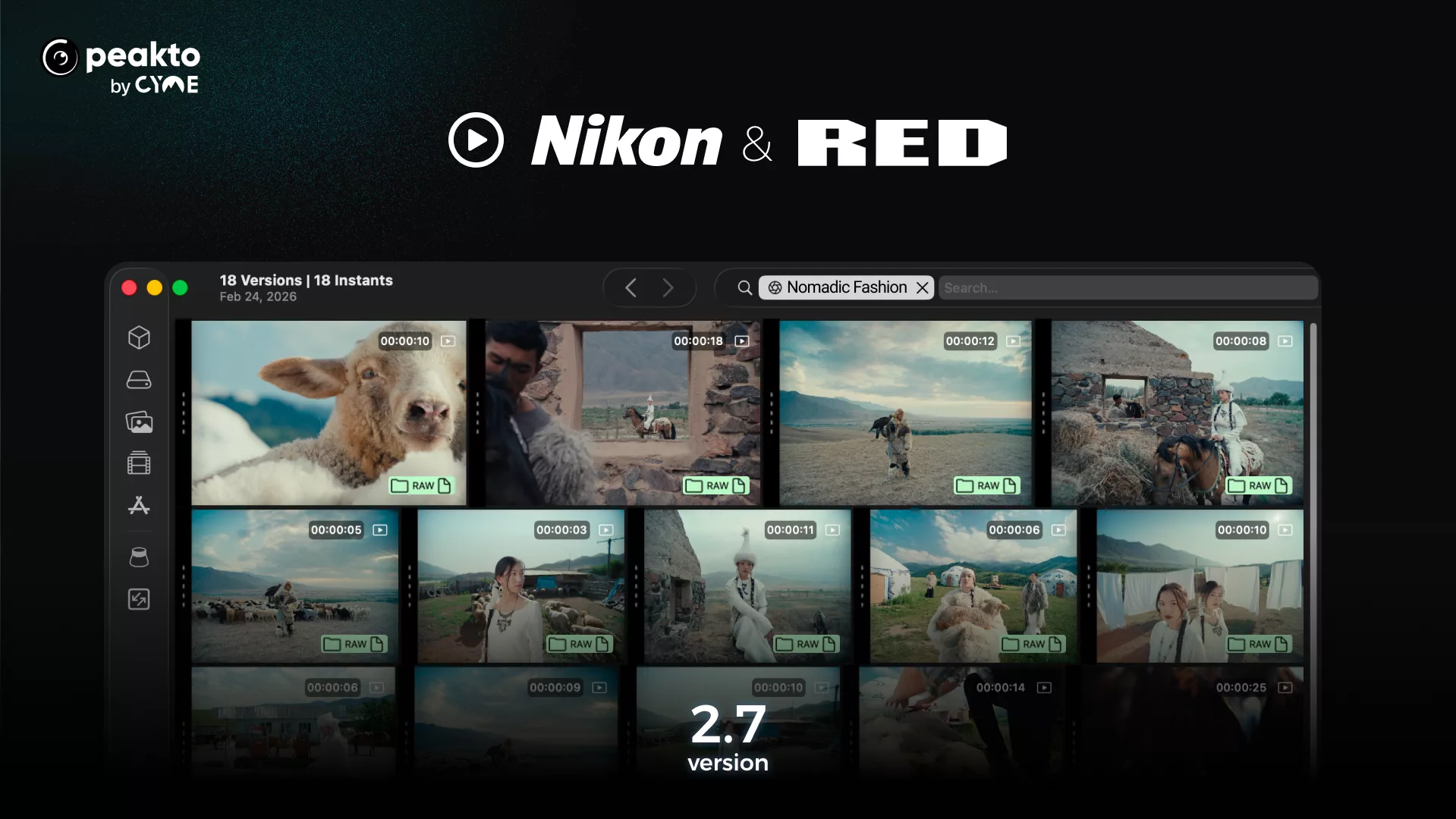
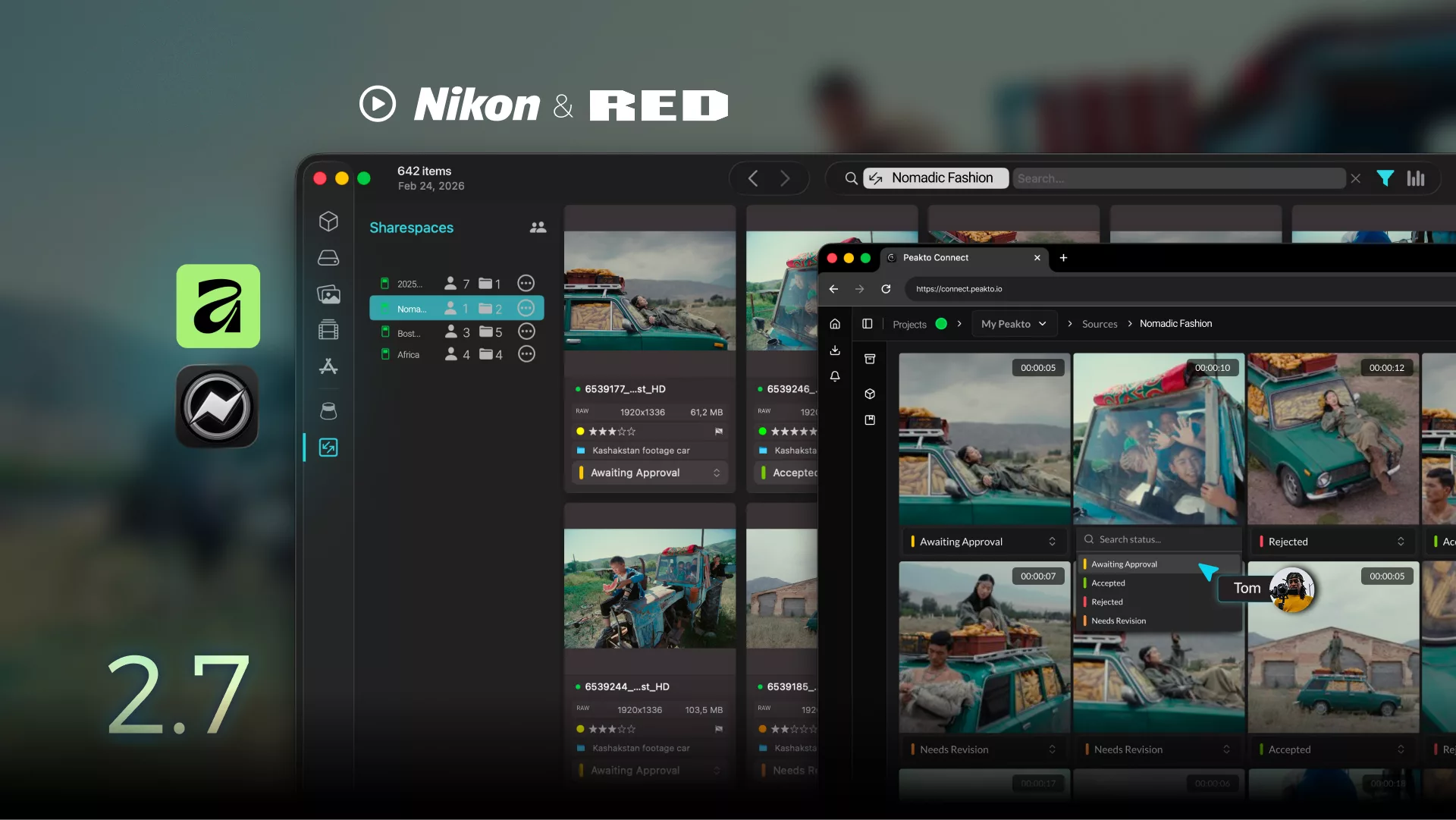
For context on recent format coverage, ProVideo Coalition reported Peakto 2.7 on March 4, 2026, highlighting added support for RED-related RAW formats and a pre-edit review approach before opening an NLE. ProVideo Coalition

A tagging template you can apply across multi-camera shoot days

Keep tags both technical and editorial. Technical tags help troubleshooting and conform. Editorial tags help selection speed. If you do this well, you can streamline handoffs and reduce re-watching.

Tag group Examples you can standardize Why it pays off later
Camera + reel A-cam, B-cam, reel ID Fast relinks after drive moves
Scene intent Interview, b-roll, plate, pickup Editor can filter without scrubbing everything
Quality notes Clean audio, soft focus, flare, shaky Speeds selects and avoids repeated mistakes

When you share conventions across teams, be explicit about policy privacy boundaries and how assistants should handle sensitive clips. Put a clear contact owner on the project so questions do not turn into inconsistent tags.

If you rely on plugins from your editing environment, keep them out of the indexing path and treat them as downstream tooling; Peakto works best as the neutral hub for creators peakto teams, especially for videographers managing media across multiple drives and a shared catalog. If you need to verify a tricky moment, use peakto open as your quick check before you commit to an edit.

To avoid ambiguity, use “capture” only as a camera-side note, and keep editorial notes separate. Avoid “reverse” interpretations of tags later by locking a shared glossary early. If your library mixes photos picture references with motion clips, keep them in distinct smart albums, so search results stay clean for photography and for photo editing alike. Keep the word creative for intent tags only, so it does not pollute technical filters. Use the word service only for naming your support channel, not for describing media.

Key takeaways
Tags should mirror production reality: camera, scene intent, and quality notes.
Use smart albums to make “find it again” automatic.
Define a glossary so assistants tag consistently under pressure.

Once your library is searchable, the biggest hidden cost is duplication: multiple renders, old proxies, and repeated camera offloads that quietly eat storage.

Reduce duplicates and R3D bloat without breaking anything

Detect true duplicates and quarantine before deleting

Do not delete on sight. First, quarantine suspicious duplicates into a separate folder or drive, then verify that Peakto still resolves all originals and that your editor relinks correctly. “Duplicate” often means “same content, different wrapper,” especially when teams generate previews, transcodes, or review exports.

Why this matters at scale: RED lists 8K uncompressed 16-bit at 5,096 MB/s at 24 fps, so even short uncompressed intermediates can dwarf your camera originals if you are not disciplined. RED (Benefits of REDCODE RAW PDF)

Safe actions table for common bloat scenarios

What you found Risk Safe next action
Duplicate offloads with different folder names Deleting the wrong one breaks relinks Compare checksum or clip metadata, then quarantine first
Old proxies from a previous cut Timecode drift or wrong audio mapping later Archive with the cut they belong to, not with new camera originals
Random review exports and temp renders Noise in search results Move to a “review exports” silo and exclude from main indexing
Key takeaways
Quarantine first, delete later, and verify relinks in your editor.
Separate review exports from camera originals to keep search clean.
Treat proxies as project assets with a lifecycle, not as “junk.”

After cleanup, the next reliability problem is exchange: proxies, selection lists, and exports must stay aligned with timecode and clip identity across editing software.

Make exchanges and exports around R3D predictable across editors

Generate proxies that do not drift from originals

Pick one proxy spec for the project and stick to it. Ensure audio channel mapping is consistent and that timecode is preserved. When assistants work off a laptop and the lead editor works off a workstation, the proxy recipe is what keeps decisions portable.

To sanity-check storage expectations for proxy decisions, the Library of Congress summarizes ProRes RAW savings, including an estimate that ProRes RAW can be about 37% smaller than a comparable ProRes 4444 file, which highlights why format choice affects both speed and archive footprint. Library of Congress (ProRes RAW)

Export selection lists driven by camera metadata

Use metadata-driven selections: circle takes, best audio, clean plates, and VFX pulls. When exports are defined by consistent tags, you can regenerate them after a conform change without re-watching everything. This is also where you prevent miscommunication between assistant editors and finishing.

Key takeaways
One proxy spec per project avoids silent drift.
Preserve timecode and audio mapping from day one.
Metadata-driven selections are faster to regenerate than manual lists.

With exchange rules set, you can validate the whole setup like a deliverable: measure performance, verify integrity, and document the configuration so it can be replicated.

Validate results and document a configuration your team can replicate

Measure playback and verify timecode, audio, and camera metadata

Use a repeatable test set: one long clip, one high-detail clip, and one clip with embedded audio. Measure thumbnail load speed, scrub responsiveness, and whether Peakto stays stable during repeated seeks.

Use RED’s reference points to interpret disk behavior: 8K ProRes 4444 is listed at 849 MB/s while 8K R3D (8:1) is listed at 162 MB/s at 24 fps, so if your system struggles with R3D scrubbing, it is often latency or decoding, not raw sustained throughput. RED (Benefits of REDCODE RAW PDF)

Rundown table: what “done” looks like

Check Pass criteria If it fails
Thumbnails No black frames, consistent generation Recheck permissions and rebuild cache
Scrubbing Responsive seeks on the benchmark clip Lower debayer for browsing, move cache to SSD
Integrity Audio, timecode, and reel metadata match camera reports Re-index the folder subset and verify mount paths
Key takeaways
Benchmark with the same clips every time, so tuning is measurable.
If R3D feels slow, suspect cache latency and decoding first.
Write down the working configuration so assistants can replicate it.

With a validated baseline, the remaining issues tend to be compatibility edge cases, so it helps to keep answers close at hand.

R3D compatibility FAQ for Peakto users

Peakto’s format coverage evolves; for example, ProVideo Coalition reported Peakto 2.7 on March 4, 2026, emphasizing broader RAW support and pre-edit review. ProVideo Coalition

Does Peakto read all modern R3D variants?

It depends on the specific camera generation and the decoding components available on your system. Validate by indexing a small folder first and confirming thumbnails, playback, and metadata. If previews fail, test permissions and cache location before assuming the media is unsupported. Use a single benchmark clip to confirm repeatable behavior.

How do I stop stuttering during REDCODE RAW playback?

Move the preview cache to a fast local SSD and reduce debayer quality for browsing. Stutter is often random-read latency plus decoding cost, not sustained bandwidth. RED’s own comparison shows that 8K R3D (8:1) is listed at 162 MB/s at 24 fps, so many systems should sustain reads, yet still fail if cache and GPU settings are misaligned. RED (Benefits of REDCODE RAW PDF)

What if my R3D thumbnails stay black?

Fix it as a decoding pipeline issue: confirm disk access rights, confirm the cache folder is writable, then clear and rebuild previews on a small subset. Also check for conflicting codec installs that intercept RAW decoding. Once a small folder works, expand indexing progressively to find the offending media set or path issue.

How much cache space should I plan for when browsing R3D aggressively?

Plan for fast growth, especially if you generate higher-quality previews. The Library of Congress provides a reference where a one-minute 4K UHD 60p clip is estimated at about 17.91 GB in ProRes RAW HQ, which illustrates how quickly preview-related storage can expand when you scale to many clips. Library of Congress (ProRes RAW)

What is the biggest risk when creating proxies for R3D?

The biggest risk is mismatch: timecode drift, wrong audio mapping, or inconsistent naming that breaks reconform. Lock a single proxy spec, preserve timecode, and keep reel identifiers consistent. After proxy generation, spot-check relinks in your editor and verify that a proxy clip and its original resolve to the same in/out points.

Peakto vs editing software bins: which should I trust for search?

Use Peakto for cross-library discovery and pre-edit selection, then rely on your editor for timeline truth. Peakto shines when you need to query across drives and projects, while an NLE’s bins are optimized for a single project’s editorial context. The best results come from consistent tags and stable mount paths shared across the team.

When RED RAW support in Peakto is tuned, you spend less time fighting previews and more time making decisions. Start by locking cache location, permissions, and a browsing debayer level, then index progressively by shoot day. Once playback is smooth and previews match your editorial color expectations, use tags and smart albums to turn R3D into searchable, reusable material. The final step is documentation: write down what works, so your next project starts fast instead of repeating setup guesswork.

You may also like...

Explore Peakto in video

Watch our demo video, then sign up for a live FAQ session to connect with our team.
How to Organize Your Photos Using Keywords 01
Hey, wait...
Inspiration, Tips, and Secret Deals — No Spam, Just the Good Stuff