

As a creator or agency, your digital archive can quickly grow to several terabytes, with photos and videos spread across hard drives, editing catalogs, and folders. The problem? Your media often remains “trapped” on the Mac in your home or studio.
Whether you need to show a specific photo or video to a client over lunch, or browse and organize your library from the couch on your iPad—without exporting everything first—Peakto Connect gives you seamless access to your media wherever you are.
The Concept: Your Mac Becomes Your Personal Server
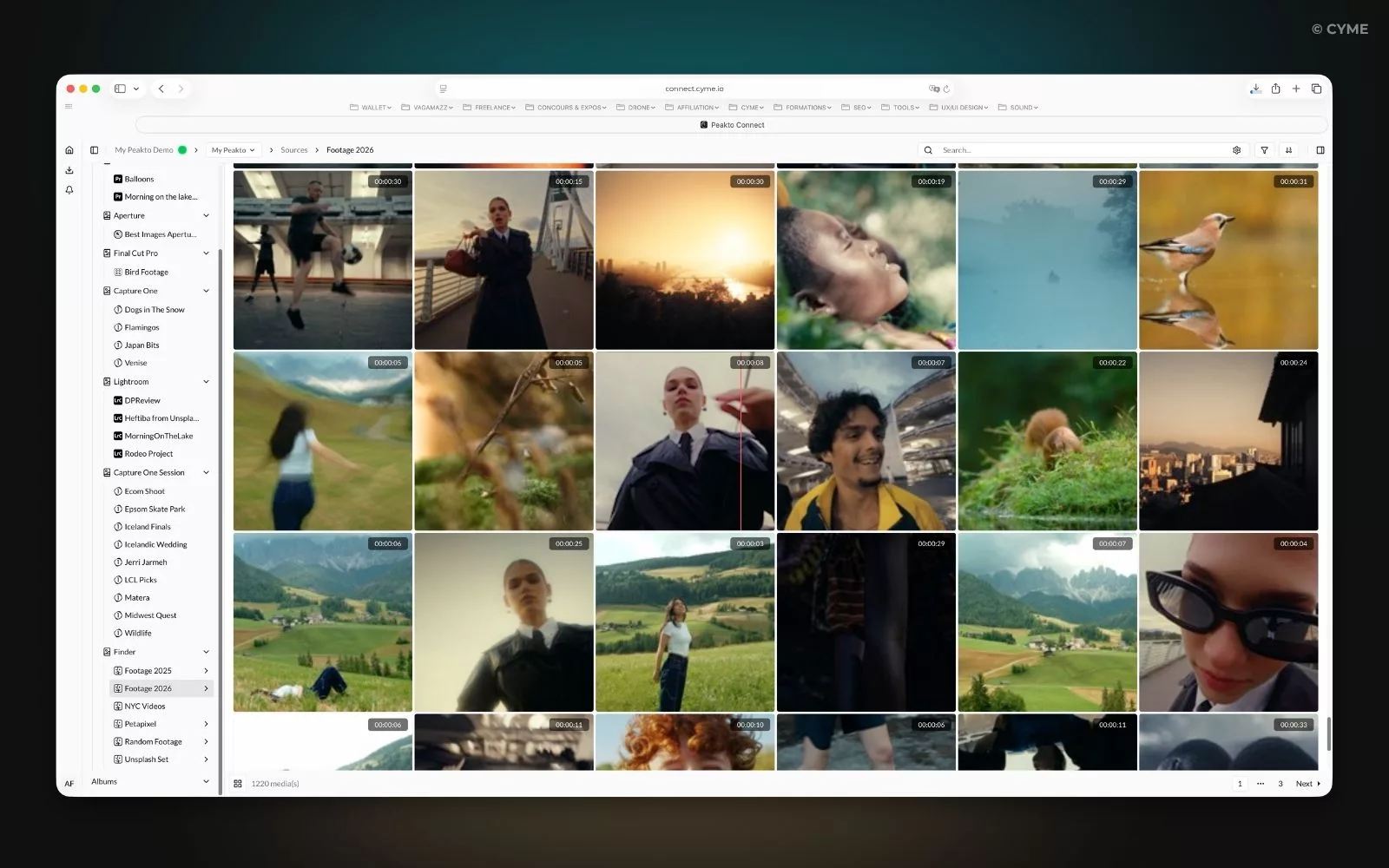
Forget costly cloud subscriptions, endless upload times, and privacy concerns. Peakto Connect turns Peakto, running on your Mac, into a secure personal media server.
In practical terms, you can browse, search, rate, and organize your media from any device with a web browser—whether it’s an iPhone, Android phone, iPad, or computer. Everything is streamed directly from your Mac, without uploading your original files to the cloud.
Why is this a game changer for your workflow?
- No Cloud, No Uploads: Your original files remain securely stored on your Mac and connected drives. Peakto Connect streams optimized previews, giving you fast, private access to your media.
- The Power of Search: You’re not browsing blindly through folders. Peakto’s unified search and AI-powered tools help you find photos and videos across all your sources.
- More Than Remote Viewing: Browse, rate, annotate, and organize your media from anywhere. You can even review and sort a shoot comfortably from your couch on a tablet, while your Mac handles the processing in the studio.
How It Works: Two Connection Modes
When Peakto Connect is enabled, Peakto turns your Mac into a personal media server, giving you remote access to your content.
You can share:
- your entire Peakto catalog with yourself, so you can access it from your other devices;
- selected content with guests or collaborators. You can give your Workspace a name in the Peakto Connect window.
This makes it easier to identify when you share content with others or when several users share their own Workspaces with you.
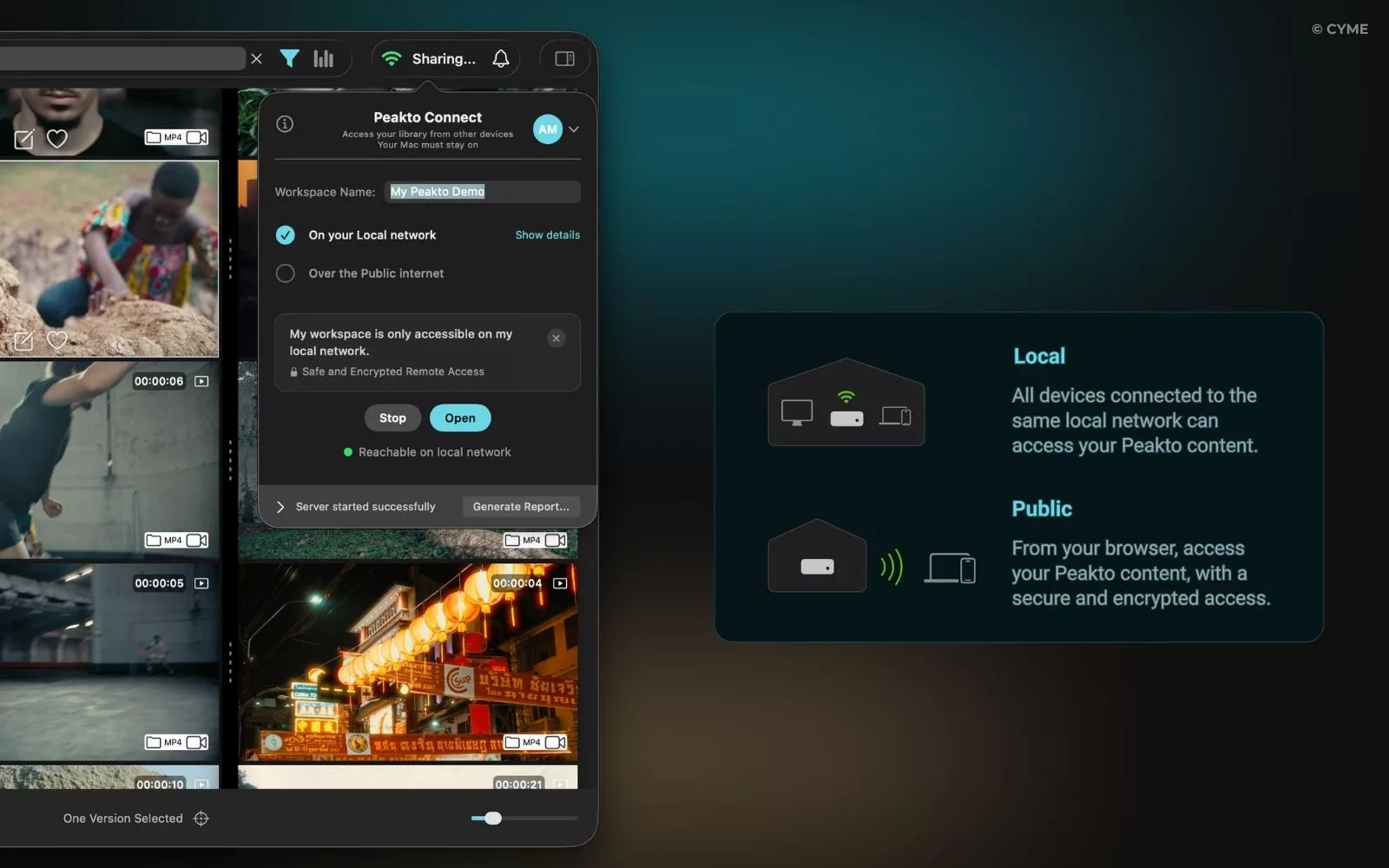
1. Local Mode: At Home or in the Studio
This is the simplest and fastest connection mode. When your Mac and mobile device are connected to the same Wi-Fi network, access is almost instant.
It’s ideal for working with colleagues in the office, showing photos and videos to friends at home, or browsing and organizing your media from a tablet without staying at your desk.
2. Public Mode: On the Go
This is where the magic happens. Whether you’re on the other side of the world or simply meeting with a client, you can access your media library through a secure HTTPS connection.
It’s ideal for collaborating with colleagues in other parts of the world, reviewing and selecting media while you’re on the go, or showing specific photos and videos to a client without exporting files in advance.
2.1 Simplified Mode
Configuring a router for remote access can sometimes be complicated and require technical knowledge. That’s why we created a simpler option.
This mode routes the connection through CYME’s secure relay server, removing the need to configure your internet router. Traffic travels from Peakto to the relay server before reaching your browser.
Your media always remains stored on your Mac and connected devices—nothing is uploaded to or stored in the cloud. The relay server is used only to establish and carry the secure connection.
Because the traffic passes through an intermediary server rather than using a direct peer-to-peer connection, access may be slightly slower.
2.2 Auto via UPnP
This option creates a direct peer-to-peer connection between your browser and Peakto. It automatically opens a port on your router, allowing Peakto to communicate from your local network to the Internet without requiring manual router configuration.
2.3 Manual Setup
This option lets you configure the connection manually by choosing the internal and external ports used by Peakto. It is designed for advanced network environments where automatic configuration is unavailable or greater control is required.

Setup: Simple for Everyone, Flexible for Experts
The CYME team designed Peakto Connect to be plug-and-play for most users, while still giving networking experts full control over their connection settings.
Getting Started (Automatic Setup)
- Click the Share button in the top-right corner of Peakto.
- Sign in to your CYME account in Peakto and on the device you want to use remotely.
- Choose Local Mode for access on the same network, or Public Mode for remote access.
- In Public Mode, select either:
- Auto via UPnP for a direct connection;
- Simplified Mode if you prefer a setup without router configuration
- Click Start. Check the status indicator. When it turns green, your content is accessible.
Advanced Environments (Manual Setup)
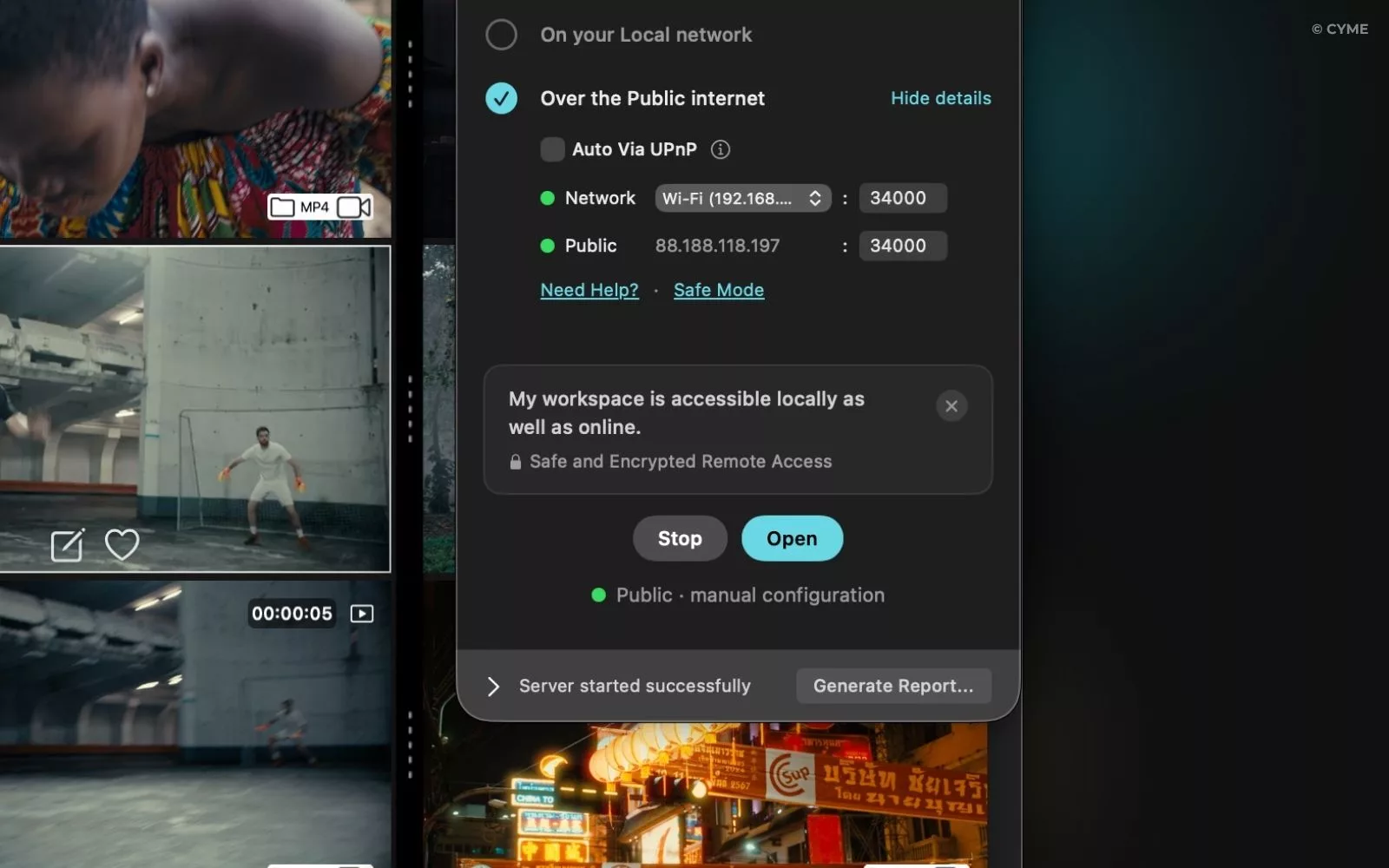
If you’re using a corporate network or a more advanced configuration—such as a strict firewall or an older router—Peakto gives you full control over the connection settings.
- Custom Ports: Peakto uses port 34000 by default, but you can define your own internal and external ports.
- Port Forwarding: Follow the technical guide to forward the external port to your Mac’s fixed local IP address.
- Built-in Diagnostics: If the status indicator turns red, the network diagnostic tool helps identify potential issues, such as firewall restrictions, double NAT, or DNS configuration problems.
Security and Reliability
For remote access, Peakto generates a dedicated SSL certificate for your Workspace. This ensures that all communication between your device and your Mac is encrypted over HTTPS, using the same security standard as secure websites and online banking services.
Please note that your Mac must remain powered on and Peakto must stay open for remote access to remain available.
Peakto Connect: Total Freedom, No Compromise
With Peakto Connect, your media library is no longer confined to your studio. You retain full control over your files—with no cloud uploads—while gaining the flexibility and remote access typically associated with cloud-based services.
It’s an ideal solution for modern creators and creative teams who need secure access to their photos and videos, wherever they are.
Requirements
- A Mac with Peakto installed, open, and running A CYME account
- An Internet connection for Public Mode
- For manual configuration, a fixed local IP address for your Mac is recommended