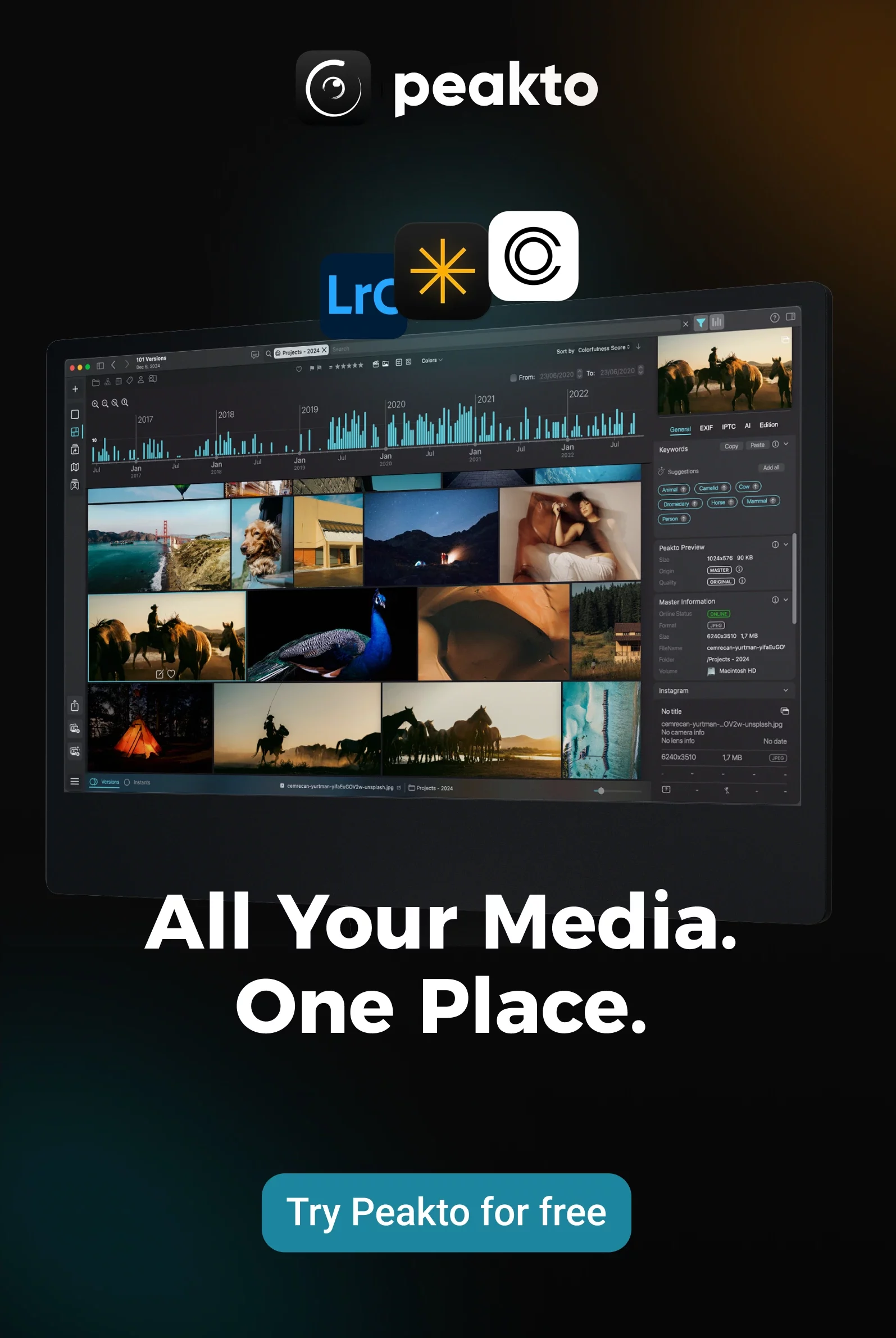


As a photographer, your digital archive is massive—terabytes of images spread across hard drives, stored in various editing catalogs, or simply organized in folders.
The problem? Those photos are often “trapped” on the Mac at your home or studio. If you’ve ever wanted to show a specific image to a client during lunch, or sort your photos from your couch on an iPad without exporting everything first, Peakto Connect is the solution you’ve been waiting for.
The Concept: Your Mac Becomes Your Personal Server
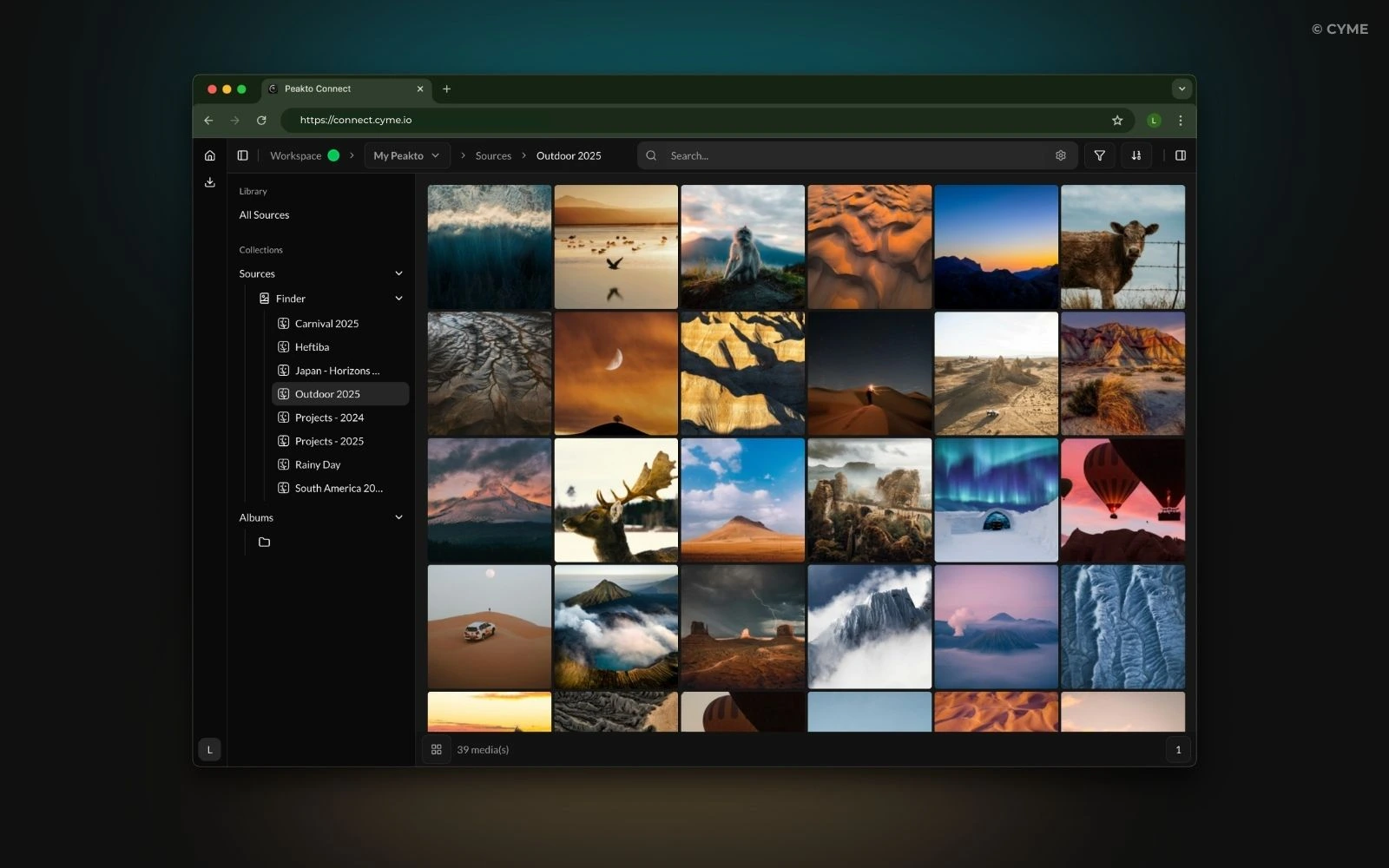
Forget expensive Cloud subscriptions, endless upload times, and privacy concerns. Peakto Connect turns your Peakto software (running on your Mac) into a secure personal server.
In practical terms, this means you can view, search, and rate your photos from any device with a web browser (iPhone, Android phone, iPad, laptop PC), all streamed directly from your Mac.
Why is this a game-changer for your workflow?
- Zero Cloud, Zero Waiting: Your original files stay with you. Peakto Connect streams smooth previews. It’s instant and private.
- The Power of Peakto’s Search: You’re not browsing blindly. You get Peakto’s AI and unified search to find any photo across all your catalogs (Lightroom, Apple Photos, folders, etc.).
- Remote Interaction: It’s not just viewing. You can annotate and sort your images. Imagine doing your culling comfortably from the couch on a tablet, while your Mac does the heavy lifting in the office.
How It Works: Two Modes for Two Different Uses
Peakto distinguishes between two entities: the “Peakto Workspace” (your Mac that hosts your photos) and “Peakto Connect” (the web interface on your phone or tablet).
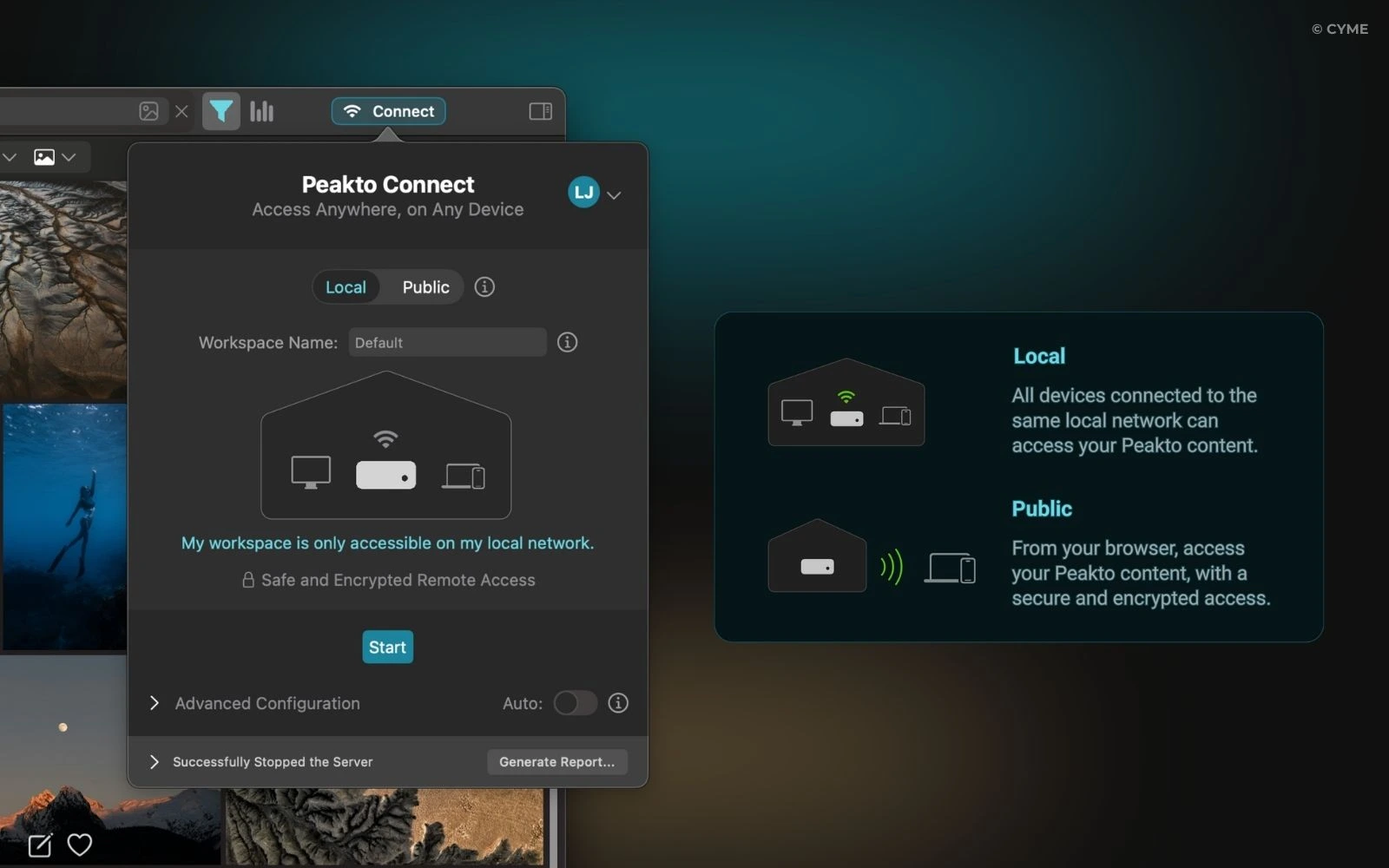
1. Local Mode (At Home or in the Studio)
This is the simplest and fastest mode. If your Mac and your phone are on the same Wi-Fi network, the connection is almost instantaneous.
Ideal use case: Showing photos to friends at home, or sorting your images on a tablet without sitting at your desk.
2. Public Mode (On the Go)
This is where the magic happens. Whether you’re on the other side of the world or simply meeting a client, you can access your library through a secure HTTPS connection.
Ideal use case: Keeping your entire portfolio in your pocket, accessible via 4G/5G or any external Wi-Fi network.

Setup: Simple for Everyone, Flexible for Experts
Getting Started (Automatic Setup)
Access is available through the “Share” button at the top right of Peakto.
- Cyme Account: Log in to your Cyme account in Peakto (and on the remote device) to secure the connection.
- Activation: Choose Local Mode or Public Mode, then click Start.
That’s it: If your router is relatively recent, it likely supports UPnP or NAT-PMP. Peakto will configure the connection automatically. A green indicator confirms that your content is accessible.
For Advanced Environments (Manual Setup)
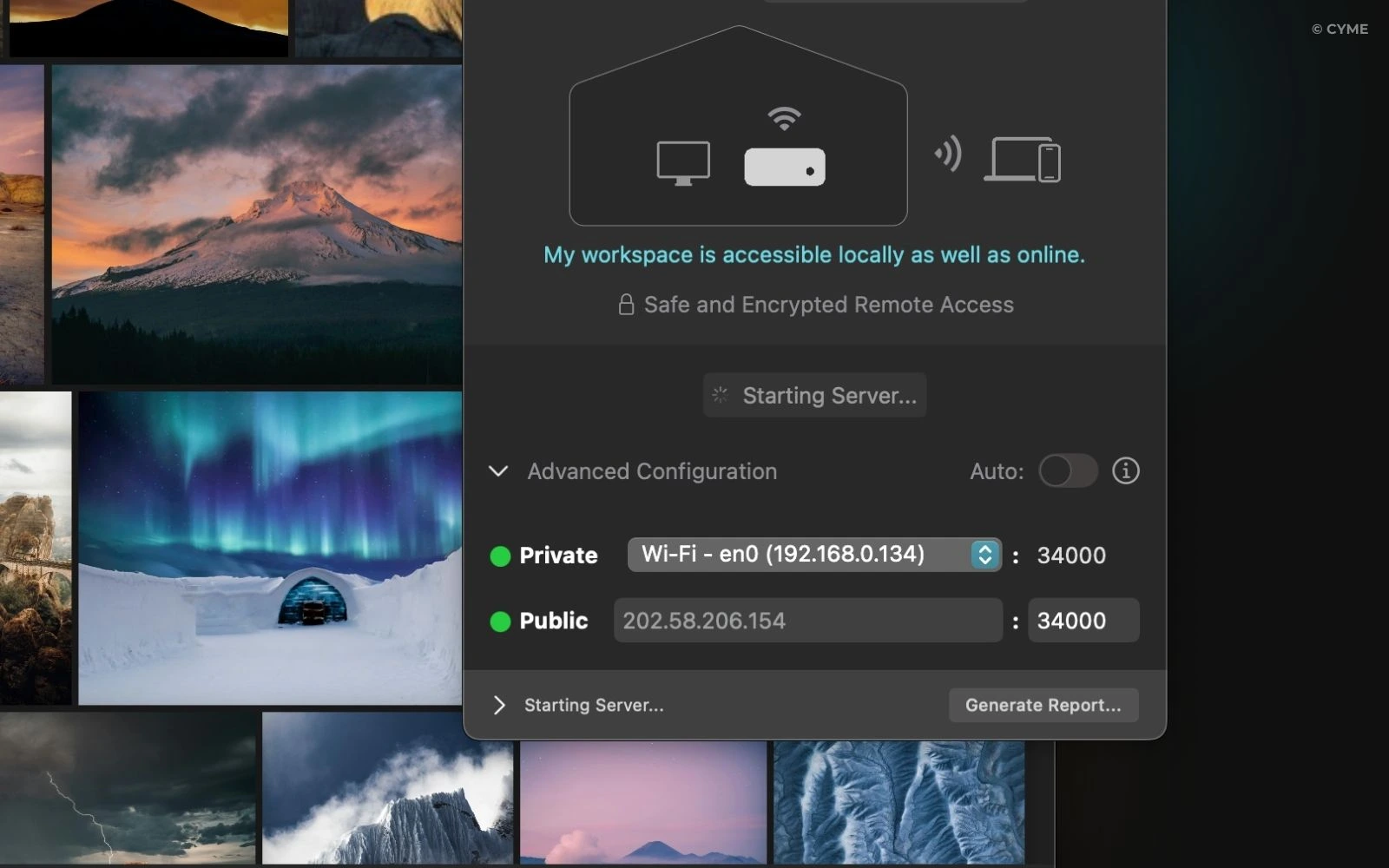
If you’re using a corporate network or a more specific setup (strict firewall, older routers), Peakto offers fine-grained control:
- Customizable Ports: The default is port 34000, but you can define your own internal and external ports.
- Port Forwarding: The technical guide explains how to forward the external port to your Mac’s fixed IP address.
- Built-in Diagnostics: If something blocks the connection (red indicator), a network diagnostic tool helps identify whether the issue comes from the firewall, double NAT, or DNS.
Security and Reliability
Security is not optional. Even for remote access, Peakto generates a dedicated SSL certificate for your workspace. This ensures that all communication between your iPhone and your Mac is encrypted (HTTPS) — just like a banking transaction.
Please note that for this to work, your Mac must remain powered on and Peakto must stay open.
Peakto Connect: Total Freedom, No Compromise
With Peakto Connect, you break down the walls of your studio. You keep full sovereignty over your files (no Cloud upload) while gaining the freedom the Cloud usually provides. It’s the ultimate tool for the modern photographer who wants instant access to their images—anywhere, anytime.
Requirements Summary
- A Mac with Peakto installed and running
- A Cyme account An internet connection (for Public Mode)
- Optional but recommended: a fixed local IP address for your Mac if you use manual configuration