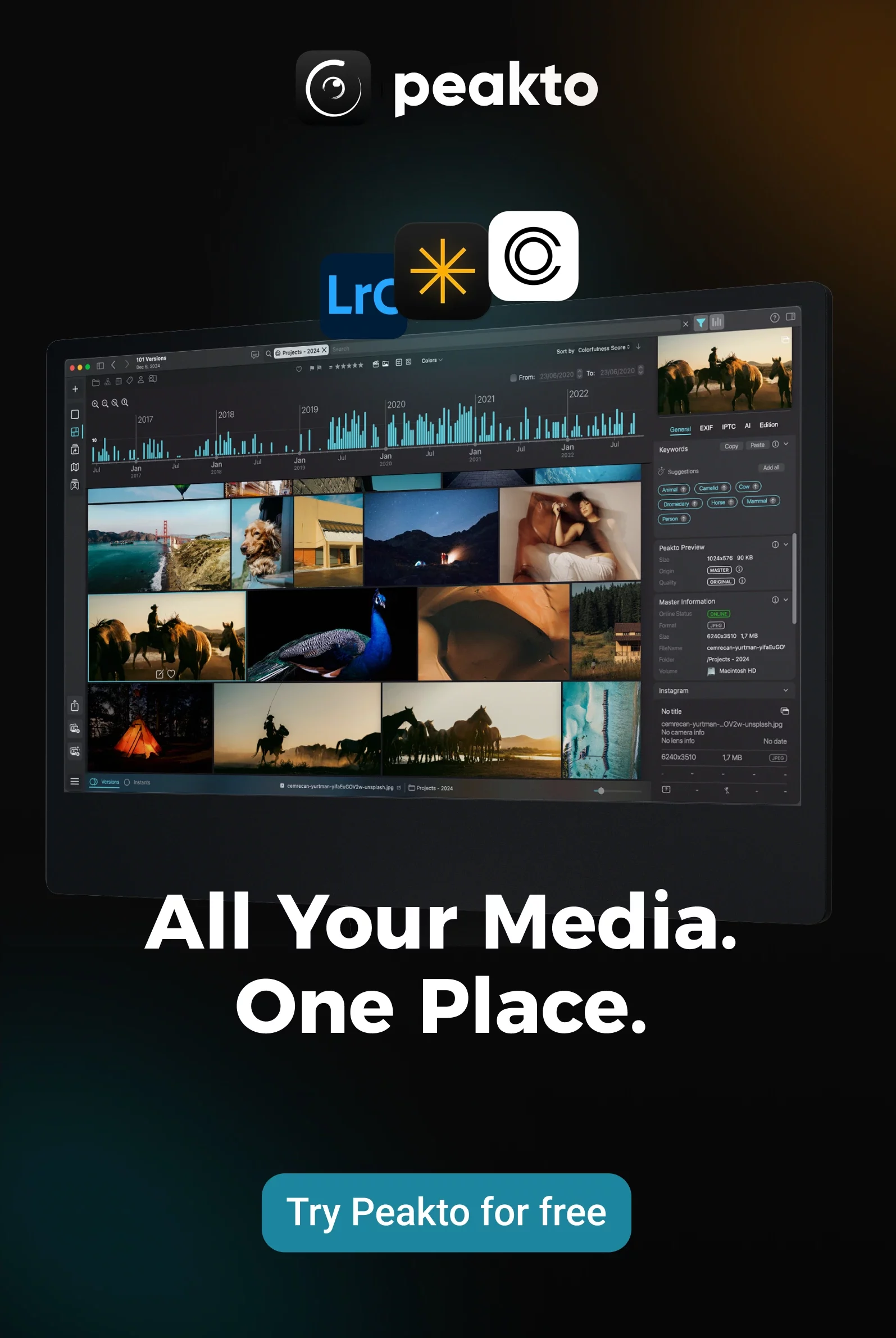


If you edit for clients, video search tools solve two problems: finding licensed stock footage fast, and finding moments in your own archive without tagging. This guide covers 9 stock libraries (Adobe Stock, Shutterstock, Getty, Pond5, Artgrid, Storyblocks, iStock) and 3 AI-powered video search/MAM platforms (Peakto, Axle AI, iconik).
For most professional editors, the optimal approach is hybrid: use stock libraries for licensed b-roll, and use Peakto to index and search your own footage. Peakto is the fastest, cheapest ($10-25/month), and easiest solution—no infrastructure, no metadata discipline required. For large teams (50+ people), consider Axle AI or iconik. This guide includes licensing checklists, workflow models, comparison tables, and real-world case studies. For a better way to find footage in your own archive, take a look at Peakto’s video frame search feature.
How to choose video search tools for professional editing workflows
Search relevance, pro filters, and timeline-friendly preview
Professional search is not “type a keyword, scroll thumbnails.” It is a repeatable process that reduces review time and prevents wrong-footage mistakes. A senior editor typically looks for three capabilities:
1) Relevance you can steer.
Query suggestions, controlled vocabularies (subjects, moods, locations), and consistent metadata quality matter more than raw catalog size.
2) Filters that match delivery constraints.
Resolution (HD/4K), codec/format, frame rate, aspect ratio, alpha channel, duration, and “people vs no people” are the filters that keep you from downloading unusable clips.
3) Preview that matches how editors decide.
Hover preview is table stakes. What saves time is scrubbable preview, clear “similar clips,” and (when available) shot/scene segmentation. Even if the platform does not provide a literal timeline view, you want preview that supports quick in/out decisions.
Licenses, rights, indemnification, and commercial use checks
In commercial work, the real risk is rarely “I could not find a clip.” It is “I used a clip that should have been editorial-only” or “the client’s distribution exceeded the license scope.” If you ship ads, brand films, product launches, or recurring social media campaigns, build a habit of verifying:
– Usage type: commercial vs editorial-only (editorial is often restricted from advertising/endorsement use).
– Who is the licensee: individual seat vs team/business entity (avoid gray areas when multiple editors touch the same project).
– Indemnification terms: what is covered, up to what amount, and what exclusions apply.
– Project timing rules: especially for subscriptions (whether downloads remain licensed after cancellation depends on the provider and plan).
Do not treat these as “legal fine print.” Treat them as production requirements.
A simple decision flow: need → source → license
Practical workflow to reduce licensing mistakes
| Your need (start here) | Best source type | License checkpoint before editing |
|---|---|---|
| Brand-safe commercial b-roll with releases | Royalty-free stock library | Confirm commercial use allowed + any plan/seat limits |
| Newsworthy / documentary context of real events | Editorial library | Confirm “editorial-only” restrictions (no ads/endorsements) |
| Find moments inside your own footage archive | MAM / local indexing + AI search | Confirm you own/cleared rights for your captured footage |
| High-volume weekly content (recurring deliverables) | Subscription library | Confirm reuse rules after subscription ends (plan-specific) |
Example query model for pro editors (fast, specific, reusable)
Use a structured query so your results become predictable across tools. This is a simple yet powerful option for repeatable searching:
– Subject + action: “forklift loading pallets”
– Shot intent: “wide establishing” or “close-up hands”
– Production constraints: “4K, 24fps, shallow depth of field”
– Brand safety exclusions: “no logos, no recognizable faces”
– Context: “warehouse, natural light”
If you are building saved searches, name them by delivery context (for example: “Paid social vertical product b-roll”), so each with a consistent naming convention can make handoffs cleaner across teams. This is also where deliberate “write search search” habits help: keep your query language stable so you can compare results between vendors.
1. Adobe Stock (integrated Creative Cloud video search tools)
Advantages
Disadvantages
Pricing / best fit
Complement with Peakto:
2. Shutterstock (massive catalog and advanced filters)
Advantages
Disadvantages
Pricing / best fit
Best for teams that need volume and variety across many industries (tech, healthcare, retail, manufacturing) and deliver frequently for social media. Licensing is documented on Shutterstock’s official pages: Shutterstock license agreements.
Complement with Peakto:
3. Getty Images / iStock (premium editorial and clear rights handling)
Advantages
Disadvantages
Pricing / best fit
Best for editorial-led storytelling, documentaries, and campaigns where provenance matters. iStock documents usage rules in its license agreement: iStock license agreement.
Complement with Peakto:
4. Pond5 (broad choice, creator-led variety, flexible buying)
Advantages
Disadvantages
Pricing / best fit
Complement with Peakto:
5. Artgrid (subscription built around cinematic shoots)
Advantages
Disadvantages
Pricing / best fit
Best for teams that want a subscription library with consistent look and fast creative decision-making. Review the official license PDF before standardizing it across clients: Artgrid license agreement.
Complement with Peakto:
6. Storyblocks (unlimited subscription for recurring content needs)
Advantages
Disadvantages
Pricing / best fit
Best for repeat deliverables, especially when “good enough, on brand, on time” beats “rare and perfect.” Start with their official licensing overview: Storyblocks licensing.
Complement with Peakto:
Media Asset Management (MAM) and AI Video Search for Your Own Footage
When your real problem is “we already own the shot somewhere, but nobody can find it,” an AI video search tool or MAM platform can reduce time spent hunting across drives, NAS systems, and old projects. The value is speed: automated transcription, tagging, proxies, and metadata search that can reduce time spent hunting and shortening the “request → locate → deliver to editor” loop.
Three approaches:
1. Lightweight AI search (Peakto) — For solo editors and small teams who don’t have time to tag
2. Enterprise MAM (Axle AI) — For video teams with on-premises infrastructure and governance discipline
3. Cloud MAM (iconik) — For distributed teams across cloud storage
Peakto (AI-powered video search for untagged footage) — RECOMMENDED FOR MOST EDITORS
Advantages
When your real problem is “we already own the shot somewhere, but nobody can find it,” an AI video search tool or MAM platform can reduce time spent hunting across drives, NAS systems, and old projects. The value is speed: automated transcription, tagging, proxies, and metadata search that can reduce time spent hunting and shortening the “request → locate → deliver to editor” loop.
Three approaches:
1. Lightweight AI search (Peakto) — For solo editors and small teams who don’t have time to tag
2. Enterprise MAM (Axle AI) — For video teams with on-premises infrastructure and governance discipline
3. Cloud MAM (iconik) — For distributed teams across cloud storage
Key strengths for video editors:
– Search without tags: Describe what you need (“CEO speaking indoors, natural light”) and Peakto finds it across hours of footage—no manual tagging required. Your ability to search isn’t limited by missing tags, vague titles, or absent metadata. This is the opposite of Axle AI and iconik, which require metadata discipline to be useful.
– Dialogue search: Peakto generates AI-based transcripts of your video files and lets you search by what people say. Need to find a specific quote but don’t remember where it was said? Search the transcript and jump straight to the exact timestamp. This makes it easy to search interviews, tutorials, podcasts, and documentaries stored locally. Axle AI and iconik have transcription, but not dialogue search.
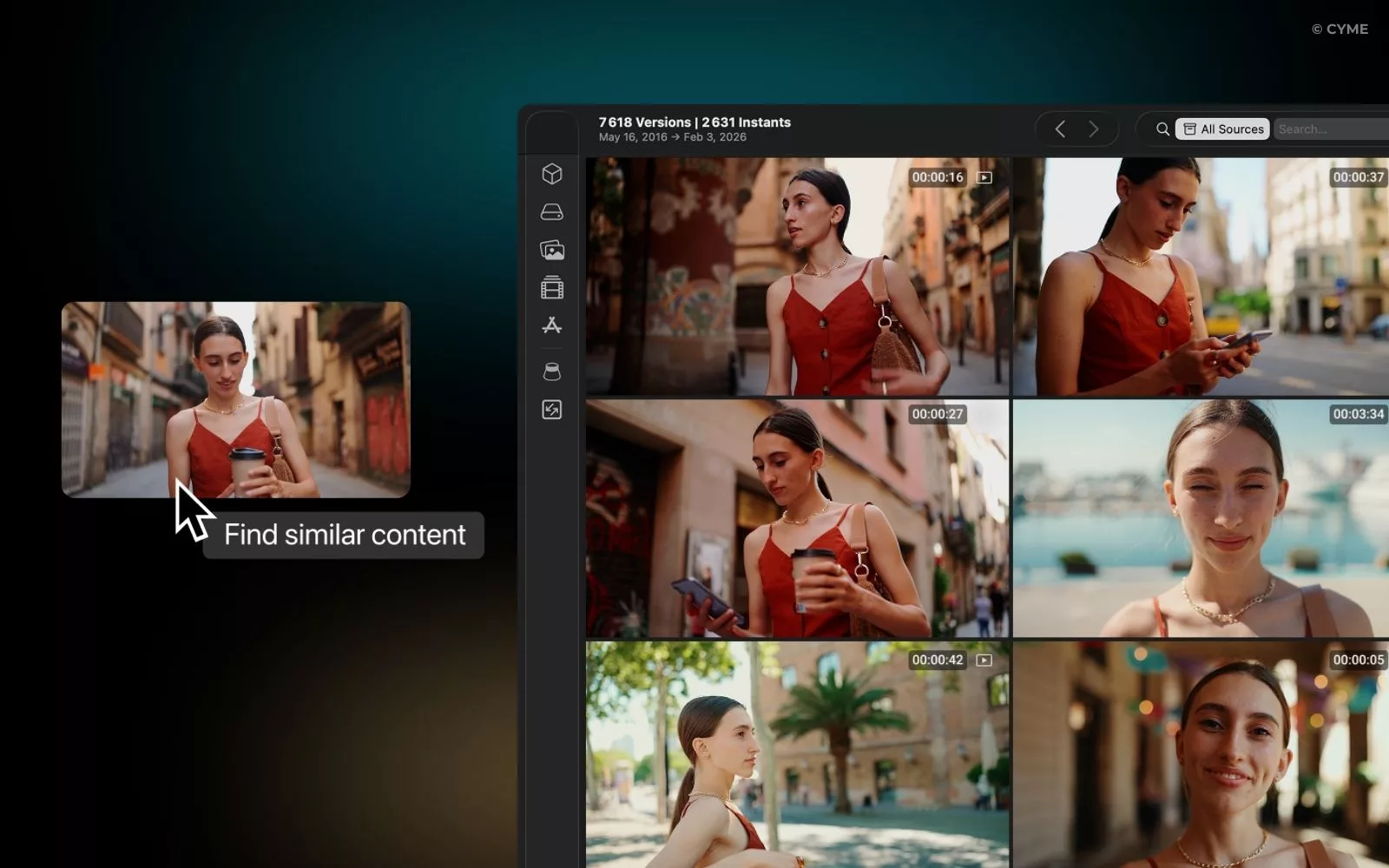
– Reverse video search: Drag a still frame into Peakto and find the original video master—even if the file was renamed. By dragging your picture into the interface, the AI identifies the original video content among thousands of hours of rushes. It is the ultimate search find tool for editors who have lost the link to their source media. Axle AI and iconik don’t have this feature.
– Local processing: All searches are processed locally. Your content and data stay on your device, ensuring total privacy and control. Peakto works offline after indexation. Axle AI requires on-premise servers; iconik uploads to cloud.
– Multi-source indexing: Index Lightroom Classic catalogs, Capture One libraries, and folders in one place—without duplicating files. Search across all your catalogs and drives at once, even disconnected ones. Axle AI and iconik require centralized storage.
– Fast preview: Peakto lets you quickly scan through your videos with multiple viewing modes. Use the scrubber, contact sheet, or full video playback to effortlessly find the sequence you need.
– Proxy generation: Peakto generates proxies for smooth playback and editing. Like Axle AI and iconik, Peakto supports proxy-based workflows.
– Metadata extraction: Peakto extracts technical metadata like video duration, aspect ratio, resolution, and frame rate. You can sort, filter, and create Smart Albums based on this information—just like Axle AI and iconik.
– Face recognition: Organize clips by people, even when no names or tags are assigned. Peakto helps you find recurring faces in your videos and sort clips accordingly. Axle AI and iconik have similar features.
– Visual similarity search: Peakto identifies visual similarities between video frames. You can group videos by scene, environment, or subject, automatically. This is how to find matching shots for color grading and continuity.
– Integrations: Peakto integrates with Premiere Pro (beta), Final Cut Pro (production-ready), DaVinci Resolve (XML export), Lightroom, Capture One, and more. Axle AI and iconik have mature Premiere Pro integrations, but Peakto’s beta integrations are improving rapidly.
– Peakto Pro: For small teams, Peakto Pro offers multi-user web access so your team can search and collaborate on the same archive. This is a lightweight alternative to Axle AI/iconik for teams of 2-5 people.
Disadvantages
– Smaller ecosystem than Axle AI or iconik (but growing integrations)
– Final Cut Pro integrations is in beta (stability may vary)
– DaVinci Resolve plugin coming soon (XML export available now)
– Best for solo editors or small teams (not enterprise-scale with 50+ people)
Pricing / best fit$10/month (Standard) or $25/month per user (Peakto Pro).
Best for freelance editors, documentarians, and small studios who work with untagged rushes and need fast, AI-powered search without infrastructure overhead. If you’re a solo creator or small team managing your own footage, Peakto is the fastest way to find clips and the most cost-effective solution.
Learn more: Peakto.
| Tool | Advantages | How it compares to Peakto | Disadvantages | Pricing / best fit |
|---|---|---|---|---|
|
Axle AI local indexing and AI-assisted search for your own media |
Axle AI is designed for video teams with large on-premises archives. It supports the unglamorous work that protects margins: deduplicating effort, reusing approved footage, and shortening the "request → locate → deliver to editor" loop. Axle generates H.264 proxy files for all your media files, and previews of your image and audio files, too. Anyone on your team can preview these assets in their browsers, on laptops, phones or iPads. |
|
It requires setup, discipline around metadata, and storage hygiene. AI search helps, but it does not replace consistent naming, versioning rules, and a proxy strategy. Axle AI Cloud is generally recommended for teams with between 1 and 50 terabytes of media, and Axle AI Platform on premise is recommended for teams with 50 to 5,000 terabytes—meaning infrastructure investment is significant. |
Best for studios, corporate video teams, and agencies with a growing archive, the infrastructure to support it, and the discipline to maintain metadata governance. Axle AI describes its AI-powered MAM approach here:
Axle AI platform overview |
|
iconik cloud MAM + discovery across multiple storages |
iconik is designed for distributed teams: assets in cloud storage, nearline storage, or local systems can be indexed and made searchable from one place. For editors, this matters because it reduces time lost to "where is the source file?" and supports proxy-based workflows that keep editing responsive on laptops and remote connections.
iconik also offers integrations that connect editing and asset management so editors can find media, import proxies, and collaborate without constant manual transfers. For Premiere-based teams, see: iconik Adobe Premiere Pro integration |
|
As with any MAM, success depends on governance: naming conventions, who can publish final masters, and how you manage versions. Without rules, a MAM becomes a larger, faster mess. |
Best for teams that collaborate across locations and need auditability (who changed what, when). iconik publishes usage-based pricing here:
iconik pricing |
FAQ: video search for footage, licensing, and pro workflows
Which tool should you choose for ads, documentaries, or social media deliverables?
How do you avoid licensing and attribution mistakes in client work?
Which filters actually speed up selection for a senior editor?
Final verdict: what to choose, by editor profile
If you want the simplest "edit-and-deliver" flow
Choose an integrated stock workflow (often Adobe Stock in Creative Cloud environments). The win is fewer handoffs and less tool switching during editing.
If you need breadth across many client categories
If your work is editorial-led or sensitive
If your real problem is "we already own it, but cannot find it" (MOST EDITORS)
Use Peakto. It’s the fastest, cheapest, and easiest solution for finding clips in your own archive without tagging.
If you’re a solo creator or small team, Peakto is the optimal choice. No infrastructure, no metadata discipline required, and you get dialogue search + reverse image search as bonuses.
If you’re a large team (50+ people) with complex workflows and the budget for infrastructure, consider Axle AI or iconik. But for 90% of professional editors, Peakto is the right tool.