

There’s a moment when you know a shot exists… and still you can lose 40 minutes trying to find it.
You open one drive. Then another. Then a NAS. Then an old Premiere project. Then an “exports” folder. And you land on files named final.mp4, final_v2.mp4, final_v2_OK.mp4.
You’re tired, you’re in a rush, and you think: “I’ll just redo it.” But redoing a shot isn’t a win. It’s wasted time.
The real issue is rarely “I don’t have the video.” It’s: your videos are scattered, the filenames mean nothing, and you have no tags.
To me, a good video finder isn’t there to “show files.” It’s an app built for users who need to search for videos intelligently—across an entire library—and get back to the right clip, the right version, in the right context, instantly.
And good news: you don’t need a perfect system. You need four complementary methods. Depending on what you have (nothing, a clue, a photo, a short clip), you switch between searching video with no tags, finding video by metadata, how to find video from images, and a reverse video search tool.
Method #1: Searching video with no tags (when nothing is organized)
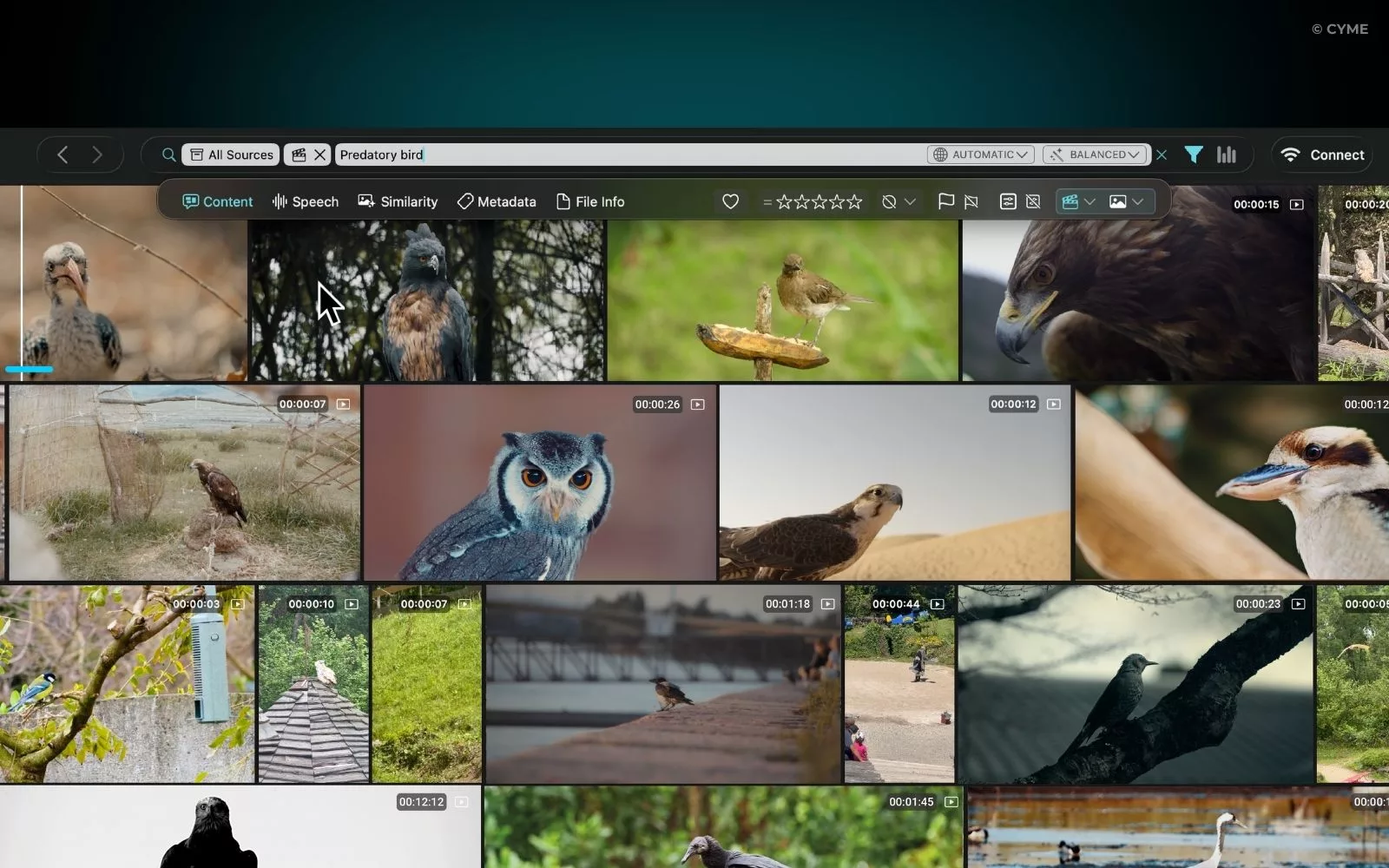
When nothing is organized, stop searching for a “file name” and start searching what the video contains. That’s the whole point of searching video with no tags: you search by content, not by label.
If your app can generate an audio transcript, you can find word in video, or a sentence you heard. For interviews, talks, or spoken footage, it’s often the fastest shortcut: type “Tokyo,” “take two,” “let’s start,” and you jump straight to the right section.
And if you don’t have a precise quote, switch to description-based search. Just describe what you see: “wide shot of Tokyo at night,” “person walking on a beach at sunset,” “close-up interview with a lav mic.” In searching video with no tags, these simple descriptions work because they match reality—rather than relying on perfect folders or tags.
Method #2: Finding video by metadata (fastest when data is clean)
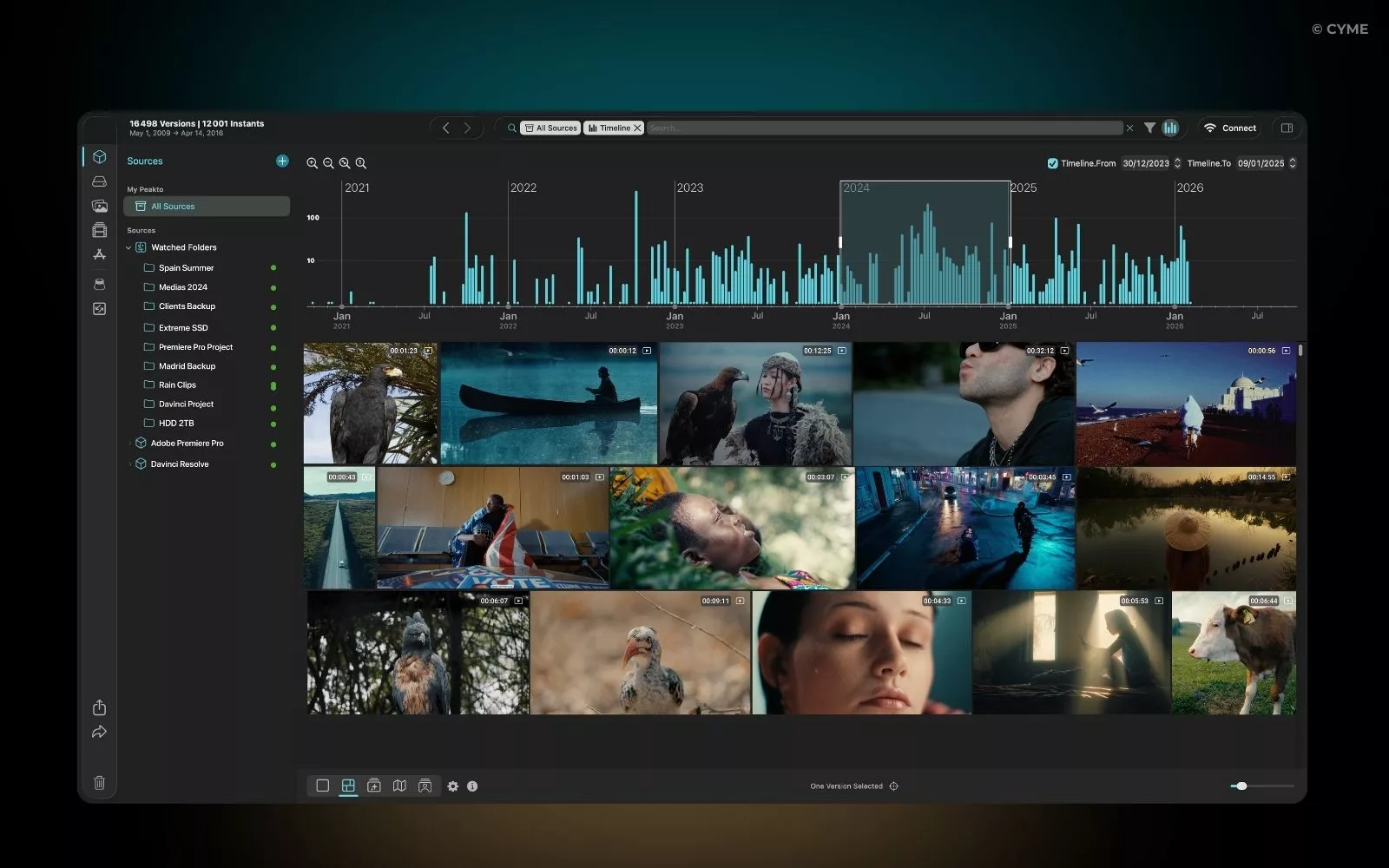
As soon as you have one reliable clue, metadata becomes your highway. And finding video by metadata is often the quickest method because data doesn’t lie. You can filter by date/time, location (GPS), camera, codec, resolution, fps, duration, memory card name, or project name.
You know it was shot in February. You know it’s drone footage. You know it’s 4K at 50fps. Perfect. Combine two or three filters—time range, camera/device, resolution, fps, duration—and a huge library collapses into a short list.
Classic case: “the 4K 50fps drone shot filmed in Tokyo in February.” Searching “Tokyo” everywhere is exhausting. Finding video by metadata is filtering “February” + “drone” + “50fps” (and maybe “4K”) and landing on the right clips in minutes.
Method #3: how to find video from images (when you only have a photo)
You don’t have the video. You have a photo, a still, a screenshot, a behind-the-scenes image. And yet you can find the matching raw footage. That’s exactly what how to find video from images is about: going from an image back to a moment.
The starting point is almost always a time window—so you can search by date or location. Sometimes the image gives you an exact date (EXIF). Sometimes it only gives you context (“client shoot,” “trip,” “event”). But even a rough window is enough to narrow the search to the right place.
Then you connect that image to something concrete: a project, a folder, a client name, a memory card.
And if your tool supports visual similarity search, you can go even faster: you start from the image and discover nearby shots or related clips—an efficient shortcut when you need how to find video from images without any technical clue.
Method #4: reverse video search tool (when you have a clip)
Originally, reverse video search was mostly about checking where your content appears online. You start from a short clip (usually via a screenshot/thumbnail), then look for reuploads, duplicates, and the original source—useful for UGC and for spotting reposts without credit (yes, even the kind you randomly discover on Reddit). In practice, it often means you upload a frame (or paste a link) into a tool—some are free, but rarely unlimited.
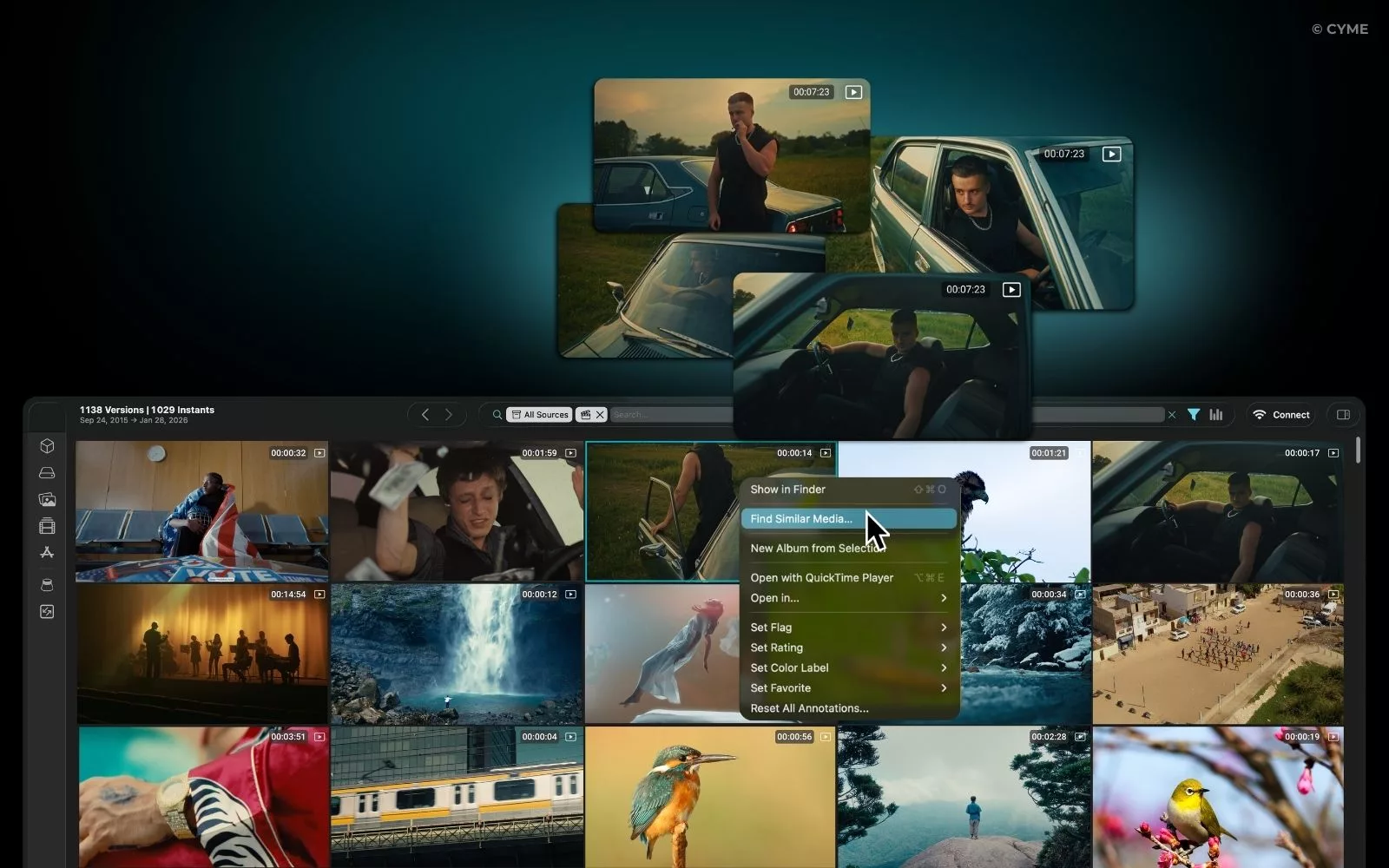
But the use case is evolving. Today, you also use a reverse video search tool inside your own media library. When you have a clip and need to find the master file, the uncropped version, or the raw footage hidden inside a full project (rushes, proxies, exports, versions), reverse search becomes a “video finder in reverse.” It even works the other way around: you drop a clip you like and use it to discover visually similar footage—same vibe, framing, place—so you can build a consistent sequence or match a style.
First mini step-by-step: grab a clean screenshot from a sharp, distinctive frame, then either upload it or drop a link to the clip into a visual search tool. Open the closest matches to trace back to the original source—or the most obvious reuploads.
Best Practices to Never Lose a Video Again
You don’t need a perfect system. You need a system that still works when you’re tired.
What changes everything is making exports “human”: a minimal name that includes project + date + type. Not everywhere—only for the files that matter. Then keep a folder structure that’s simple and predictable, so you stop asking “where’s the right version?”
Second point: don’t destroy metadata when you export. Otherwise you doom yourself to endless scrolling—because finding video by metadata can’t help anymore, you fall back into searching video with no tags, and even how to find video from images or a reverse video search tool becomes slower than it should be.
Finally, the real productivity jump comes from having a global view: folders, drives, NAS, projects—inside one unified search, without forcing a workflow migration. That’s when your video organizer becomes reliable long-term—and lets you find the right file instantly, even as your library grows.