

Every year, right at the end of December, I have a little ritual I always treat myself to: updating my portfolio with my most recent images. Not out of obligation, not to “optimize my online presence,” but simply because I like having a fresh selection that reflects what I’m doing today—not what I was shooting three years ago.
And let’s be honest: winter break is often the only moment we actually have the time to do it. The phone stops ringing, clients go quiet, and I can finally open my folders, review my shoots, and choose the photos that will represent me throughout the next year. The ones I’ll send to clients, show in meetings, include in applications, or simply keep as a new “showcase” of my work.
Since I started using Peakto, this whole sorting process has become even more enjoyable (important when we’re talking about culling photos…) and much simpler. No more opening five catalogs or juggling between three external drives—everything is in one place, and I can focus on what really matters: finding my best images and building a cohesive portfolio.
In this article, I’ll show you exactly how I build my photo recap in just a few minutes, the same way I do it every year. No fluff—just my actual workflow. Ready?
A Step-by-Step Guide to Your “Best Photos of 2025” Album
I start with something really simple, but transformative: I create a dedicated album in Peakto.
In my case, I call it: Best photos of 2025. Nothing fancy, but super clear. The idea is that every photo representing my year 2025 will end up here.
Why create the album in Peakto rather than in my editing software? Because Peakto sees my entire production:
- my Lightroom / Capture One catalogs,
- my folders on external drives,
- sometimes images hiding in some forgotten corner of my SSD…
So I want my recap to sit above everything—a central album pulling from everywhere.
1. Filter the 2025 Photos Using the Timeline
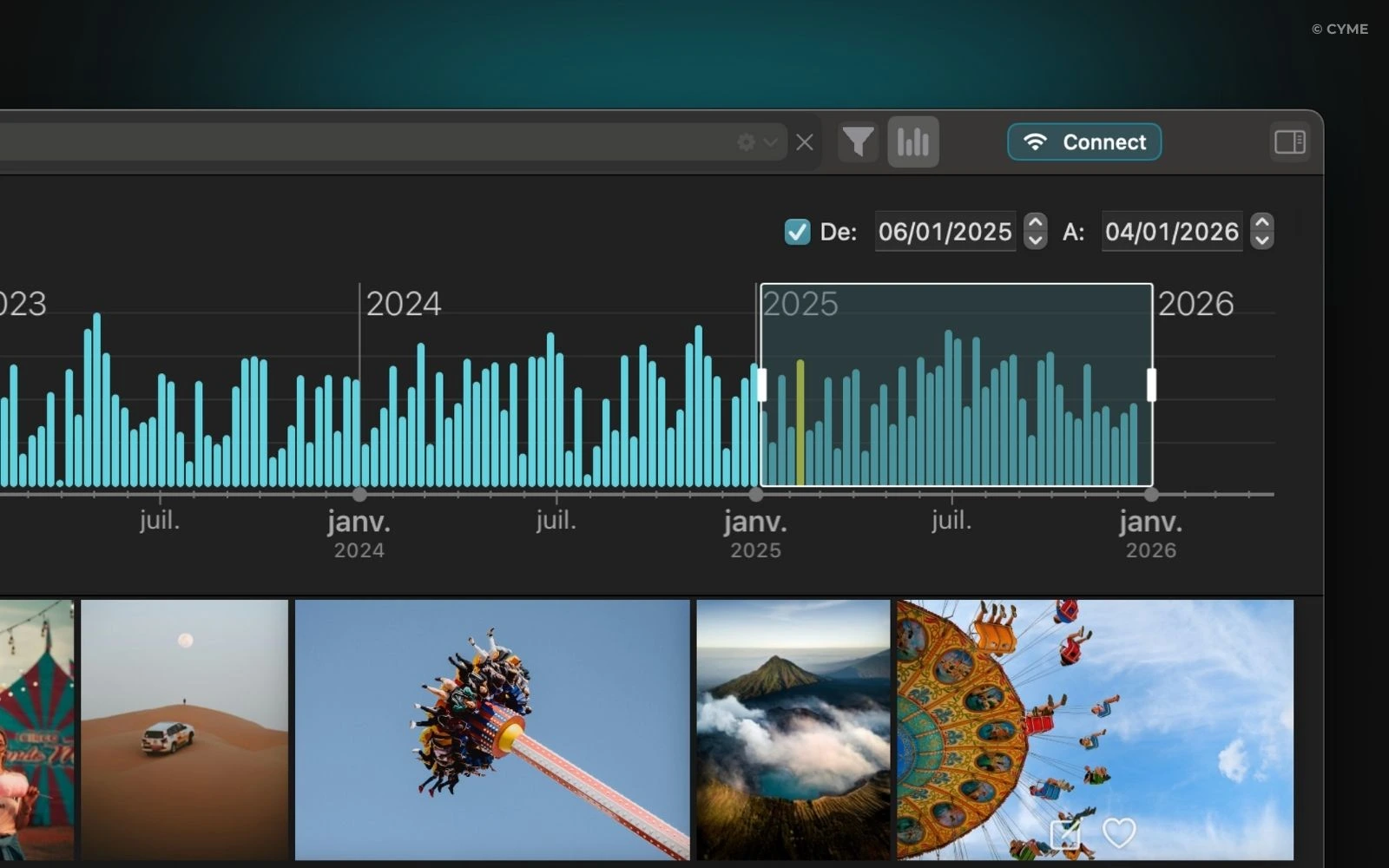
Next comes the core of the process: isolating the year 2025. This is where Peakto’s timeline widget does all the heavy lifting. Practically speaking:
- I open the global view,
- I filter on the year 2025,
- and suddenly I only see what I shot this year—no matter where it’s stored.
This is usually the moment when I get a little shock: “Wow, I actually shot a lot this year…” Without that date filter, I’d forget half of it. With it, 2025 becomes a single block—a real “season” of my work.
2. Start with Favorites and 5-Star Photos
If you’re the organized type (which I’m not always, let’s be honest), maybe you’ve already:
- added star ratings,
- marked some favorites,
- or used color tags.
In Peakto, I start by filtering:
- either 5-star photos,
- or favorites (depending on how I worked that year).
From there, it’s super easy: I select those images, and drop them into the “Best photos of 2025” album. In just a few minutes, I already have a first version of my recap: the images I’ve already intentionally curated throughout the year.
3. Never Rate Your Photos? No Problem.
Let’s be realistic: There are times when I shoot a lot… and rate absolutely nothing. No stars, no flags. In that case, Peakto’s AI search saves me.
3.1 Search by Description
With conversational search, I can type things like:
- “backlit portrait”
- “night street photo in the rain”
- “snowy mountain landscape”
And Peakto will bring up every matching image—even if I never added a keyword or rating. Then I do the same as before:
- browse the results,
- pick what really speaks to me,
- and drop those images into “Best photos of 2025.”
3.2 Use Categories
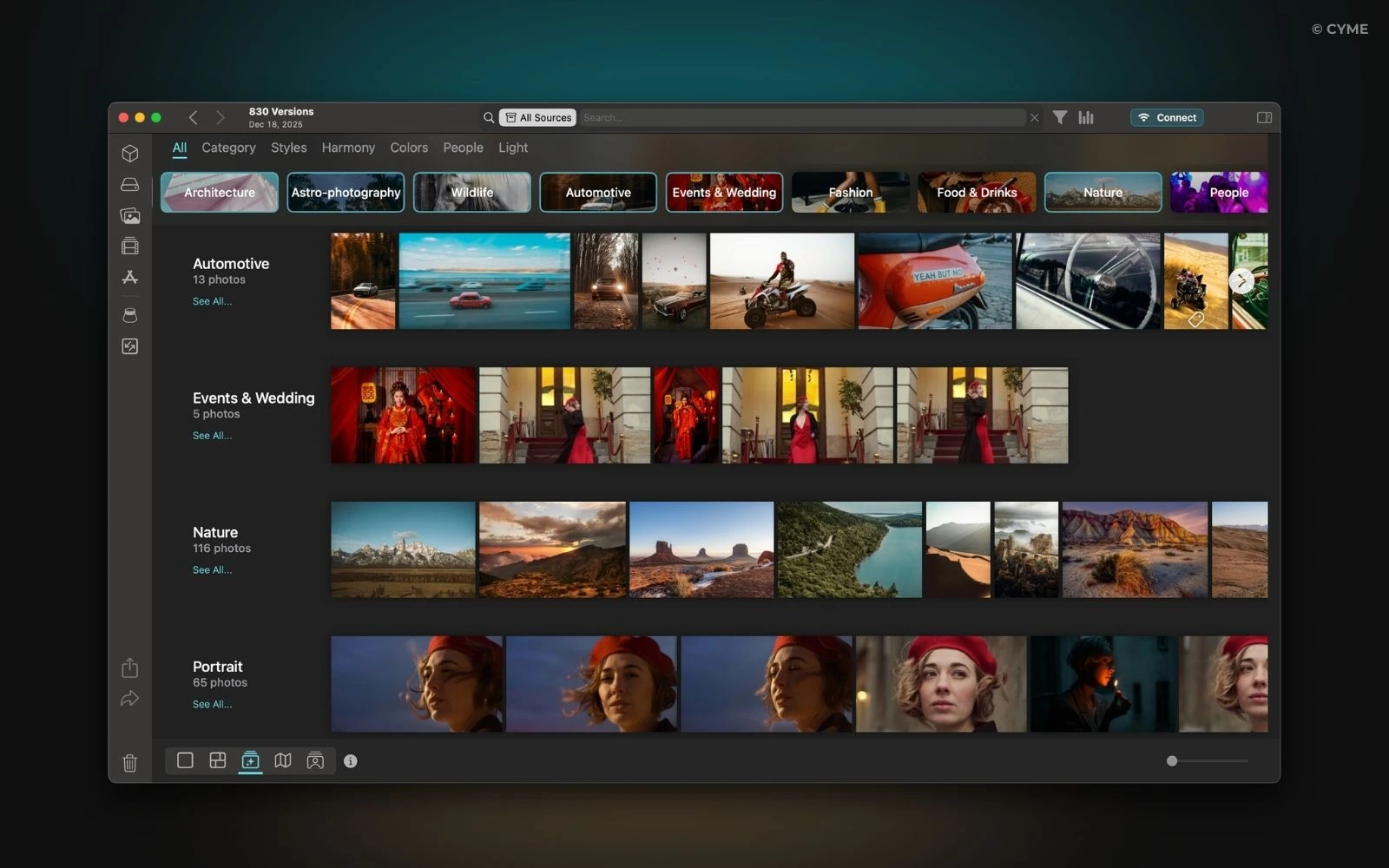
Peakto also classifies images by type in Panorama view (portrait, landscape, macro, etc.). Personally, I like to do small sessions by category:
- all my portraits from 2025,
- then all my landscapes,
- then my urban shots…
This helps me rediscover things I had completely forgotten, especially personal projects that never went through a strict edit.
4. Sort with Aesthetic Filters (and Save a Ton of Time)
Once I’ve gathered a big batch of photos, I need to do the opposite: narrow it down. Peakto’s aesthetic analysis help me:
- bring out the strongest images,
- see where I was more inspired,
- remove weaker duplicates.
I don’t take these filters as absolute truth—my eye still decides—but they help me quickly surface images worth a closer look. Then I switch into instinct mode:
- open the album,
- switch between grid view and full-screen view,
- and remove anything that no longer resonates.
If an image doesn’t move me anymore, I don’t keep it. Even if it’s “technically good.” This album should be a concentrated snapshot of who I am creatively in 2025.
5. Have a Photo in Mind… But Can’t Find It Anymore?
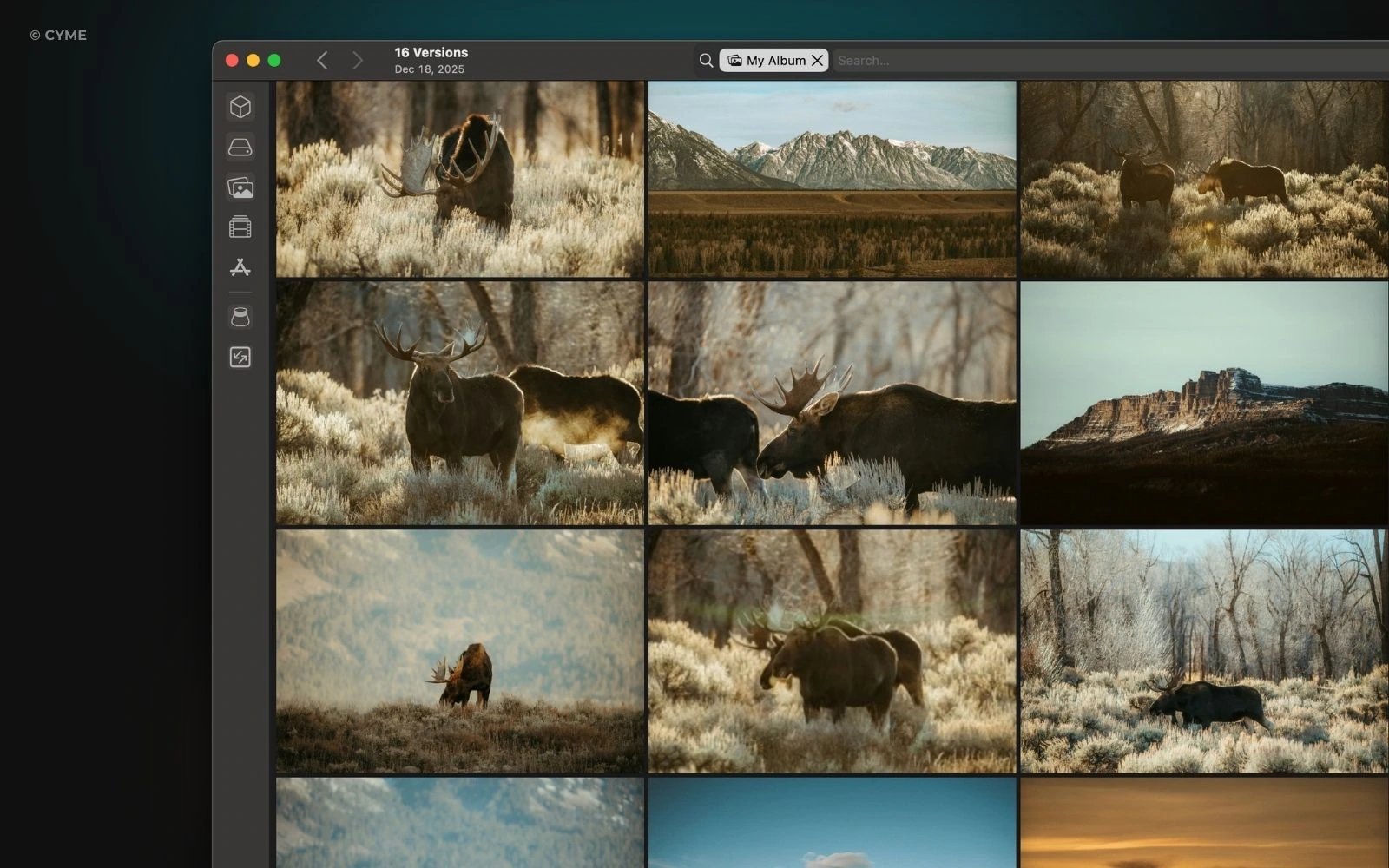
This is my classic scenario: I see the image in my head—I know I shot it—but I can’t remember where I stored it. In Peakto, I can:
- search by description,
- browse nearby series,
- or use filters (location, focal length, etc.) based on what I remember.
Once I find it, boom—it goes straight into “Best photos of 2025.” If an image still sticks with me months later, it deserves to be in the recap.
6. Do a Final “Magnifying Glass” Pass on the Album
When the “Best photos of 2025” album starts looking good, I do one last review:
- Does the whole thing tell a coherent story?
- Does it include:
- my main clients?
- my key personal projects?
- my experiments?
Sometimes I realize I leaned too hard on one topic (e.g., too many studio portraits, not enough documentary work). So I rebalance:
- remove a few,
- add two or three I had set aside.
The goal isn’t perfection— just an honest recap of my year: what I really shot, what occupied me, what reflects how I see in 2025.
What’s Next? How I Use This Peakto Recap
Once the album is ready, it becomes the base for a lot of things:
- preparing a PDF portfolio to send out,
- updating my website,
- choosing images to print,
- or simply keeping this visual playlist of my year—for myself.
Even if I never publish it, this recap helps me a lot:
- I see where I’ve progressed,
- where I’m repeating myself,
- what I want to explore next year.
And honestly, the fact that Peakto centralizes all my catalogs and folders, and lets me filter everything by year, ratings, categories, AI search… it turns what used to be a chore into a small ritual I actually look forward to.
Turning a Year of Photos into a Photography Portfolio
My “2025 photo recap with Peakto” workflow is:
- Create an album: “Best photos of 2025.”
- Filter all 2025 photos via the timeline.
- Start with favorites / 5-star shots → drop them into the album.
- Complete the selection with AI search (description + categories).
- Refine using aesthetic filters + my own judgment.
- Find the images stuck in my head and add them.
- Do one last pass to make sure the album truly reflects my year.
If you’ve got Peakto handy, grab 30 minutes and give it a try. You’ll see—it feels really good to look back on your year in images. And sometimes, it even makes you want to pick up the camera again on January 1st.