

As a video professional, your hard drive is a gold mine, but trying to find a specific clip from a single picture can quickly turn into a nightmare. While search engines like Google or Bing are perfect for the web, they won’t help you with your own local files.
Here is how to use Peakto, the intelligent video finder, as your personal reverse video search tool to retrieve any media in seconds.
Step 1: Use the Right-Click "Find Similar Media"
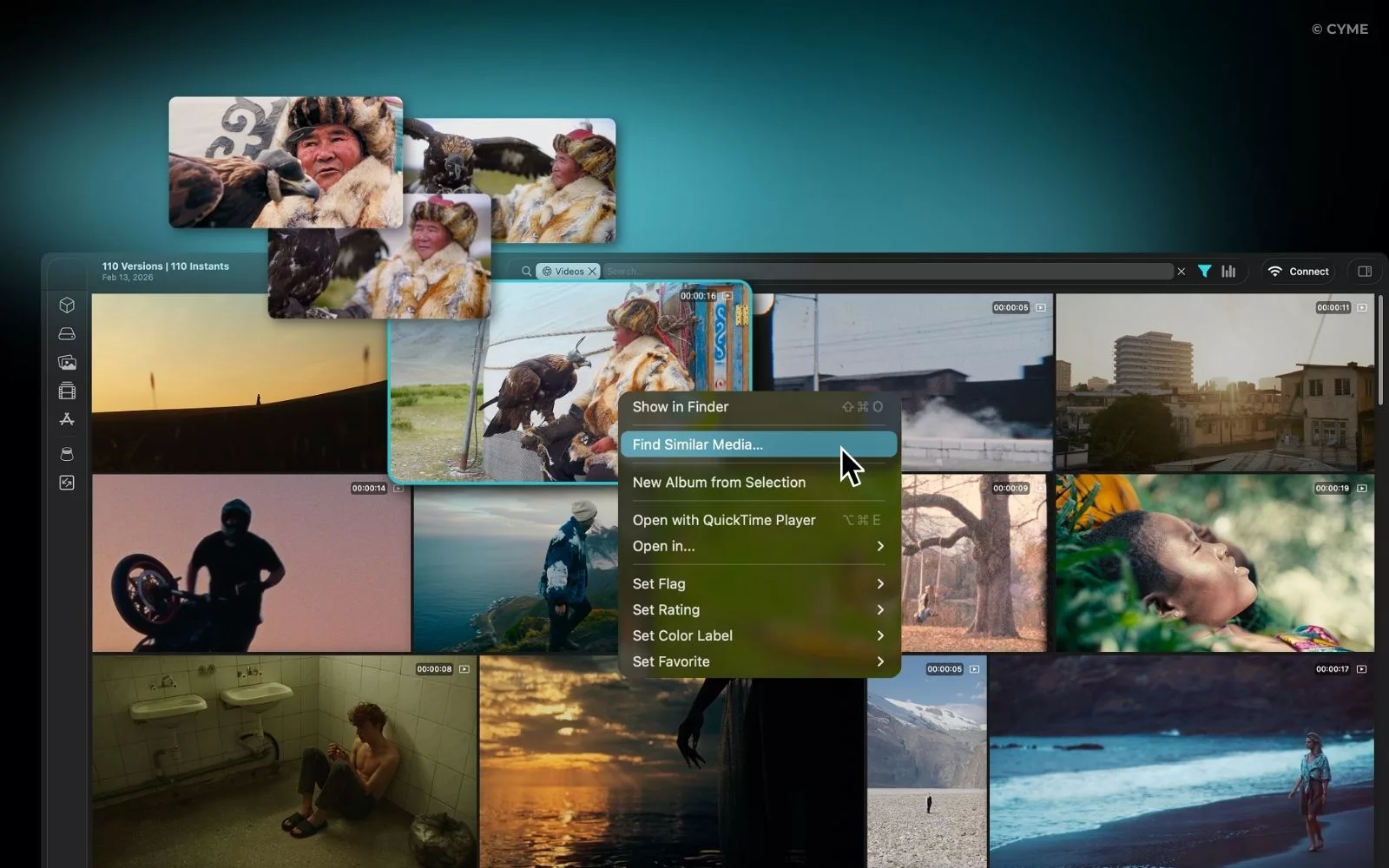
This is the fastest method to perform a video search within your current catalog. Have a shot you like and want to see all similar takes?
- Open your Peakto interface (a very user friendly interface).
- Right-click on the image or frame of your choice.
- Select “Find similar media“.
- Adjust the tolerance: This is where the magic happens. By moving the slider, you can ask the AI to be very strict (to find duplicates) or broader (to find shots with a similar aesthetic).
This feature helps find creative alternatives instantly without having to sort through hours of raw footage.
Step 2: Find a Clip from an Image Stored on Your Mac
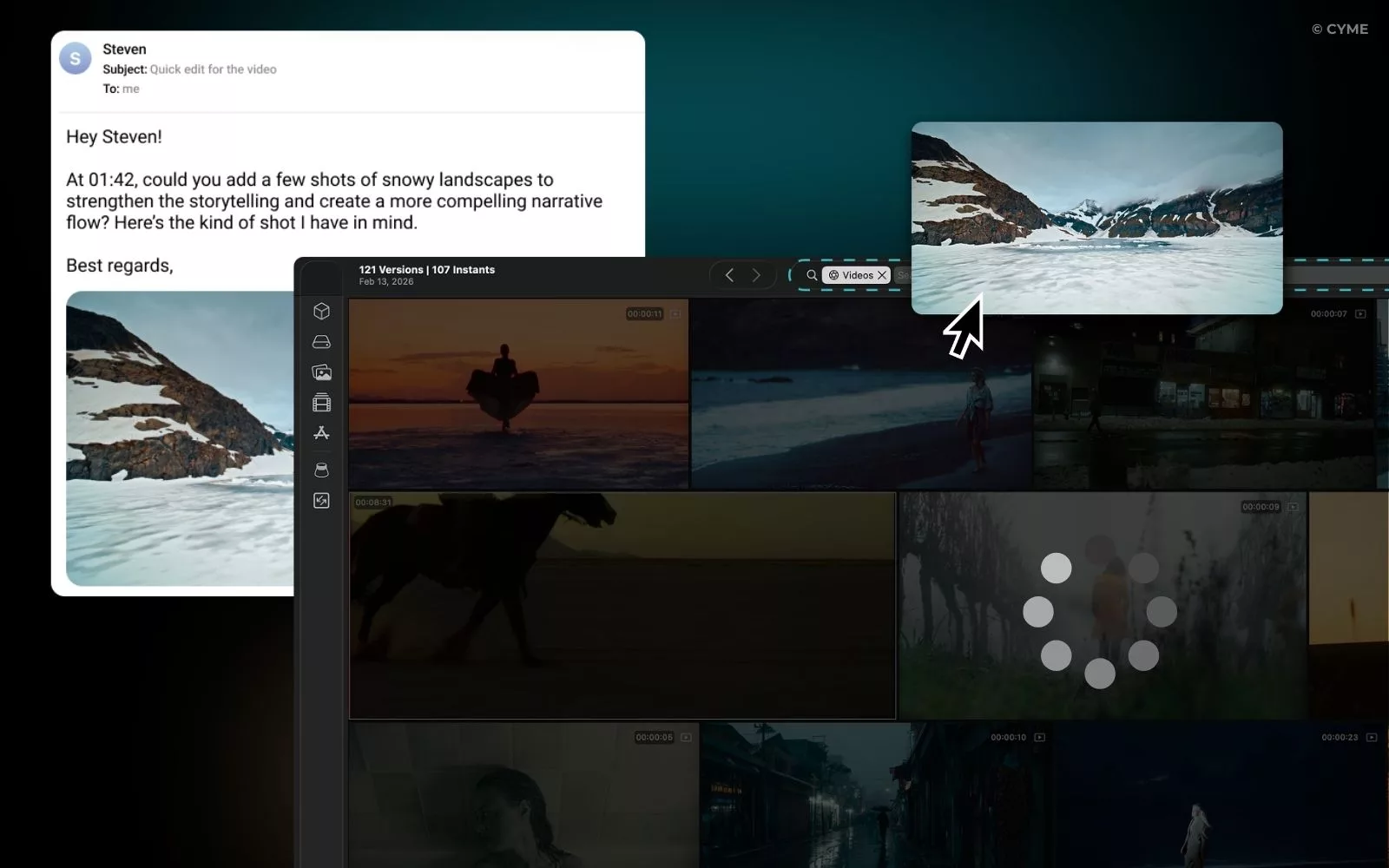
Imagine a client sends you a screenshot (picture) via email and asks you to modify the original edit. You can’t remember where the original rush is?
- Take the image from your download folder or your desktop.
- Simply drag & drop that image directly into Peakto’s search bar.
- The reverse search then scans all your indexed drives.
Thanks to this image tool, you don’t need tags or keywords. Peakto performs a search image based on pixels to identify the source video content.
Step 3: Match Your Media with Web Inspiration
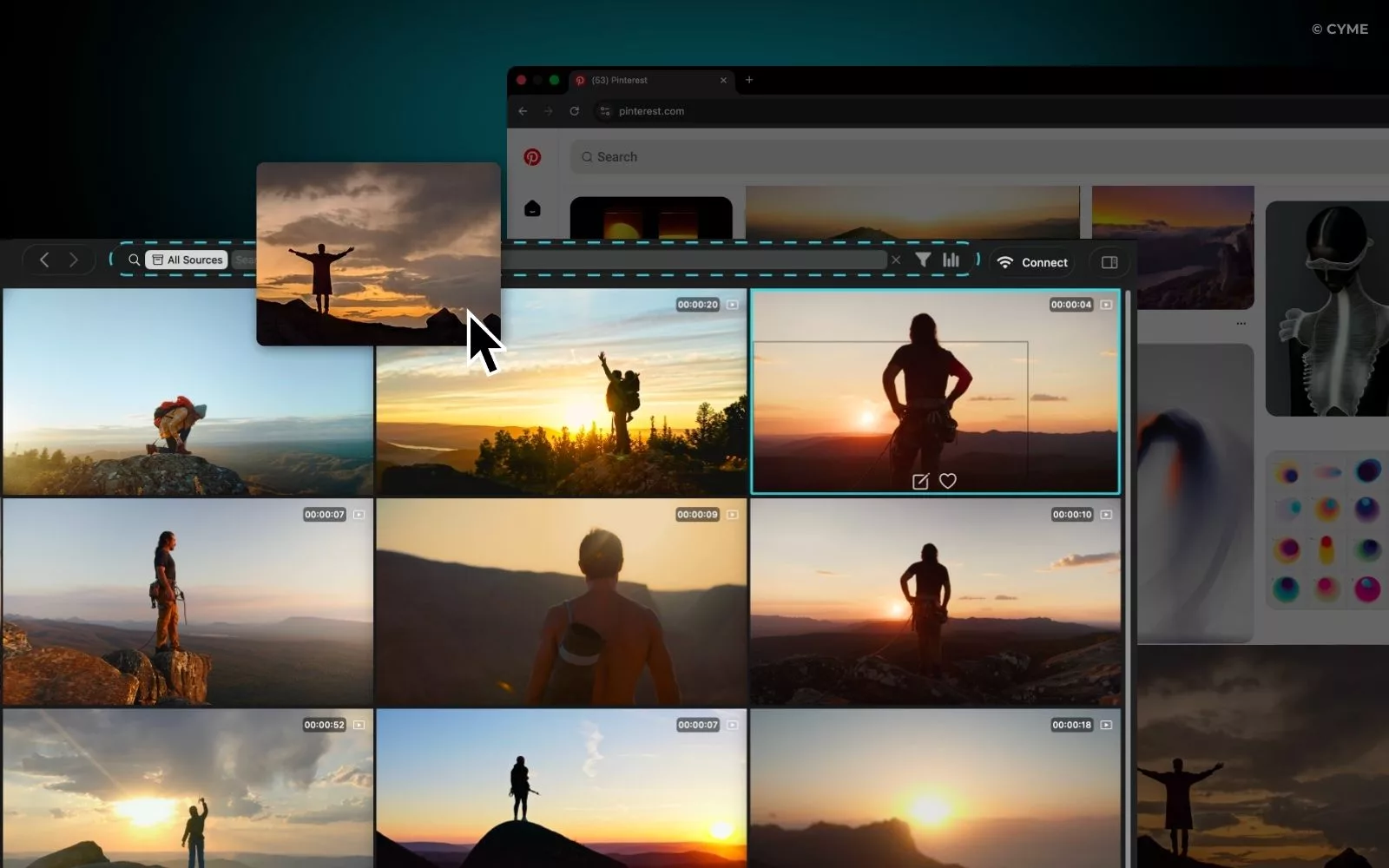
You’re browsing social media and stumble upon an image with lighting or a composition that inspires you. Want to know if you have equivalent content in your personal archives?
- Drag the image directly from Instagram, Google, Bing, etc., into Peakto.
- The tool launches an immediate local reverse video search.
- The Peakto Bonus: For every video found, a blue bar appears on the thumbnail. It indicates the exact frame that matches the image you “dropped.”
This is the most accurate image search video tool for editors: you land exactly on the right timecode. And the transcript feature also allows you to find word in videos. Peakto becomes the go-to tool for transforming your archives into usable B-roll.
Step 4: Combine Visual Search and Metadata
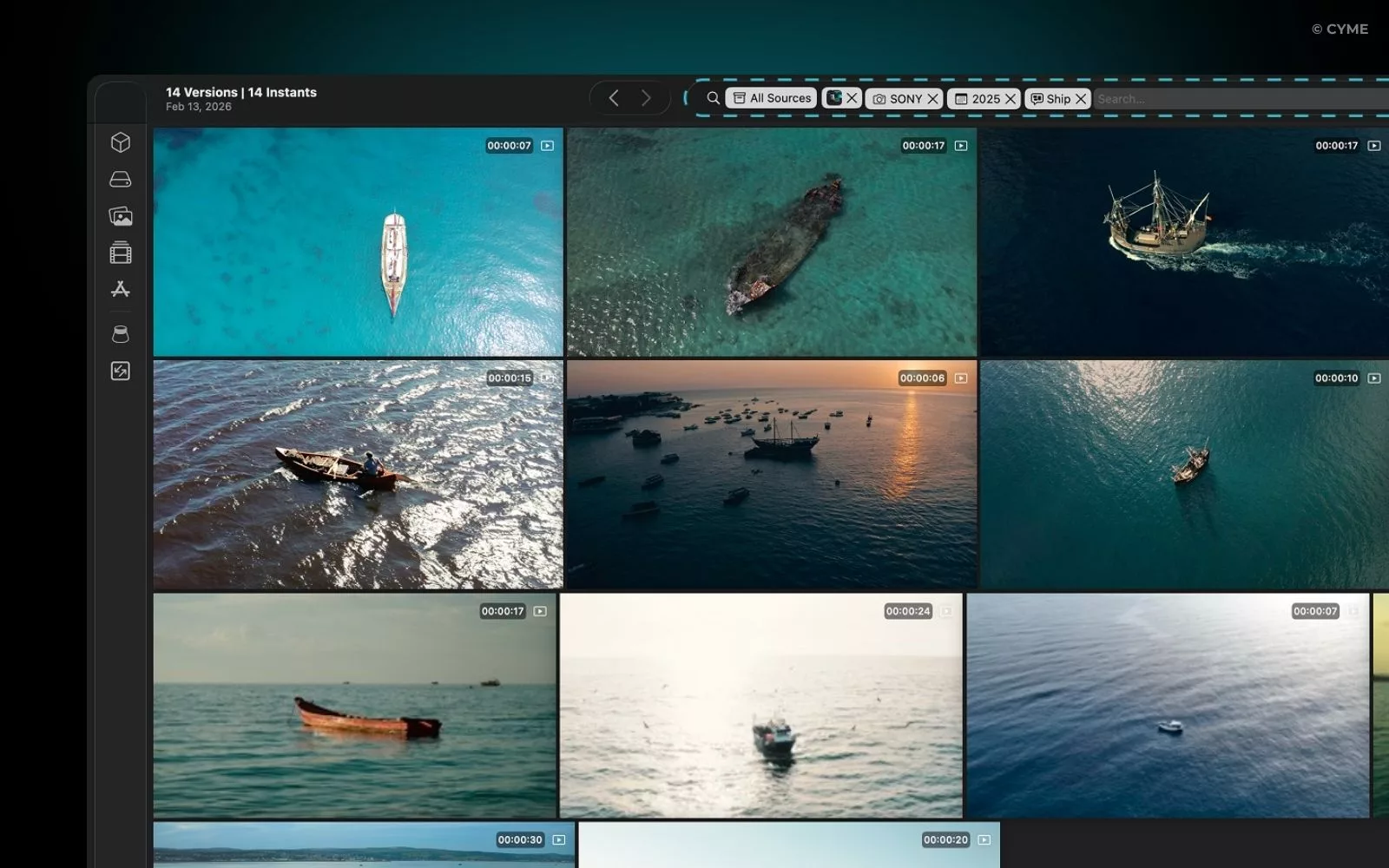
Sometimes, visual resemblance isn’t enough. You might want a shot that looks like your image but was filmed with a specific camera. The idea is to find videos by metadata that are similar to your media.
- Launch your image search by dropping a photo.
- Refine your search by choosing other types of filters such as metadata (date, lens, resolution, subject), annotations, or even keywords.
The multiple and infinite combinations allowed by Peakto push your search and creativity beyond the boundaries of your catalogs.
Why Peakto is the "Google Search" for Your Own Videos
Whether you are trying to find a master or source some B-roll, Peakto centralizes everything. No more plugging in your drives one by one to dig through them. You centralize your video search in one place—even if your hard drives are disconnected. And then you can even search videos with no tags.
- Software: Peakto (AI Video Organizer)
- Function: Local reverse image search & multi-catalog management.
- Price: Free trial version available to test the engine’s power.
FAQ - How to Find Video from Images
1. How to find the original source of a video from a simple screenshot?
This is the most common search intent. Users want to get back to the “Master” file. The Peakto Answer: While Google Image Search or Berify search the web, Peakto is the tool that performs this reverse search on your own servers and hard drives. By dragging your picture into the interface, the AI identifies the original video content among thousands of hours of rushes, even if you renamed the file. It is the ultimate search find tool for editors who have lost the link to their source media.