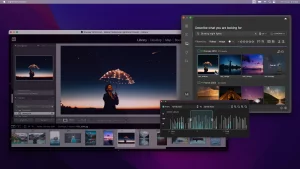


If you’ve been using your Mac for years, your photos are probably scattered across folders, apps, and drives.
Some sit in Finder, others in the Photos app, a few hide in iCloud, and plenty remain on that old USB you forgot about. When you’re trying to find one image, it can feel like looking for a needle in a haystack.
According to Western Digital’s 2024 report, the average user stores more than 2,000 photos across multiple devices, often without realizing where they are. But every bit of order starts with awareness — knowing where your images live. If you’re just getting started, these tips for organizing photos on Mac will help you take back control of your library and avoid losing track of your memories.
This short guide walks you through how to uncover every photo stored on your Mac, step by step, using the tools you already have — and how Peakto can bring them all together into one clean, searchable space.
Start with Finder

Finder is your gateway to everything stored on your Mac. It’s the blue-and-white smiley icon in the Dock — the place where all your files live.
Start by opening folders where photos often collect: Downloads, Documents, or Desktop.
Switch to View → As Icons to display thumbnails and connect any USB drives or SD cards you’ve used. They’ll appear in Finder’s sidebar. As Apple Support explains, Finder’s sort and filter tools help you quickly spot images and bring structure back to your media.
Once you know where things are, a logical folder system will make the next step easier. Many creators use simple date-based naming which keeps browsing effortless later on.
Use Finder’s Search

Finder’s search bar can uncover photos hidden deep in forgotten corners of your drive.
- Type .JPG, .PNG, or .HEIC in the top-right corner.
- Click the “+” button, choose Kind → Image, and watch old shots resurface.
- For videos, switch to Kind → Movie.
- Use ⌘ + F for advanced search. You can filter by date, file size, or even camera model.
As Apple Support notes, Finder can locate photos from backups, exports, or creative projects long buried.
You might stumble upon duplicates or nearly identical images — the kind of clutter that is erased with a tool to declutter and organize your digital photos, leaving only what’s worth keeping.
Try Spotlight Search

Spotlight looks beyond Finder.
Press ⌘ + Space, type “photos” or “.jpg,” and macOS scans your entire system — Finder, Photos, and iCloud — in one go.
Preview any file with Spacebar using Quick Look. Spotlight can even recognize places or subjects when metadata is available, as described in Apple support’s spotlight guide.
For visual thinkers, Peakto takes this a step further, merging images from all sources into a single panoramic view. It’s the same philosophy used by photographers when they search for the fastest way to rank photos on a Mac — see everything first, then decide what matters.
Check the Photos App and iCloud
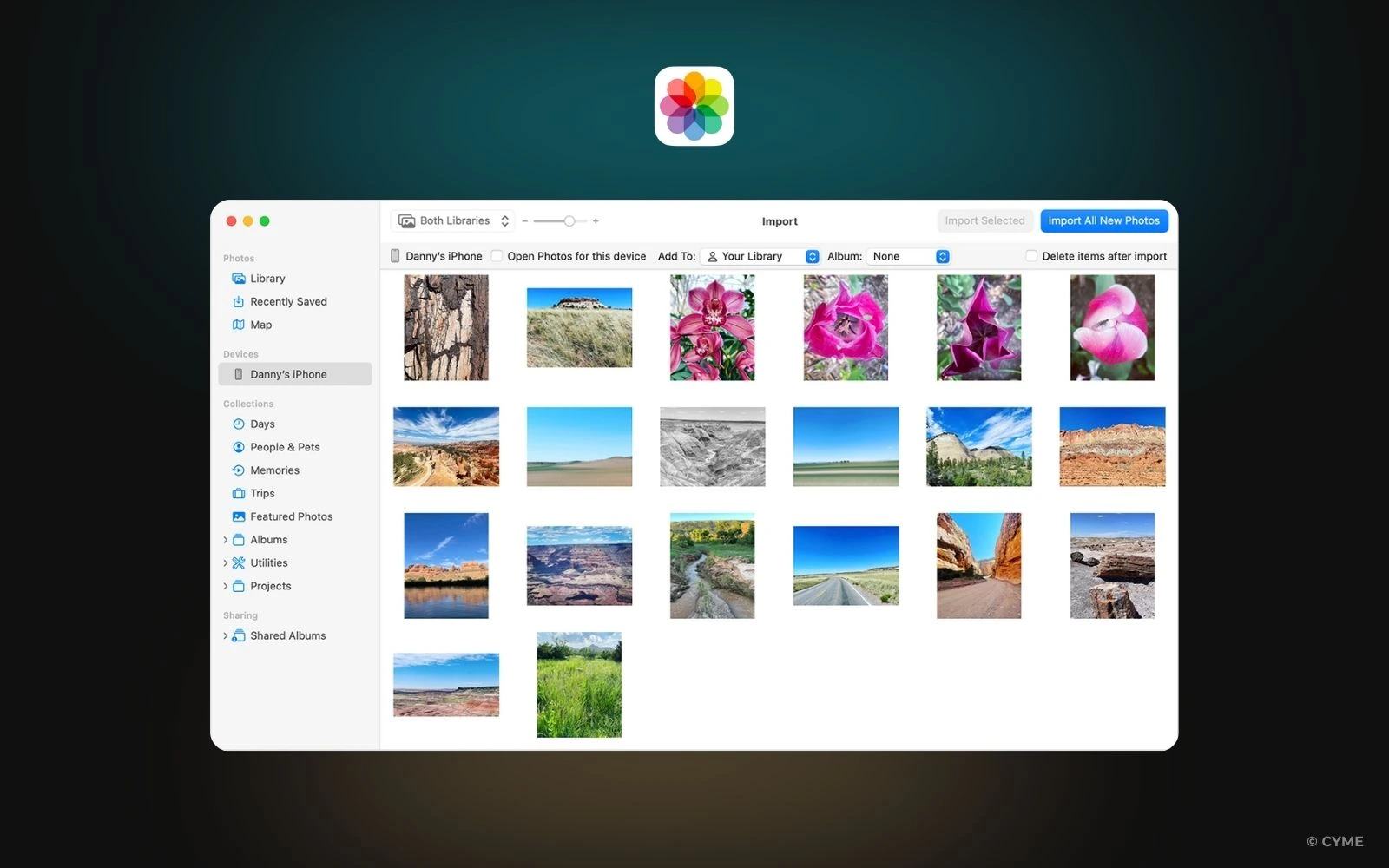
If you shoot with an iPhone or iPad, many of your pictures live in the Photos app.
Open Photos → Settings → iCloud and confirm iCloud Photos is on.
When “Optimize Mac Storage” is selected, only low-resolution previews remain on your Mac while originals stay in the cloud. Switching to Download Originals to This Mac keeps full-quality copies offline — helpful if you often edit without internet.
Hold Option (⌥) when launching Photos to switch between multiple libraries. Apple Support reminds users that only one library can sync with iCloud at a time, which makes clear organization essential.
If you don’t know where to store your photos safely, many photographers balance local and cloud copies using storage strategies combining convenience with peace of mind.
Make It Effortless with Peakto

Finder and Spotlight are great for hunting manually, but Peakto is the best way to view and explore your images turning the process into a visual experience.
It connects your Photos app, Finder folders, external drives, and even Lightroom catalogs, unifying everything without moving or duplicating a single file.
Its AI-powered Aesthetic Analysis evaluates focus, exposure, and composition to surface your best images automatically. As the CYME Team notes, Peakto runs entirely on your Mac, preserving your privacy while showing your entire media universe in one place.
This photo organizer brings clarity and makes cleanup easy later. Peakto avoid spending time deleting photos, with it you’ll recognize duplicates, spot favorites instantly, and prepare your collection for deeper refinement.
“With Peakto, you can finally see all your memories in one place — organized, searchable, and private.” — CYME Team
Make Finding Photos Part of Your Creative Flow
Finding your photos isn’t busywork; it’s the first act of rediscovery. Every search brings back memories you’d forgotten and clears space for new ones to grow.
Take a little time each week to explore and regroup. Review, rename, simplify — and when the moment feels right, declutter your photo library to keep your archive light and inspiring.
Because every collection tells a story, and every story deserves the space to breathe.