

After a trip or a photoshoot, you often come home with hundreds of images — some sharp, some blurry, some nearly identical. Sorting through them can feel endless. But ranking your photos is not just a chore; it’s part of the creative process.
As photographer Destin Sparks once said, “Photography is the story I fail to put into words.” Choosing which images to keep — and which to let go — shapes how that story is told.
If you’re looking for advice to organize photos on Mac, start with the basics: reviewing, rating, and refining your shots. macOS already offers simple tools to help, and with the rise of AI-powered photo management apps like Peakto, finding your best shots has never been faster.
This guide walks you through the best ways to review, rate, and refine your images — so you can spend less time scrolling and more time creating.
Start with Finder Labels and Tags
Before turning to specialized apps, start with the tools already built into your Mac.
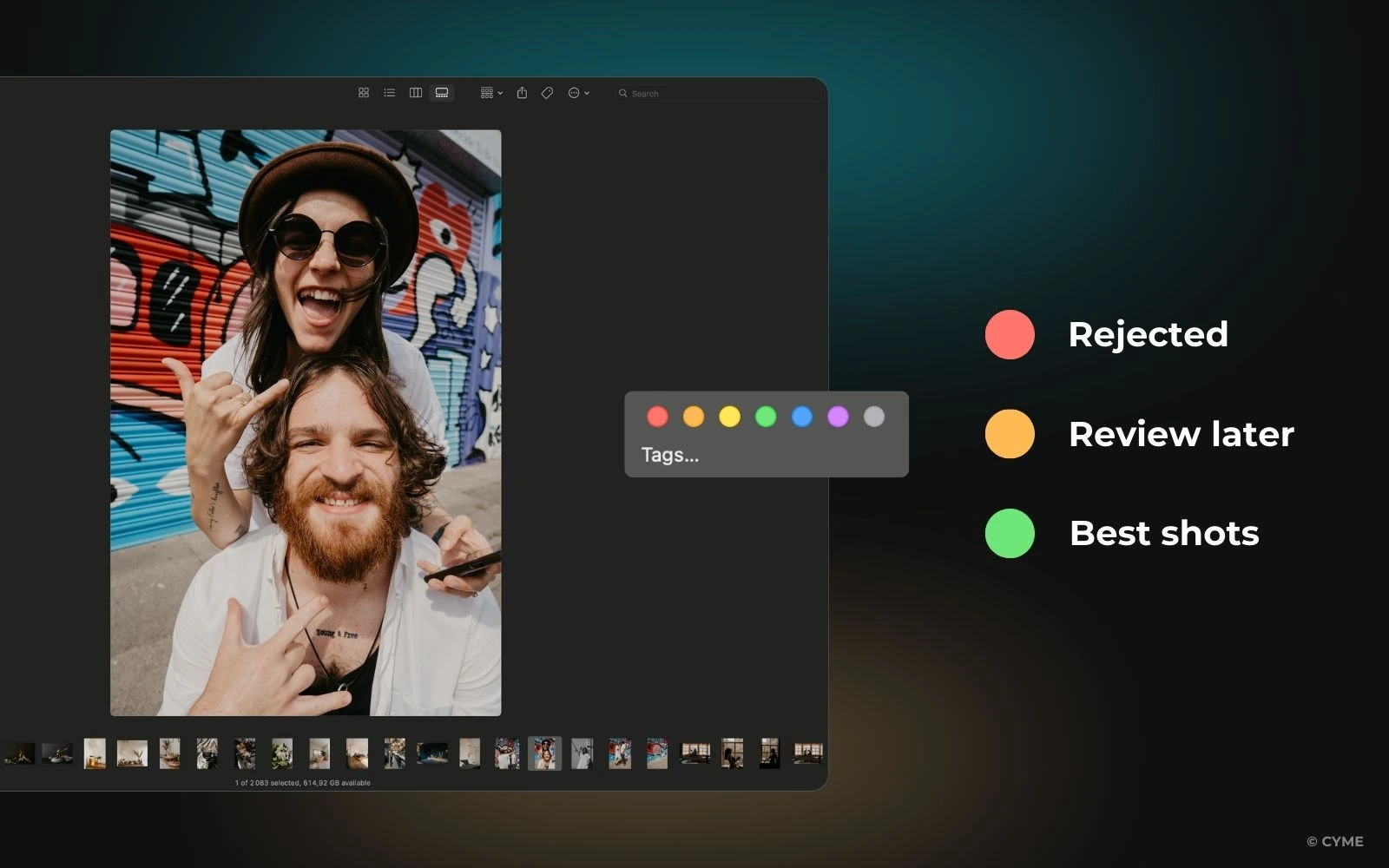
The Finder, as explained in Apple support’s guide on organizing files, lets you color-code and tag photos visually — a simple but powerful way to triage large batches quickly and avoid spending time deleting photos.
Right-click any image and assign a color label. Many photographers use a traffic-light system:
🟥 Red = reject
🟨 Yellow = review later
🟩 Green = best shots
You can also add custom tags like “Portrait,” “Client,” or “To Edit.” These appear in Finder’s sidebar for easy access.
Tip: Press ⌘ + I (Get Info) to edit file details or metadata directly. Once tagged, you can regroup photos into logical folders.
Use Photo Software with Ratings and Metadata

When you need more precision, apps like Apple Photos, Adobe Lightroom, and Capture One let you rate images using metadata — a system of embedded tags that travel with each file, and redefine the way you view and explore your images.
In Adobe’s official documentation, Lightroom’s stars, flags, and color labels are all stored as EXIF/XMP data, meaning your ratings persist even when switching between software.
Apple Photos uses the Favorite icon and Smart Albums to filter top picks automatically, while Capture One lets you customize color codes and keywords.
Pro Tip: Stick to one clear system — for example, 1★ = reject, 3★ = good, 5★ = best. This makes AI tools like Peakto’s aesthetic analysis even smarter, since they can read and interpret your existing metadata.
Speed Up with Automation
If you’ve already know how to find all the photos stored on your Mac, it’s time to save yourself hours with automation.
AI-powered ranking tools now analyze sharpness, exposure, and composition to suggest your top images instantly. They don’t replace your artistic judgment — they just remove the tedious parts of selection.
As highlighted in Adobe’s Creative Trends Report (2024), “AI doesn’t replace creativity — it removes the boring parts so you can focus on art.”
Some apps also allow batch tagging, letting you apply ratings or keywords to hundreds of photos in one click.
Let Peakto Do the Work

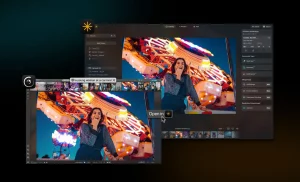
If you want the most intelligent and fastest way to rank photos on a Mac, try Peakto. It connects to your Photos app, Finder folders, Lightroom catalogs, and external drives, giving you a unified, visual workspace.
Peakto’s aesthetic analysis, described by the CYME Team, evaluates focus, exposure, and composition automatically — surfacing your strongest shots without uploading a single file to the cloud. You can fine-tune its selections manually, combining AI precision with your creative intuition.
Everything runs locally, so your data stays private — even when working with large libraries from different sources. With Peakto, I saved hours selecting my top photos. It’s like having a personal photo assistant which is the best tool to declutter and organize your digital photos.
Build a Simple Ranking Routine
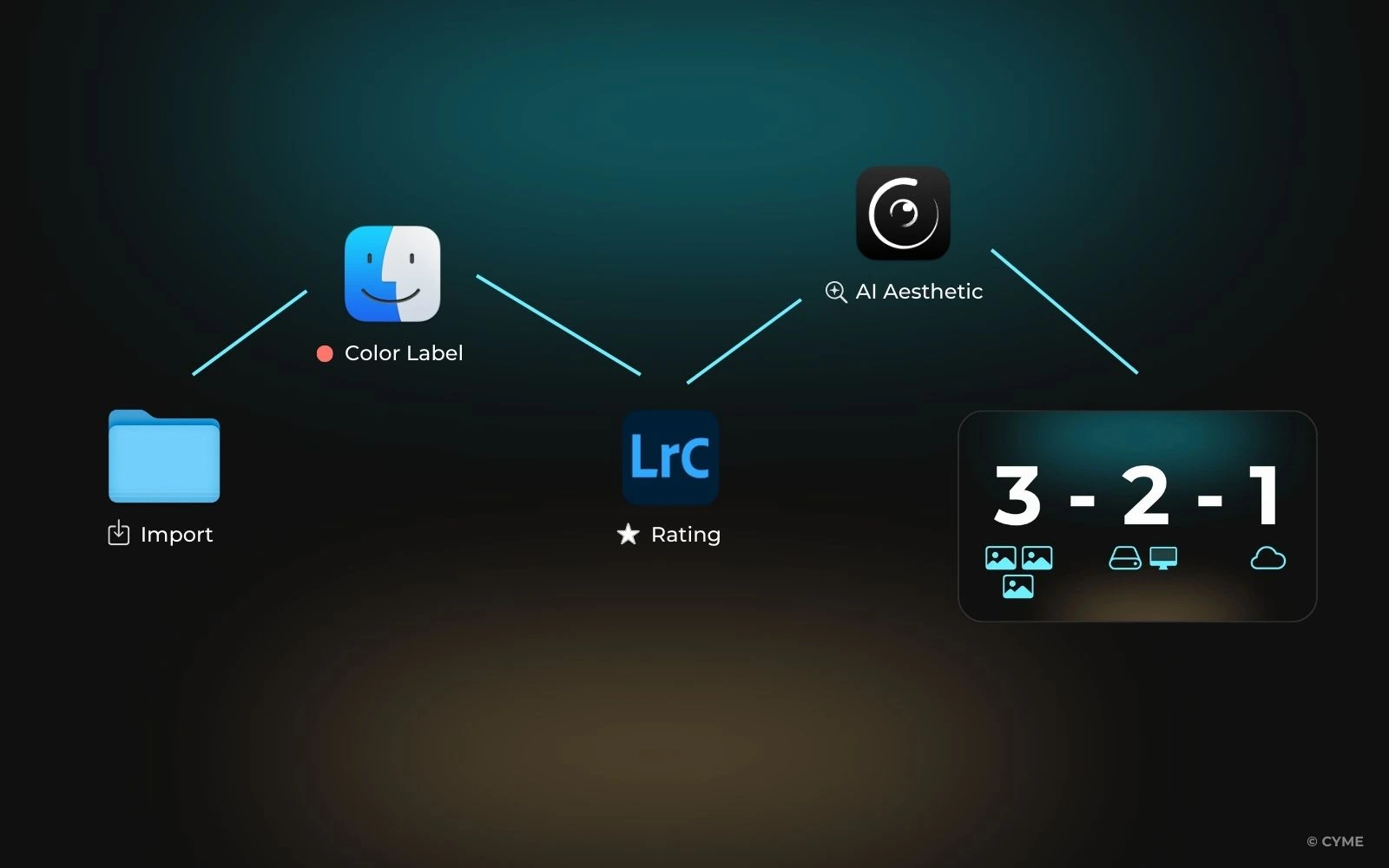
Ranking becomes second nature when it’s part of your post-shoot habit. Try this quick workflow:
- Import your photos into a folder or Photos app.
- Use Finder’s color labels for quick triage.
- Add star ratings or tags in your preferred app.
- Let Peakto’s AI refine your selection automatically.
And finally you just need to know how to back up photos, using the 3-2-1 rule — three copies, two formats, one offsite (as recommended by Backblaze’s backup strategy).
With consistency, you’ll always know which images deserve editing, sharing, or archiving — and which can safely be deleted.
Turn Ranking into a Creative Ritual
Ranking your photos isn’t just about sorting files — it’s about shaping your story. Each decision you make sharpens your eye, defines your taste, and helps you rediscover why you took those photos in the first place.
When your best shots stand out, editing becomes joyful again. That’s why many creators use Peakto as a photo organizer — not just to rank faster, but to regain clarity and creative flow.
So take time after each shoot. Review, select, simplify — and when the time comes, declutter your photo library to keep your archive light and inspiring, taking care to store your photos safely. Because every great story deserves the space to breathe.