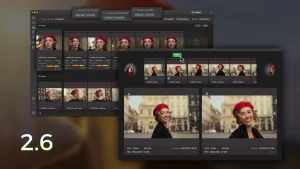


If you’ve ever scrolled endlessly through folders trying to remember where a photo lives, you already know the problem. Your photo library isn’t necessarily too big — it’s just hard to see.
When images are scattered across folders, drives, or apps, the real challenge isn’t the number of files. It’s visibility. Photos exist, but without a clear, unified overview, they remain fragmented, out of context, and make even the simplest decisions unnecessarily difficult.
This is exactly the moment when people start looking for advice on organizing photos on Mac. And contrary to common assumptions, the solution doesn’t begin with folders, tags, or rigid systems. It starts with the ability to see your images clearly — all of them, wherever they are stored — so you can finally regain control of your photo library.
Grid and Detail Views: The Most Common Ways to View Photos
Grid view is where most people start when browsing photos. Rows of thumbnails provide a fast overview of a folder or album, which is why Finder, Apple Photos, Lightroom, and Capture One rely heavily on this view.
Detail view focuses on a single image. It lets you zoom in, inspect sharpness, and check metadata such as EXIF information. This makes it essential for editing decisions, but inefficient when you need to explore a large photo library or compare many images at once.
Both views work well — until scale becomes an issue. Moving image by image or folder by folder makes it difficult to understand how photos relate to each other. This is usually the point where ranking photos or organizing collections starts to feel slower than it should.
Map View: Exploring Photos by Location
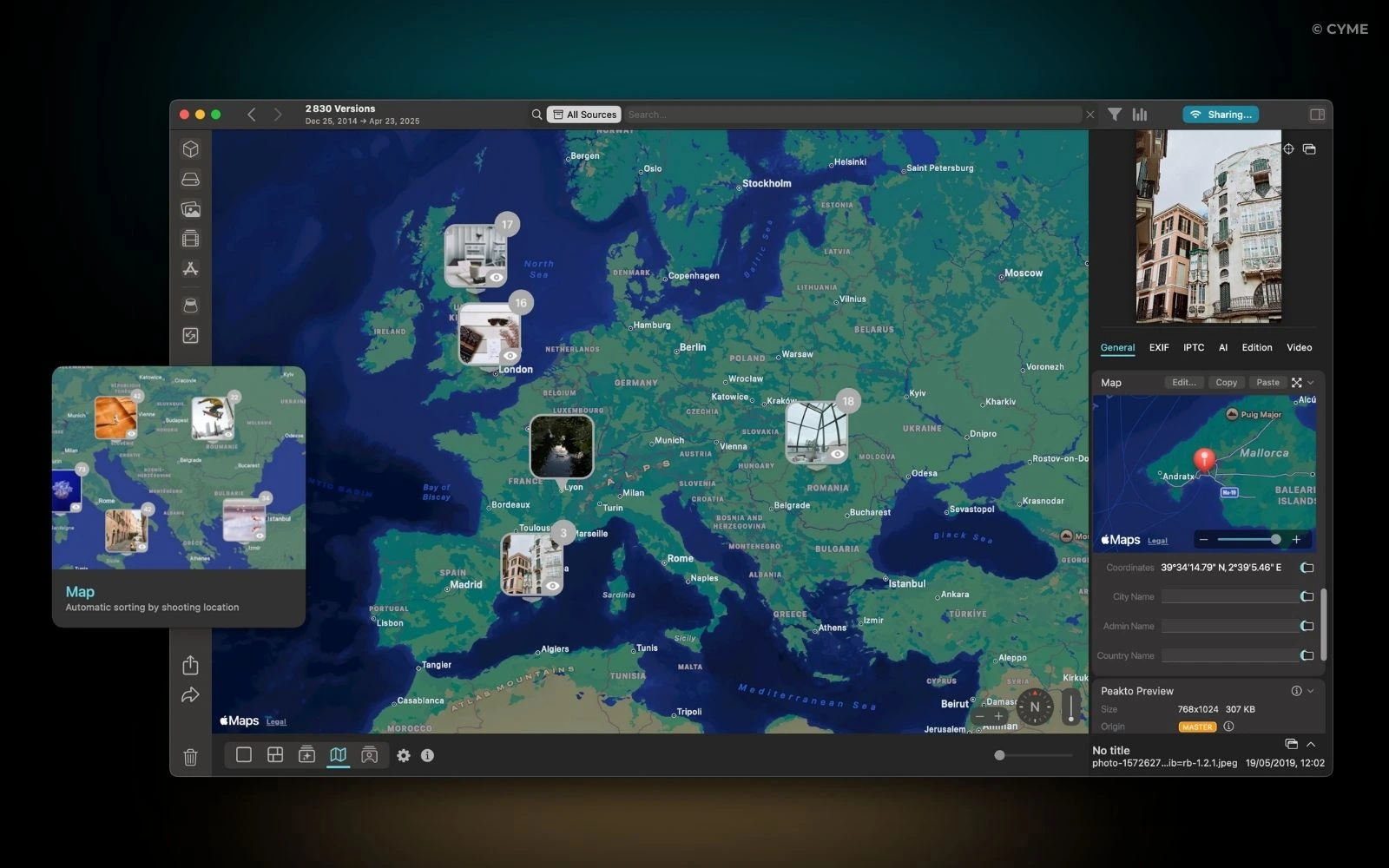
Sometimes you don’t remember a filename or a date — you remember where you were.
When photos include GPS data, map-based views become a powerful way to find all the photos stored on your Mac. Locations naturally group photos together, revealing travel patterns, recurring shooting spots, or forgotten trips.
In Peakto, Map View lets you explore your entire photo library geographically. Browsing by place often surfaces images you weren’t actively searching for, especially once photos from multiple devices and drives have been gathered into a single view.
Timeline View: Exploring Photos Through Time
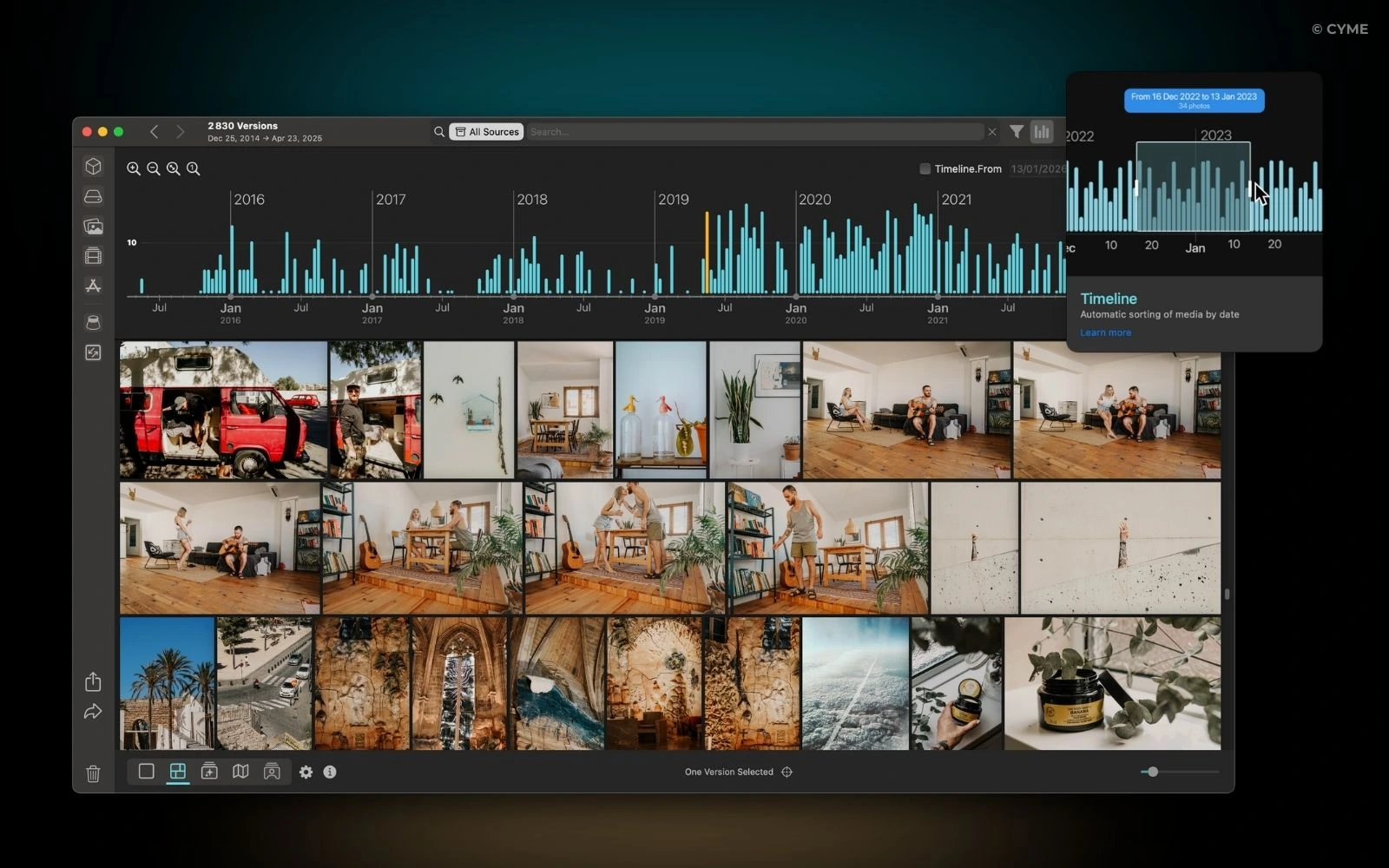
Time is one of the most intuitive ways to remember images. A timeline view replaces folders with continuity, allowing you to explore photos chronologically rather than structurally.
Scrolling through months or years reveals creative phases, long-term projects, and periods of intense shooting or pause. It also makes it easier to spot repetitions or identify images worth keeping before decluttering and organizing your digital photo library.
Timeline widget in Peakto turns your photo collection into a visual history, making it easier to understand how your archive evolved over time.
Panorama View: A Global Way to Explore Large Photo Libraries
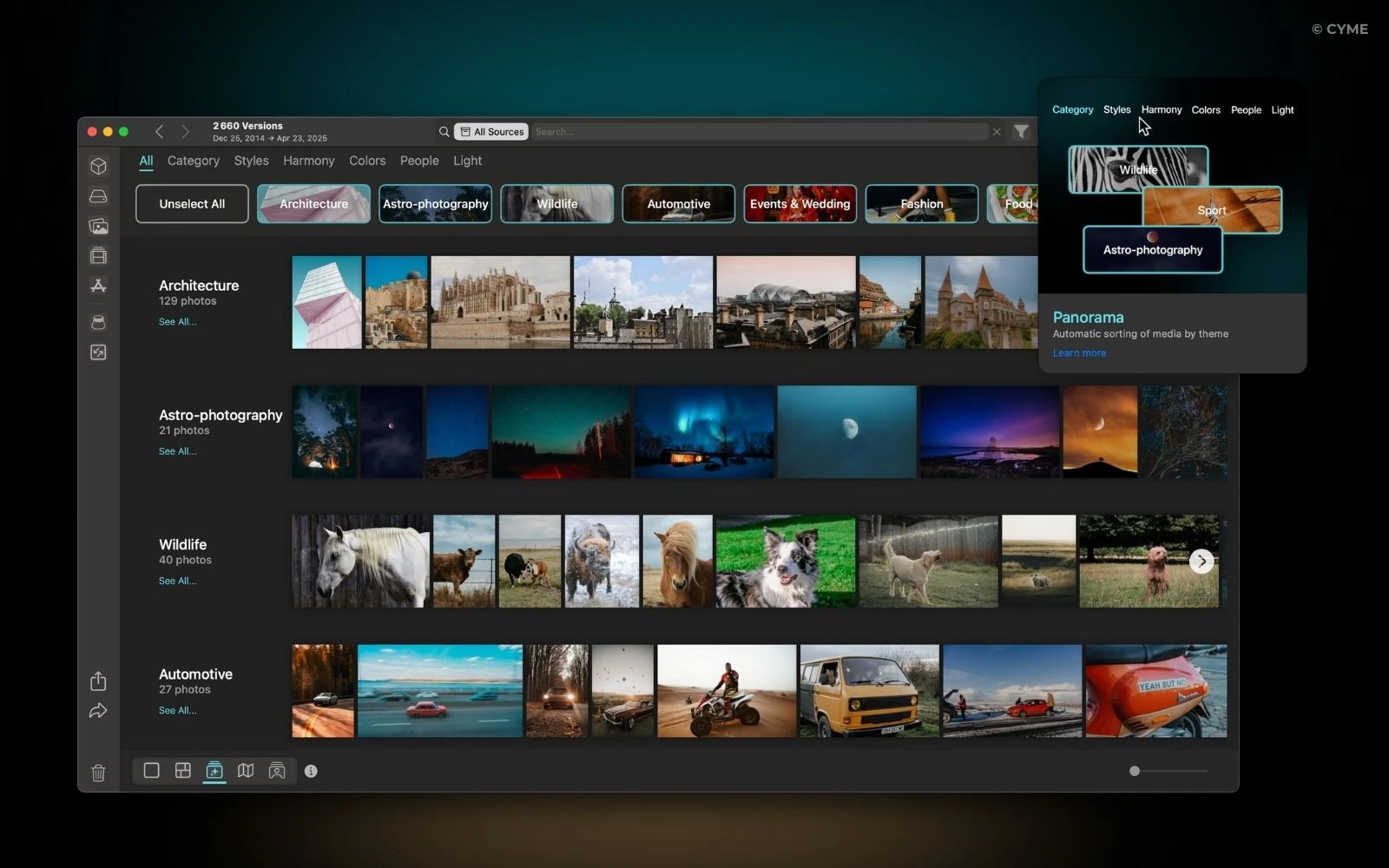
Some problems don’t need more precision — they need distance.
That’s exactly why Panorama View, a feature unique to our photo organizer, was designed. Today, Peakto is the only photo management software to offer this kind of global, continuous visual view.
Panorama View lets you explore large photo libraries at scale. Thousands of images appear in a single, zoomable visual space, making patterns, duplicates, and forgotten photos immediately visible. Instead of working folder by folder, you see your entire collection as one coherent landscape.
Rather than scrolling endlessly, you step back. Relationships between images — similar shots, repeated moments, variations within a series — become obvious at a glance. At this level, organizing photos feels intuitive rather than technical.
Photo exploration is not about navigation — it’s about perception. And this global way of viewing images, made possible only by Peakto, often gives you the fastest way to rank photos and the turning point before organizing, or decluttering an entire photo library.
Why Viewing Photos Clearly Comes Before Organizing Them
You don’t organize photos by rules first. You organize them by seeing them clearly.
When your entire photo library becomes visible — by place, by time, or at a global level — decisions become easier. Selecting your best photos feels natural. Removing duplicates becomes obvious and it just avoids spending time deleting photos.
Peakto brings together multiple ways to view and explore images in a single environment: grid, detail, map, timeline, and panorama. All views reference your files where they already live, without moving or duplicating anything.
Visibility is what turns accumulation into intention.
See Your Photos First, Then Decide
Before organizing, before ranking, before deleting — look. Zoom out. Follow places. Scroll through time. Let patterns appear naturally.
Once you know where to store your photos safely, then simplify. Keep what resonates. Remove what no longer serves your story. Because when you truly see your photo library, organizing it stops being a task — and becomes a creative act.