


If you’re reading this, you probably don’t lack motivation—you’re missing clarity.
On Mac, photo libraries don’t become overwhelming because photographers are disorganized.
They grow out of control because photography naturally creates volume: burst sequences, retries, edits, exports, backups, external drives, and old catalogs you barely remember creating. Over time, even a careful workflow turns into a maze.
The way out isn’t willpower. It’s structure. When you can see your entire library clearly, decisions become easier—and decluttering stops feeling like a burden.
For those searching for advice to organize photos on Mac, the good news is that macOS already includes practical tools to help — and smarter apps like Peakto can take it even further. In this guide, you’ll discover how to declutter, reorganize, and centralize your entire collection effortlessly.
Why Decluttering Feels Challenging on Mac (And Where the Real Problem Is)
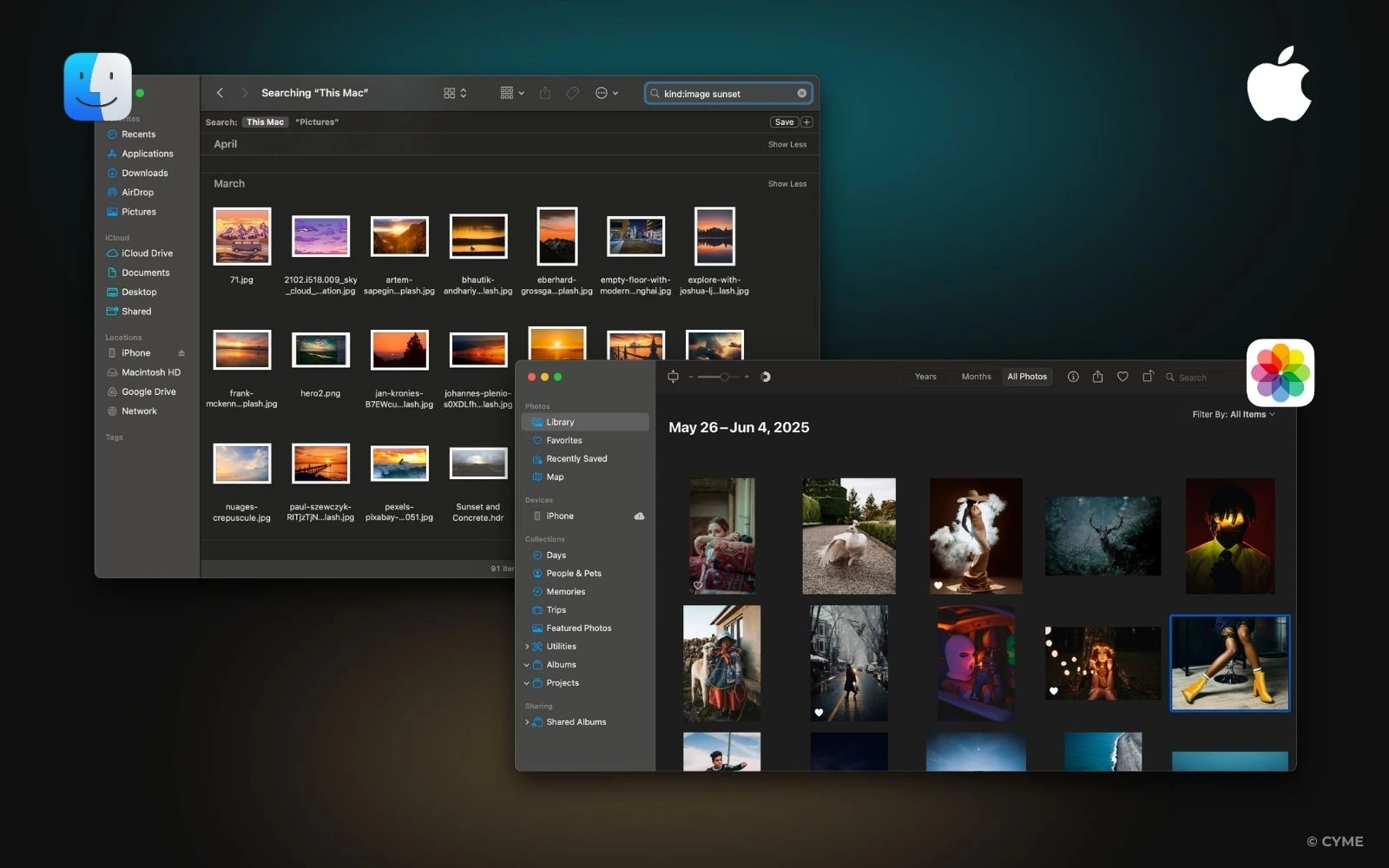
Decluttering feels hard because your photos aren’t in one place and your don’t know how to find all the photos stored on your Mac.
On macOS, images typically live across several layers: the Photos app and iCloud, Finder folders like Downloads or Documents, Lightroom or Capture One catalogs, and external drives you only connect occasionally.
Cleaning one folder may feel productive, but it rarely changes the bigger picture. Decluttering one corner doesn’t reduce the chaos if the rest of your library stays invisible.
This is why many photographers only realize the scale of the problem once they start identifying where all their photos are actually stored on their Mac. Until you regain that global view, decluttering remains guesswork—and often leads to frustration.
Once you understand that the issue isn’t deleting photos but seeing them clearly, the solution becomes obvious.
Peakto: The Sustainable Solution When Your Photo Library Is Split
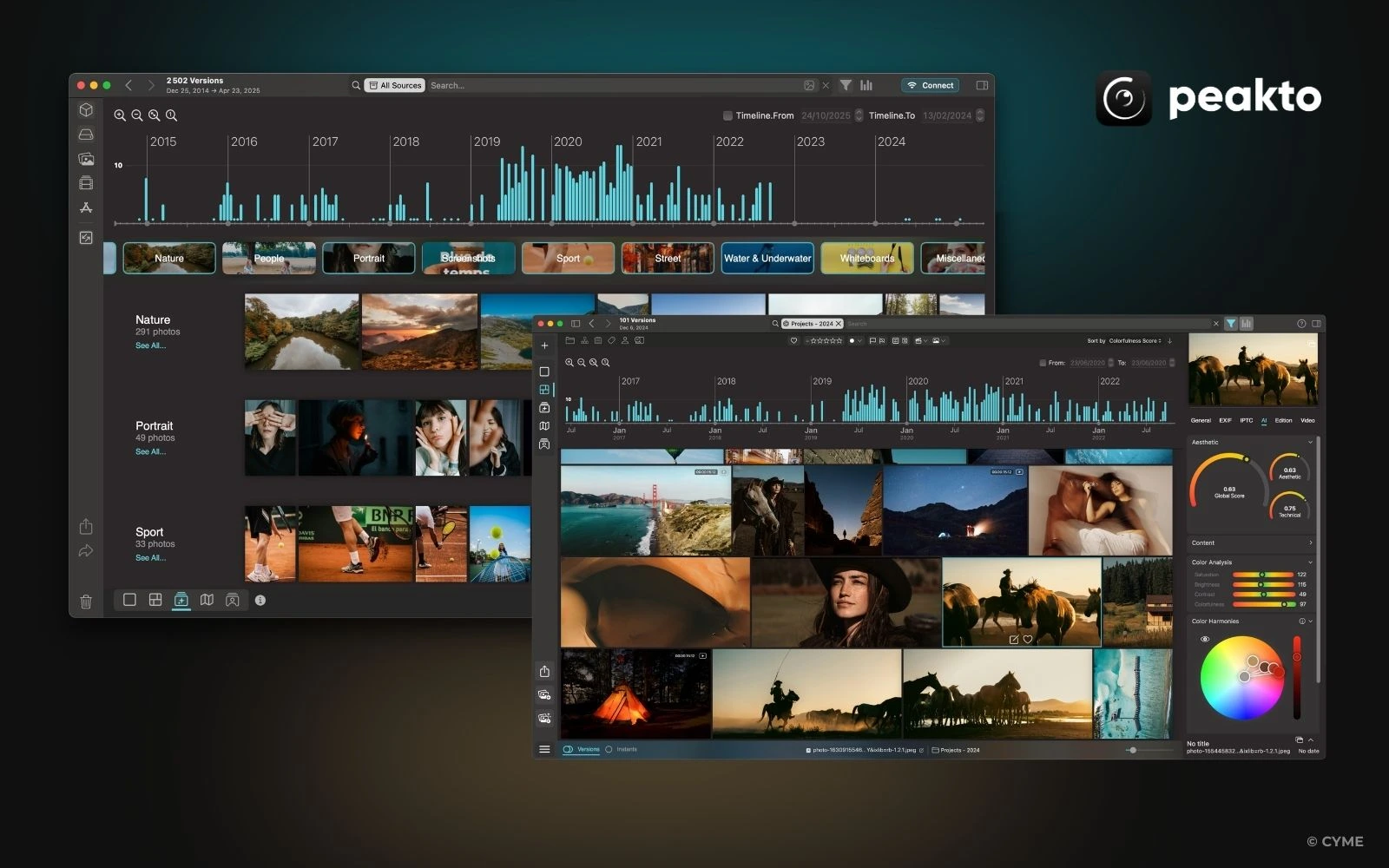
Decluttering becomes difficult the moment your photo library stops being a single collection—and on Mac, that happens very quickly.
Peakto our photo organizer is designed for this exact situation. Instead of forcing you to reorganize folders or merge catalogs, it reconnects everything you already use—Finder folders, the Photos app, Lightroom or Capture One catalogs, and external drives. Files stay where they are; nothing is duplicated or moved.
What this changes is visibility.
Once your entire library appears in a single visual space, Peakto can actively assist with decluttering:
- Duplicate detection: identifies exact duplicates and near-duplicates across your whole library, even when files are spread across different folders, catalogs, or drives.
- AI-assisted quality sorting: analyzes image quality (sharpness, exposure, overall visual balance) and surfaces your strongest images first, making selection faster.
- Visual comparison: lets you compare similar shots side by side, so decisions are based on context rather than guesswork.
This combination removes the main friction points of decluttering. It avoids spending time deleting photos as you’re no longer deleting blindly or judging photos one by one—you’re confirming the best version and letting go of the rest with confidence.
Because Peakto reflects your library continuously, decluttering also becomes a habit rather than a project. Short, focused sessions—after an import or on a specific shoot—are enough to keep your archive clean as it grows.
Other Tools Help, But They Don’t Solve the Whole Problem
Built-In macOS Tools (Finder & Apple Photos)
Built-in tools like Finder tags, smart folders, or albums in the Photos app are a good place to start. They work well for organizing images locally and handling small batches.
The limitation appears as soon as your library spans multiple sources. Finder and Photos don’t offer a unified view across folders, catalogs, and external drives, which makes it difficult to declutter at the scale where clutter actually exists.
Editing Software (Lightroom & Capture One)
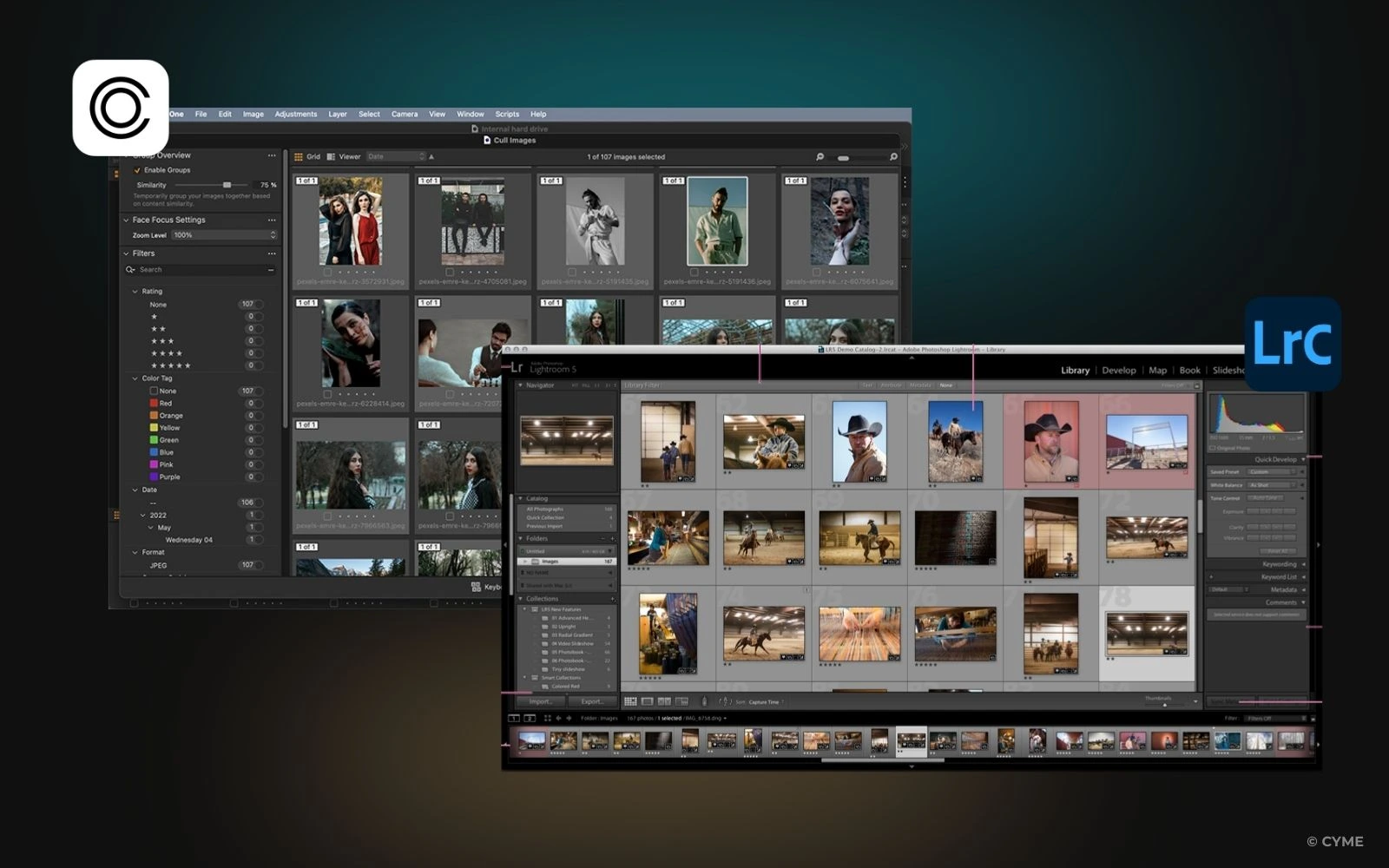
Editing applications such as Adobe Lightroom or Capture One are excellent for per-shoot selection and culling. They’re designed to help you choose the best images within a specific project or catalog. The limitation is structural: each catalog is its own silo. When photos are spread across several catalogs and drives, you end up decluttering fragments of your archive rather than the whole library so it is not the best way to view and explore your images.
Duplicate Cleaners (Gemini 2, PhotoSweeper)
Tools like Gemini 2 or PhotoSweeper are very effective when the problem is simple file-level duplication inside folders. They can free up disk space quickly.
However, they don’t understand projects, versions, or creative intent. Once your clutter comes from variations, exports, or repeated edits, these tools reach their limits, even more when you consider a place store your photos safely as they are linked to databases.
A Realistic Decluttering Workflow That Fits Real Photographers
Decluttering doesn’t have to take over your weekends. What works is a simple loop you can repeat without friction:
See everything → compare variations → keep what matters → let go of the rest → repeat.
Start by regaining visibility across your real sources.
Work in short sessions—20 to 30 minutes is usually enough to make progress without decision fatigue. Stop while decisions still feel easy.
Before major cleanups, make sure your storage and backup strategy is solid. Knowing your originals are safe makes letting go much easier.
Make space for your best work
Decluttering isn’t about perfection. It’s about clarity.
When your photo library is lighter, your images become easier to revisit, easier to share, and easier to build on creatively. It’s even easier for you to know how to rank photos on your Mac.
Start small: one shoot, one connected drive, one short session. Over time, the system holds—especially when your tools help you see the whole picture instead of isolated folders.
This approach fits naturally into a beginner-friendly way of organizing photos on Mac, where finding, selecting, cleaning, and enjoying your images becomes part of the same creative habit—not a task you keep postponing.